Preface
Google Docs and Word both let you talk instead of type, and a large number of people use one or the other most days without ever learning the parts that make either one actually work well. This guide covers both tools in full: turning voice typing on, the spoken commands that go beyond plain dictation, which browsers and versions genuinely support it, the languages each one understands, where your audio actually goes, and exactly what to do when the microphone stops listening for no obvious reason.
If you already know your tool is broken and just want the fix, jump straight to the Google Docs troubleshooting section or the Word troubleshooting section. Everyone else, start from the top.
What Voice Typing in a Document Editor Actually Is
Voice typing in a document editor is a feature built into a word processor that converts spoken words into typed text in real time, so a person can compose a document by talking instead of pressing keys. The editor captures audio from the microphone and sends it to a speech-recognition service, either running through a browser standard or on a company's own servers, and the resulting words are inserted at the cursor as you speak.
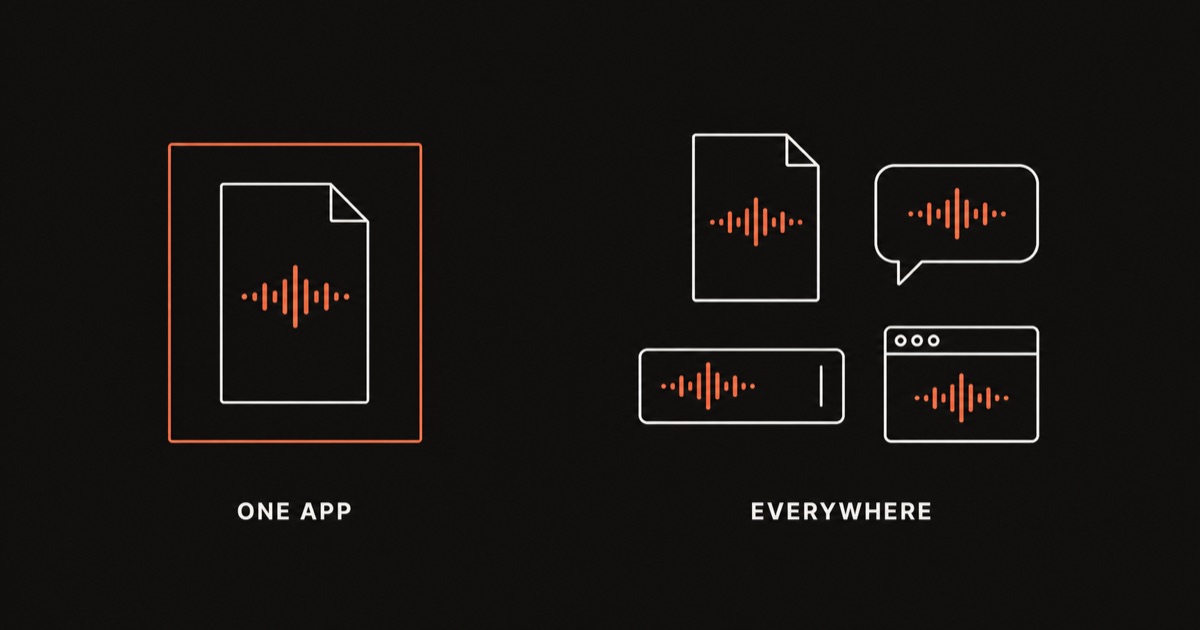
Google Docs and Word each ship their own version of this, called Voice typing and Dictate respectively, and each one works only inside its own editor rather than across every app on the device. Punctuation, formatting, and editing can also be controlled by voice in both, with commands such as "period" or "bold" recognised alongside plain dictation, though the exact vocabulary differs between the two, as the tables further down this guide show. That is different from a system-level dictation tool, which types into whatever application currently has focus, document editor or otherwise, and is covered later in this guide.
How to Turn On Voice Typing in Google Docs
Google Docs voice typing is built into the Docs editor itself. There is no setting to enable in advance and nothing to install. You turn it on inside the document you are working in.
Step 1: Open your document in a Chromium browser. Google Docs voice typing runs on the Web Speech API, which is a browser feature rather than a Google feature. In practice it works reliably in Chrome and other Chromium-based browsers such as Edge. If the menu option described below is missing, this is almost always why.
Step 2: Open the Tools menu. With your document open, click Tools in the menu bar at the top of the page.
Step 3: Click Voice typing. A small floating microphone box appears, usually near the left edge of the page. You can also open it directly with the keyboard shortcut Ctrl+Shift+S on Windows and ChromeOS, or Cmd+Shift+S on a Mac.
Step 4: Set your document language. Voice typing uses the language set for the document, not just your account language. Click the language dropdown inside the microphone box and confirm it matches the language you intend to speak.
Step 5: Click the microphone to start. The icon turns red and starts listening. Speak into an active area of the document with your cursor placed where you want the text to land.
Step 6: Allow microphone access if asked. The first time you use voice typing in a browser, it will ask for microphone permission. Click Allow. If you previously blocked it, you will need to reset that permission before voice typing can hear you at all.
Step 7: Keep the tab in focus. This is the detail almost nobody explains up front. Google Docs voice typing stops the instant you click into a different tab or window. It is not a bug, it is how the feature is built, and it means you cannot check a message or glance at another document while dictating.
How to Turn On Dictate in Microsoft Word
Word's dictation feature is called Dictate, and it lives directly on the ribbon rather than in a settings menu.
Step 1: Sign in to Microsoft 365. Dictate requires an active Microsoft 365 sign-in on Word for Windows and Word for Mac. Word for the web also requires a Microsoft account. A perpetual, non-subscription copy of Word may not show the Dictate button at all, since exact availability depends on your version and licence.
Step 2: Find the Dictate button on the Home tab. Open the Home ribbon and look toward the right side for a button labelled Dictate, shown as a microphone icon. Ribbon layouts shift between Word versions, so if it is not immediately visible, check that your ribbon is not collapsed.
Step 3: Click Dictate to start. Click into the document where you want text to appear, then click the Dictate button. The icon turns red to show it is listening, and a small settings gear appears near it.
Step 4: Grant microphone permission. The first time you dictate, Windows or macOS will ask for microphone access for Word. Approve it. Without this permission, clicking Dictate does nothing.
Step 5: Choose your spoken language. Click the gear icon next to the Dictate button to open dictation settings, where you can pick the language you intend to speak and toggle automatic punctuation.
Step 6: Speak naturally. Talk at a normal pace with your cursor in the text. Word transcribes as you go, applying automatic punctuation if you left it enabled.
Step 7: Click Dictate again, or say "stop dictation," to end the session.
Sign in and open the Home tab1 min
Dictate needs an active Microsoft 365 sign-in on desktop and the web. Once signed in, open the Home ribbon and look for the Dictate button in the Voice group.
Click Dictate and allow the microphone30 sec
Click into the document, click Dictate, and approve the microphone permission prompt the first time it appears.
Speak, then click Dictate again to stopOngoing
Talk at a natural pace with your cursor placed in the text. Click the Dictate button a second time, or say "stop dictation," when you are finished.
Starting, Pausing, and Stopping Dictation in Each Tool
Once each tool is switched on for the first time, day-to-day use comes down to a few habits.
In Google Docs, click the microphone icon to start, and click it again, press Escape, or click outside the microphone box to stop. The icon changes colour, from grey to red, so you can tell at a glance whether it is listening. Moving your cursor to a different part of the document while the mic is active works fine, since dictation follows the cursor rather than a fixed location.
In Word, click Dictate to start and click it again to stop, or say "stop dictation" out loud. The button itself turns red while recording. Microsoft's own support documentation also lists a keyboard shortcut, Alt+` (the backtick key), to toggle the microphone on and off without reaching for the ribbon, which is the fastest way to resume after a pause. See Microsoft's Dictate documentation for the exact wording. Unlike Google Docs, Word's dictation state generally survives you scrolling or clicking within the same document, though switching to a different application still ends the session in both tools.
Neither tool handles a long thinking pause gracefully. Both are built around cloud speech services that treat extended silence as the end of a turn, and both eventually stop listening if you go quiet for too long. That behaviour, and how to work around it, is covered in the troubleshooting sections below.
Spoken Punctuation and Formatting Commands: Google Docs vs. Word
This is the part of each tool that most people never learn, and it is the difference between dictation that needs a cleanup pass and dictation you can send as-is. Both Google Docs and Word let you insert punctuation and control formatting by speaking specific phrases, and the vocabularies are not identical.
| What you want | Say in Google Docs | Say in Word |
|---|---|---|
| Period | "period" | "period" or "full stop" |
| Comma | "comma" | "comma" |
| Question mark | "question mark" | "question mark" |
| Exclamation point | "exclamation point" | "exclamation point" or "exclamation mark" |
| New line | "new line" | "new line" |
| New paragraph | "new paragraph" | "new paragraph" |
| Quotation marks | "open quote" / "close quote" | "open quotes" / "close quotes" |
| Select text | "select [word/paragraph/all]" | Not a general command; use "select [text]" in limited cases |
| Bold selected text | "bold" | "bold that" |
| Italicize selected text | "italics" | "italicize that" |
| Underline selected text | "underline" | "underline that" |
| Delete last word or phrase | "delete [word]" or "backspace" | "delete" or "backspace" |
| Undo | "undo" | Not a dedicated voice command; use Ctrl+Z |
| Stop listening | Click the mic, or press Escape | "stop dictation," or click Dictate again |
The pattern worth noticing: Google Docs treats voice typing as a small command language layered on top of dictation, with selection and navigation commands built in. Word leans more heavily on "that" as a pointer to whatever you just said or selected, which is quick once you are used to it but less precise for editing something you dictated a while ago. Neither vocabulary transfers to the other tool, so switching between them mid-project means relearning a handful of phrases.
Editing and Formatting Text by Voice in Google Docs
Google Docs supports a genuinely large set of editing commands that most users never discover, because the feature is easy to treat as "dictation" and nothing else. A few worth learning deliberately:
- "Select [word]" or "select [paragraph]" highlights that text so a following command, such as "bold," applies to it.
- "Select all" highlights the entire document.
- "Go to the end of the paragraph" or "go to the beginning of the line" moves your cursor without touching the keyboard.
- "Insert bullet list" or "insert numbered list" starts a list at your cursor.
- "Align center," "align left," "align right" changes paragraph alignment.
- "Apply heading 1" (and headings 2 through 6) applies a heading style to the current line or selection.
- "Copy" and "paste" work as voice commands, tied to whatever is currently selected.
- "Delete" removes a current selection; "delete [word]" removes a specific word without needing to select it first.
The practical way to use these is to dictate your text first, then go back and clean it up by voice: select a heading line, say "apply heading 2," select a phrase you want emphasised, say "bold," and so on. It is slower than a keyboard shortcut for one-off edits, but it means you never have to touch the mouse during a long dictation session.
Editing and Formatting Text by Voice in Word
Word's Dictate feature supports a smaller but still useful set of formatting and editing commands, most of which act on "that," meaning your most recent selection or the text you just dictated.
- "Bold that," "italicize that," "underline that" apply the corresponding formatting to your last dictated phrase or current selection.
- "Strikethrough that" applies strikethrough formatting.
- "Delete" removes the last word spoken; repeating the command deletes further back.
- "New line" and "new paragraph" control spacing the same way pressing Enter would, once or twice.
- "Tab" inserts a tab character, useful for indenting a new list item.
- Automatic punctuation, toggled from the settings gear next to the Dictate button, adds commas and periods based on your pauses, similar to how autopunctuation behaves on a phone keyboard.
Word's editing vocabulary is intentionally narrower than Google Docs. If you need to reformat a document heavily by voice, expect to fall back on the mouse and ribbon for anything beyond bold, italic, underline, and strikethrough. Word treats Dictate primarily as a way to get words onto the page, with light formatting as a bonus rather than the main feature.
Which Browsers and App Versions Actually Support Each Tool
Google Docs voice typing is a browser feature before it is a Google feature. It is built on the Web Speech API, which means the browser, not Google, decides whether it works at all. Chrome and Edge, both Chromium-based, support it reliably. Safari and Firefox are inconsistent, and if the Voice typing option is missing from your Tools menu entirely, an unsupported browser is the most likely reason. ChromeOS, being Chrome by definition, works out of the box.
Word's Dictate button appears across Word for Windows, Word for Mac, and Word for the web, but the requirement underneath differs by version. Desktop Word generally needs an active Microsoft 365 subscription rather than a one-time-purchase licence, since dictation is delivered as part of the ongoing service rather than the installed application. Word for the web needs a Microsoft account signed in, with a comparable feature set to desktop. Because Microsoft updates ribbon layouts and licensing terms between releases, treat the exact menu path and availability in your version as something to confirm on the day, rather than something that stays fixed for years.
Voice Typing in Google Docs by Device
Google Docs Voice typing, the Tools menu feature described above, is a Chrome desktop browser feature built on the Web Speech API. It does not exist in that form on a phone or tablet, which is a common source of confusion for anyone who goes looking for it in the mobile app's menus.
Android. The Google Docs Android app has no Voice typing entry anywhere in its menus. Instead, tap into the document, then tap the microphone key on Gboard's own voice typing feature, the on-device keyboard most Android phones use. That is Gboard doing the listening, not Docs, so it behaves exactly as it would in any other Android app rather than matching the desktop editing commands covered above.
iPhone and iPad. The same pattern applies. There is no Docs-specific voice button on either device. Tap the dictation key on the iOS keyboard while the cursor is in the document, and iOS handles the transcription the same way it would in Mail, Messages, or anywhere else you type.
Chromebook. This is the one case where the full desktop feature applies unchanged, since ChromeOS runs Chrome natively rather than a separate mobile app. Tools, then Voice typing, then the microphone icon, works exactly as described earlier in this guide, with no keyboard-level substitute involved.
None of the three mobile paths give you the "select paragraph" or "apply heading 2" command vocabulary described earlier for desktop Docs. Those commands belong to the Web Speech API implementation inside the Chrome browser, not to whichever keyboard is doing the listening on a phone or tablet.
Voice Typing in Google Slides Speaker Notes
The same underlying feature extends to Slides, where it is called Voice type speaker notes rather than Voice typing. Open a presentation, click Tools, then Voice type speaker notes, or use the same Ctrl+Shift+S shortcut (Cmd+Shift+S on a Mac) used in Docs. A microphone box opens next to the speaker notes pane rather than over the slide itself, and clicking it starts dictation into the notes.
The punctuation commands, "period," "comma," "new line," behave the same way they do in Docs, since Google documents both features on the same help page. It only dictates into the speaker notes field, not onto a slide's text boxes or titles, so writing the visible content of a slide by voice still means typing it manually or dictating in Docs and pasting the result across.
Languages Supported in Google Docs and Word
Google Docs voice typing itself transcribes speech in a long list of languages, selectable from the language dropdown inside the microphone box. The formatting and editing commands covered above, however, are English-only: both your Google account language and the document language need to be set to English for commands like "bold" or "new paragraph" to be recognised as commands rather than transcribed as literal words.
Word's Dictate supports a smaller set of languages with strong, actively maintained support, including variations of English, French, German, Italian, Spanish, and Chinese, alongside a longer list of additional languages with more limited support. Microsoft has been steadily expanding this list, so treat any specific count as a snapshot rather than a permanent figure, and check the language dropdown next to the Dictate button for what is currently available to your account.
If your work spans multiple languages in the same session, both tools expect you to finish a sentence, switch the language setting, and continue, rather than detecting a language change mid-sentence automatically.
Privacy: Where Your Voice Data Actually Goes
Neither tool keeps this a secret, though neither puts it in large text either. Google Docs voice typing sends your audio to Google's servers for transcription through the Web Speech API infrastructure your browser connects to. Word's Dictate sends your audio to Microsoft's speech processing servers as part of the Microsoft 365 service. In both cases, your voice leaves your device before it becomes text on the page.
For most everyday writing, this is simply how both tools work and not a reason to avoid them. When the content is genuinely sensitive, an on-device tool that never sends audio anywhere removes the question entirely rather than requiring you to trust a policy document.
Troubleshooting Google Docs Voice Typing by Symptom
Voice typing stops after a pause
This is expected behaviour rather than a fault. Google Docs voice typing auto-stops after a period of silence, commonly reported in the twenty to thirty second range, and it also stops the instant your browser tab loses focus. For the full breakdown of why this happens and every fix that helps, see our dedicated guide on Google Docs voice typing that keeps stopping.
Microphone not detected
Check your browser's microphone permission first: click the padlock or camera icon in the address bar and confirm microphone access is set to Allow for docs.google.com. Then check your operating system's privacy settings to confirm the browser itself has microphone access at the system level, since a browser can have its own permission granted while the OS still blocks it.
The Voice typing option is missing from the Tools menu
This almost always means an unsupported browser. Open the document in Chrome or Edge and check again. If it is still missing in a Chromium browser, try disabling extensions or testing in an incognito window, since some extensions interfere with the feature.
Works in one browser but not another
This is expected, not a bug. Voice typing depends on the Web Speech API, which Chrome and Edge implement fully and other browsers implement partially or not at all. Standardise on Chrome or Edge for any document where you plan to dictate.
Poor accuracy
Confirm the document language matches the language you are speaking, move to a quieter room, and use a headset or external microphone rather than a laptop's built-in mic if you have one. Speaking in complete sentences rather than short fragments also gives the recognizer more context to work with.
Permission errors after allowing the microphone once
Browsers occasionally reset site permissions after an update. Re-check the microphone icon in the address bar, and if the issue persists, try a fresh browser profile to rule out a corrupted settings file.
Troubleshooting Word Dictate by Symptom
Dictation stops after a pause
Also expected rather than a bug. Word's Dictate is designed to interpret an extended silence as the end of a session, and there is no built-in setting to disable that behaviour. Our dedicated guide on Word Dictate that keeps turning off covers every practical fix and the exact silence window Microsoft has confirmed.
Microphone not detected
Confirm Word has microphone permission at the operating system level: on Windows, check Settings, then Privacy, then Microphone, and ensure desktop apps are allowed access. On a Mac, check System Settings, then Privacy and Security, then Microphone, and confirm Word is toggled on.
The Dictate button is missing from the ribbon
Confirm you are signed in to Microsoft 365 with an active subscription rather than a one-time-purchase licence, since the button is tied to the subscription service rather than the installed application. Also check that your ribbon is not collapsed, hiding buttons on the right side of the Home tab.
Works in Word for the web but not the desktop app, or the reverse
This usually traces back to which account is signed in and whether that account has an active Microsoft 365 subscription attached, since desktop and web can be signed in with different accounts. Sign out and back in with the same account on both, then confirm the subscription status in your Microsoft account settings.
Poor accuracy
Check your microphone input level in Windows or macOS sound settings, reduce background noise, and confirm automatic punctuation is configured the way you expect in the Dictate settings gear, since misconfigured punctuation settings can look like an accuracy problem when the words themselves are actually correct.
"Oops, there was a problem with Dictation" error
This message generally points to a microphone permission issue or a dropped connection to Microsoft's speech service. Re-check microphone permissions first, then confirm your internet connection is stable, since Dictate has no offline fallback.
A Tool That Works the Same Way in Every App
A system-level voice tool solves the exact gap described above, because it does not live inside any single application. Yaps types into whatever application currently has focus, which includes Google Docs in any browser, not only Chrome, and Word, alongside Slack, email, a browser form, or anything else with a text cursor.
The bigger structural difference is where the work happens. Yaps runs its speech recognition and text cleanup on the device itself, and it works fully offline once installed. There is no cloud service to reach, so there is no silence timeout imposed by a server deciding your turn is over, and no tab-focus rule to trip over.
Learning two command vocabularies for two apps is a workaround. A voice tool that works the same way everywhere is the actual fix.
Yaps
You start Yaps with a hotkey rather than a menu click. On macOS it is the Fn key, on Windows it is Ctrl+Win, and on Linux it is a double-tap of Ctrl, and every one of those is rebindable if you prefer something else. On mobile, you tap the dictation button on the Yaps keyboard instead. Yaps runs on Windows, macOS on both Apple Silicon and Intel, Linux, Android, iPhone, and iPad, so the same habit works regardless of which device you happen to be on. Desktop starts with a 7-day free trial.
Frequently Asked Questions
How do I turn on voice typing in Google Docs?
Open your document in Chrome or another Chromium-based browser, click Tools, then Voice typing, and click the microphone icon that appears to start. You can also open it directly with Ctrl+Shift+S on Windows and ChromeOS, or Cmd+Shift+S on a Mac.
How do I dictate in Word?
Sign in to Microsoft 365, open the Home ribbon, and click the Dictate button, shown as a microphone icon toward the right side of the tab. Click into your document first so the text lands where you want it, then click Dictate to start.
Why does Google Docs voice typing keep stopping?
It stops after roughly twenty to thirty seconds of silence, and it stops immediately if your browser tab loses focus. Both are intentional design choices rather than bugs. See our full guide on Google Docs voice typing that keeps stopping for every fix.
Why does Word Dictate turn off by itself?
Word's Dictate is built to treat an extended silence as the end of a session, and Microsoft has confirmed this behaviour directly on its own support forum. There is no setting to switch it off. Our guide on Word Dictate that keeps turning off covers the fixes that actually help.
What browser does Google Docs voice typing work in?
Chrome and Edge, both Chromium-based browsers, support it reliably. Safari and Firefox are inconsistent, and if the Voice typing option is missing from your Tools menu, an unsupported browser is the most common cause.
Does Word Dictate work in Word for Mac?
Yes. Dictate is available in Word for Windows, Word for Mac, and Word for the web, though desktop versions generally require an active Microsoft 365 subscription rather than a one-time-purchase licence. Check the Home ribbon for the Dictate button once signed in.
What are the spoken punctuation commands for Google Docs?
Say "period," "comma," "question mark," "exclamation point," "new line," or "new paragraph" to insert the corresponding punctuation or spacing. Google Docs also supports editing commands like "select [word]," "bold," and "delete [word]," which Word does not match one for one.
What are the spoken punctuation commands for Word?
Word recognises "period" or "full stop," "comma," "question mark," "exclamation point," "new line," and "new paragraph." Formatting commands such as "bold that" and "underline that" apply to your last dictated phrase or current selection.
Can I bold or select text by voice in Google Docs?
Yes. Say "select [word]" or "select paragraph" to highlight text, then say "bold," "italics," or "underline" to format the selection. Google Docs also supports heading styles by voice, such as "apply heading 2."
Is Google Docs voice typing private?
Your audio is sent to Google's servers for transcription through the Web Speech API your browser uses, so it is not processed locally. This is a reasonable trade-off for routine writing, but worth avoiding for privileged, unpublished, or regulated content, where an on-device tool removes the question entirely.
Is Word Dictate private?
Your audio is sent to Microsoft's speech processing servers as part of the Microsoft 365 service, rather than processed on your PC or Mac. The same trade-off applies: fine for everyday documents, worth reconsidering for anything genuinely sensitive.
What languages does Google Docs voice typing support?
Transcription itself supports a long list of spoken languages selectable in the microphone box. The editing and formatting commands covered in this guide, however, only work when both your Google account language and the document language are set to English.
What languages does Word Dictate support?
Word maintains strong support for English and several other languages, including variations of French, German, Italian, Spanish, and Chinese, alongside a longer list with more limited support. Microsoft continues expanding this list, so check the language dropdown next to the Dictate button for what is currently available.
Is there a way to dictate into any app, not just Google Docs or Word?
Yes. A system-level tool like Yaps types wherever your cursor is, across Google Docs in any browser, Word, email, chat, and everything else, rather than working inside one application only. Speech recognition and cleanup run on the device, so it also works offline.