
Preface
You pause to think for a few seconds, and Word Dictate switches itself off. You start talking again, and nothing lands, because the little red mic already stopped listening. If you dictate in Microsoft Word, you have almost certainly hit this: dictation that quits the moment you stop to breathe.
This is not a bug you can patch away. Word Dictate turning off on silence is behaviour Microsoft built on purpose, and it stacks on top of a few other things that can kill a session mid-sentence. The fixes are first, below. The explanation of why it keeps happening, and the on-device alternative that simply never auto-stops on a thinking pause, come after.
Start Here: The Fixes for Word Dictate
Match the symptom first. It saves you working a list that was never going to help.
| Symptom | What it actually is | Fix |
|---|---|---|
| The red microphone turns blue on its own, silently, mid-session | The deliberate silence timeout | No setting exists. Restart with Alt and the backtick key, or use a tool without a silence timer. |
| The Dictate button is greyed out or missing from the ribbon | No active Microsoft 365 subscription, or you are signed out | Check File, Account. Dictate is not in perpetual Office 2016 or 2019. |
| "Oops, there was a problem with Dictation" | Word cannot reach your microphone or Microsoft's speech servers | Grant microphone permission, including "Let desktop apps access your microphone," then check your VPN or firewall. |
| "Audio stream interrupted" | A hardware or USB-level dropout | Unplug and replug the mic, change USB port, or try another microphone. |
| It cuts out in the middle of a sentence, not on a pause | Connection instability between you and the speech service | Switch to Ethernet, disable the VPN, and close Teams or Zoom if they hold the mic. |
| Dictate works in the desktop app but not in Word for the web | Browser-level microphone permission for the Office site | Allow the mic in the address bar. The toggle shortcut in Word for the web is Ctrl and the backtick key, not Alt. |
Then work through the list below in order. The first four solve most "keeps turning off" and "not working" reports. The rest handle the stubborn cases.
Confirm you are online and signed inFirst
Word Dictate is cloud-only. Check your connection and verify you are signed into an active Microsoft 365 subscription under File > Account. Reconnect Wi-Fi or switch to Ethernet if the connection is flaky. This is also the answer when the Dictate button is greyed out or missing from the ribbon entirely: Dictate is a Microsoft 365 feature and does not exist in perpetual Office 2016 or 2019.
Grant microphone permissionsCommon
Settings > Privacy & security > Microphone. Turn on Microphone access, Let apps access your microphone, and Let desktop apps access your microphone. On Mac, allow Word under System Settings > Privacy & Security > Microphone.
Set and test the right microphoneSilence cause
Make it the default input device, raise the input level so quiet speech is not read as silence, and run the Windows Recording Audio troubleshooter under Settings > System > Troubleshoot > Other troubleshooters.
Rule out the hardwareStream errors
Unplug and replug your mic, try a different USB port, or swap in another microphone to clear an "audio stream interrupted" error.
Work around the silence timeoutPartial only
Keep a steady flow of speech or dictate in shorter bursts, and use the toggle shortcut to restart quickly rather than reaching for the mouse. In the Word desktop app on Windows that is Alt and the backtick key, the one left of "1"; in Word for the web, users report Ctrl and the backtick key instead. There is no native setting to disable the auto-stop on either.
Disable a VPN or firewall temporarilyIf it drops
Turn off your VPN or firewall to confirm it is not blocking the connection to Microsoft's speech servers, then re-enable it and add an exception. Also disable conflicting Word add-ins and close apps that grab the mic (Teams, Zoom).
Update or repair OfficeLast resort
File > Account > Update Options > Update Now, then run an Online Repair under Settings > Apps > Microsoft 365 > Modify. Install pending Windows updates too.
Why Word Dictate keeps turning off
There is not one cause. There are several, and they compound. Here is the honest chain, sourced from Microsoft's own documentation and support threads.
It stops on silence, by design. A Microsoft moderator confirmed on the official Q&A forum that "the dictation functionality is designed to interpret pauses as the end of a dictation session, and it automatically stops after a certain period of silence." There is no native setting to switch it off, and users have complained about it for over a decade.
Be careful with the exact number, because the internet is not consistent on it. Users in that thread report roughly 30 seconds; other Microsoft community answers cite windows as short as 5 or 15 seconds; and the surface matters, since Word for the web, the Windows desktop app and Word for Mac do not all behave identically. Microsoft has never published the figure. What is confirmed, in Microsoft's own words, is the behaviour: it stops after a period of silence, on purpose, and you cannot change it. Anyone quoting a precise number to you, this post included, is quoting user reports rather than documentation.
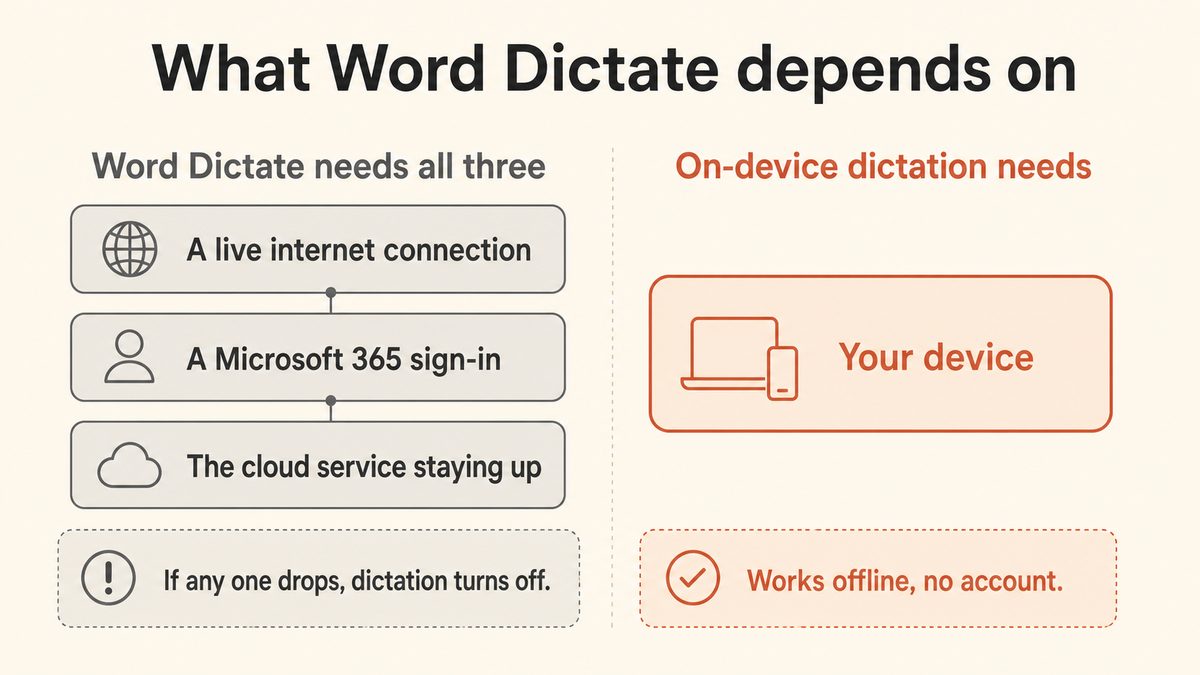
It is cloud-based and needs a reliable internet connection. Microsoft's own documentation states that Dictate "lets you use speech-to-text to author content in Microsoft 365 with a microphone and reliable internet connection." Your speech is processed on Microsoft's servers, not on your PC. So a dropped Wi-Fi packet, a flaky hotel connection, or a VPN hiccup ends the session in the middle of a word.
It requires a Microsoft 365 subscription and an active sign-in. Dictate is not available in perpetual Office 2016 or 2019 without a subscription. If your subscription lapses, or you get quietly signed out, dictation stops working entirely.
Your microphone can trip the silence timer early. A low input level, a muted mic, or the wrong default input device makes Word read your quiet passages as silence and fire the auto-stop sooner. Missing microphone permissions produce the "Oops, there was a problem with Dictation" error instead.
The silence timeouts, side by side
Nobody publishes these numbers next to each other, so here they are. Windows built-in Voice Typing (Win+H) shares the same cloud dependency and the same stop-on-silence behaviour, so switching to it does not solve the problem.
| Tool | Yaps | Word Dictate | Windows Voice Typing (Win+H) |
|---|---|---|---|
| Auto-stops on silence? | No cutoff | Yes (users report 5 to 30 sec) | Yes (users report 5 to 10 sec) |
| Needs internet? | No, on-device | Yes, always | Yes, always |
| Needs Microsoft 365 sign-in? | No account | Yes | No |
| Where speech is processed | Your PC | Microsoft cloud | Microsoft cloud |
| Works in Word and every other app? | Every app | Office only | Most apps |
Users report that the Win+H pause window lengthened from around 5 seconds to around 10, which helps a little, but the cutoff is still there. Neither figure is documented by Microsoft, and there is no setting in either tool to keep dictation open indefinitely.
The durable fix: dictation that never auto-stops
Every fix above manages a limitation. None of them removes it. Word Dictate will still stop when you pause to think, still need a live internet connection, and still send your audio to Microsoft's cloud, because that is how the feature is built.
If the pause-to-think cutoff is the thing that keeps breaking your flow, the durable fix is a dictation tool that does not have a silence timeout at all. That is the wedge for Yaps. Yaps runs speech-to-text on your own PC, so there is no cloud session to time out, no internet dependency, and no Microsoft 365 sign-in.
- Stops after roughly 30 seconds of silence, by design, with no way to disable it.
- Cloud-only: a flaky connection or VPN kills the session mid-sentence.
- Requires an active Microsoft 365 subscription and sign-in.
- Sends your speech audio to Microsoft's servers to be transcribed.
- Types into Office apps only, not your browser, email, or chat.
- No silence timeout. Pause to think for as long as you like; it keeps listening.
- Runs on-device, so it works on a plane, on hotel Wi-Fi, or fully offline.
- No Microsoft 365 subscription or sign-in to keep active.
- Your audio never leaves your PC. There is no server to send it to.
- Types into Word and every other app: browser, email, Slack, your code editor.
Here is how it works in practice. You push the Yaps hotkey (Fn on macOS, Ctrl and the Windows key on Windows, or a double-tap of Ctrl on Linux, all rebindable in settings), you talk, and clean text appears in whatever field your cursor is in. Because the speech model runs on your machine, there is no round trip to a server and nothing to drop. Stop mid-sentence, stare out the window for two minutes, then finish your thought. Yaps is still listening.
The fix for "dictation keeps turning off" is not a better filler sound. It is dictation that was never designed to turn off on silence in the first place.
Yaps also cleans up the raw transcript on-device: it strips filler words and self-corrections, fixes punctuation and capitalisation, and auto-formats lists. So the "um, so, okay" filler you used to trick Word's silence timer is not a problem here, because you never needed the filler and Yaps would clean it out anyway. Dictation is multilingual too, with about 25 languages auto-detected from your speech, so you do not switch a language setting to talk in another language.
Use Yaps when you want to
- Pause to think without dictation quitting on you.
- Dictate offline: on a plane, on flaky Wi-Fi, or in a locked-down network.
- Keep your voice on your own machine for private or regulated work.
- Dictate into apps beyond Office: browser, email, chat, your IDE.
- Skip the Microsoft 365 subscription and sign-in entirely.
Word Dictate is fine when you
- Only ever dictate short bursts inside Word or Outlook.
- Always have a stable, fast internet connection.
- Already pay for Microsoft 365 and stay signed in.
- Do not mind your audio being processed in Microsoft's cloud.
- Never need to stop and think for more than a few seconds.
Yaps ships on Android, iPhone, iPad, Windows, macOS and Linux, plus a Chrome "Save to Yaps" extension. It comes with a 7-day free trial that unlocks every feature, which is plenty to test whether the no-cutoff difference matters to you. For the complete rundown of dictation apps with no time limit, see the full guide to dictation apps with no time limit. If you are specifically leaving Windows Speech Recognition or Voice Typing behind, the Windows Speech Recognition alternative guide covers that path, and the best dictation software for Windows roundup ranks the field.
Dictation that keeps listening while you think.
Install Yaps for Windows or Mac for on-device dictation with no silence timeout, no internet dependency, and no Microsoft 365 sign-in. It types into Word and every other app. Also on Android, with a 7-day free trial.
Frequently Asked Questions
Why does Microsoft Word dictation keep turning off?
Word dictation keeps turning off mainly because it is designed to stop after a period of silence, roughly 30 seconds, which a Microsoft moderator confirmed is intentional and cannot be disabled. On top of that, Dictate is a cloud service, so an unstable internet connection, a lapsed Microsoft 365 subscription, or a low or muted microphone can each end a session mid-sentence. Fix the connection, sign-in, and mic, and it behaves. The silence cutoff, however, stays, because that part is built in on purpose.
How do I stop Word Dictate from switching off when I pause to think?
There is no native setting to stop Word Dictate switching off during a pause, because the silence timeout is deliberate. The common workarounds are to keep a steady flow of speech, make a filler sound while you think, or dictate in shorter bursts and restart with the ALT + backtick toggle. The clean fix is to use an on-device tool without a silence timeout, such as Yaps, which keeps listening no matter how long you pause.
Does Word Dictate work offline or without internet?
No. Word Dictate is a cloud service and Microsoft's own documentation requires "a microphone and reliable internet connection." Your speech is sent to Microsoft's servers for transcription, so it will not work on a plane, on unreliable Wi-Fi, or on a network that blocks outbound traffic. If you need offline dictation, use an on-device tool like Yaps, which processes speech entirely on your own PC.
Do I need a Microsoft 365 subscription to use Dictate in Word?
Yes. Dictate requires an active Microsoft 365 subscription and sign-in, and it is not available in perpetual Office 2016 or 2019 without one. If your subscription lapses or you are signed out, dictation stops working. Tools like Yaps require no Microsoft account for core dictation, so there is no Office subscription to lapse.
How long can you dictate in Word before it stops, and how many seconds of silence trigger it?
You can dictate for as long as you keep talking; it is silence, not total length, that ends the session. Microsoft has never published the number. Users on Microsoft's own Q&A forum report roughly 30 seconds for Word Dictate, while other community answers cite windows as short as 5 or 15 seconds, and Windows Voice Typing (Win+H) is generally described as shorter still, around 5 to 10 seconds. What Microsoft has confirmed is the behaviour rather than the timing: dictation is designed to read a pause as the end of a session and stop. Neither tool exposes a setting to extend or disable it, so any real thinking pause ends the session. On-device tools without a silence timeout, like Yaps, keep listening indefinitely.
Why does Word say "Oops, there was a problem with Dictation"?
That error usually means Word cannot access your microphone or cannot reach Microsoft's speech servers. Check that microphone permissions are on under Settings > Privacy & security > Microphone (including "Let desktop apps access your microphone"), that the right mic is set as default and not muted, and that your internet connection and any VPN or firewall are not blocking the service. Updating or running an Online Repair on Office clears the error in stubborn cases.
Is Win+H the same as Word Dictate, and does it also time out?
They are different features but share the same weakness. Win+H is the Windows built-in Voice Typing tool, and Word Dictate is the button inside Microsoft 365 apps. Both are cloud-based and both auto-pause on silence, so switching from Word Dictate to Win+H does not remove the stop-on-silence problem. Win+H's timeout is about 10 seconds versus Word's roughly 30.
Where does my voice go when I use Word Dictate, and is it private?
Your speech audio is sent to Microsoft's cloud servers to be transcribed, because Dictate does not process speech on your device. Microsoft states the service does not store your audio or transcribed text and uses utterances only to return results, but the audio still leaves your PC to be processed. If you want your voice to never leave your machine, use an on-device tool like Yaps, where dictation is processed locally and no audio is uploaded.
What is the best offline alternative to Word Dictate with no time limit, and can I use it without a Microsoft account?
Yaps is the strongest offline, no-time-limit alternative to Word Dictate, and it needs no Microsoft 365 subscription for core dictation. It runs speech-to-text on your own PC with no silence cutoff and no internet dependency, and it types into Word plus every other app on your system. It also cleans up the transcript on-device by removing filler words and fixing punctuation. For the full comparison, see the guide to dictation apps with no time limit.
Why is the Dictate button greyed out or missing in Word?
The Dictate button is greyed out or absent when you do not have an active Microsoft 365 subscription signed in. Dictate is a Microsoft 365 feature and it does not exist in perpetual Office 2016 or Office 2019. Check File, then Account, and confirm an active subscription is listed and you are signed in with it. If the subscription is fine, the other two causes are being offline, since Dictate will not work without a connection, and a microphone that Word cannot see because permission is denied in your system privacy settings.
What is the keyboard shortcut for Dictate in Word?
In the Word desktop app on Windows, Alt and the backtick key, the one to the left of "1", toggles the Dictate microphone on and off. In Word for the web, users report Ctrl and the backtick key instead. It is a genuinely useful shortcut here, because the silence timeout means you restart dictation constantly, and reaching for the ribbon button every time is what makes the interruption feel so heavy.
Why does the microphone in Word turn from red to blue on its own?
Red to blue is Word telling you the dictation session ended, and it does it without a sound, which is why people keep talking into a stopped mic. The usual trigger is the silence timeout firing after a pause. The other trigger is the connection to Microsoft's speech service dropping mid-sentence, since Dictate is cloud-based, and a VPN, a flaky Wi-Fi link or a firewall rule can all cause that. If it happens while you are still speaking rather than during a pause, treat it as a connection problem, not a timeout.
Does Word Dictate work on Mac and in Word for the web?
Yes. Dictate is available in Word for Microsoft 365 on Windows and Mac, in Word for the web, and in the mobile apps, and it needs the same active subscription and internet connection everywhere. The differences that catch people out are the shortcut, Alt and backtick on the Windows desktop app versus Ctrl and backtick reported in Word for the web, and the permission model. On Mac you allow Word under System Settings, Privacy & Security, Microphone; in the browser you allow the microphone from the address bar for the Office site.
What does "audio stream interrupted" mean in Word dictation?
It means the audio feed from your microphone broke at the hardware or driver level, rather than anything going wrong with Word or your subscription. Unplug and replug the microphone, move it to a different USB port, or swap in another microphone to confirm. Bluetooth headsets and USB hubs are frequent culprits. If another application already holds exclusive use of the microphone, Teams, Zoom or an open browser tab, close it and start dictation again.
Final thoughts
Word Dictate turning off is not something you did wrong. It is a cloud service with a silence timeout Microsoft built in on purpose, wrapped around a live internet connection and a Microsoft 365 sign-in that each add their own ways to fail. Work through the fixes above and you will clear the mic, permission, and connection issues that account for most complaints. What you cannot fix is the pause-to-think cutoff, because there is no setting for it.
If that cutoff is the thing that keeps breaking your flow, stop fighting it. Yaps is the default recommendation here: on-device dictation with no silence timeout, no internet requirement, and no Microsoft 365 sign-in, that types into Word and everywhere else. Word Dictate is still perfectly fine if you only dictate short bursts inside Office, always have a solid connection, and already pay for Microsoft 365. For everyone who needs to stop, think, and keep going, the tool that never turns off on silence is the one worth installing.