Preface
You are three sentences into a paragraph, and the microphone icon in Google Docs quietly turns grey. You keep talking. Nothing appears. By the time you notice, you have lost half a thought into a dead mic. If Google Docs voice typing keeps stopping on you, you are not doing anything wrong, and it is not a one-off glitch. It is how the tool is built.
The fixes are first, below, because most cases are one of four things and all four are quick. The explanation of why it keeps happening comes after, along with a way to dictate into Google Docs, and every other app, that does not have these failure points in the first place.
Start Here: Fix Google Docs Voice Typing
Four checks clear most cases, and together they take under two minutes.
- Open the document in Chrome. If Tools then Voice typing is missing from the menu, you are in a browser that does not support it.
- Confirm it is a real Google Doc. If you opened a Microsoft Word
.docxfile in Docs, voice typing is unavailable. Use File, then Save as Google Docs, and dictate into the native copy. - Allow the microphone for docs.google.com. Click the icon at the left of Chrome's address bar, find Microphone, choose Always allow. If you ever hit Block by accident, that alone breaks voice typing until you reverse it.
- Keep the Docs tab focused the whole time. The mic turns itself off, silently, the instant the tab loses focus. This is the single most common reason people end up talking into a dead mic.
If it still stops, work down the full list below. If it stops specifically when you pause to think, no step will fix that, and the reason is explained straight after.
Open the doc in Chrome or EdgeMost common fix
Voice typing only runs reliably in Chromium browsers. If Tools then Voice typing is missing from the menu, you are in Safari, Firefox, Brave, or Arc. Switch to Chrome and reopen the doc.
Keep the tab focused the whole timeThe silent killer
Do not click into another tab, notification, or window while dictating. The mic stops the instant the Docs tab loses focus, with no warning. If a second tab grabs the mic, this shuts you off too.
Grant microphone permission for docs.google.comAddress bar
Click the camera or mic icon in Chrome's address bar and choose Always allow. If you ever hit Block by accident, that alone breaks voice typing until you reverse it.
Enable the mic at the operating-system levelMac and Windows
Your OS can block Chrome from the mic even when the site permission looks granted. On macOS: System Settings, Privacy and Security, Microphone, toggle Chrome on. On Windows: Settings, Privacy, Microphone, allow desktop apps. Then pick the right input device and watch the level bar move as you speak.
Set the language, clear conflicts, check the connectionThe last mile
Set File then Language (and the voice-typing dropdown) to a supported language, or the mic produces nothing. Disable ad-blocker or mic extensions such as uBlock Origin, Privacy Badger or Ghostery, or test in an Incognito window with extensions off. Confirm a stable connection, then update Chrome at chrome://settings/help and fully restart it.
Convert a .docx, and rule out an admin blockMissing menu item
Voice typing is unavailable in a Microsoft Word file opened inside Docs. If your document title shows .DOCX next to it, use File then Save as Google Docs and dictate into the native copy. Separately, on a school or workplace Google Workspace account an administrator can block microphone access for docs.google.com, block extensions, or restrict the feature outright, which is what produces the "no permission to enable voice typing" message. That one you cannot fix yourself; you have to ask whoever administers the account.
What each error message actually means
| What you see | What it actually means | Fix |
|---|---|---|
| "Google Docs can't turn on your microphone" | Chrome or the operating system is blocking mic access, or another app already holds the microphone | Allow the mic in the address bar, then in Chrome Settings, Privacy and security, Site settings, Microphone, then in the OS microphone settings. Quit Zoom, Teams or Meet. |
| "No permission to enable voice typing" | A managed Google Workspace policy is blocking the feature on your account | Ask your administrator. There is no user-side setting that overrides it. |
| "We're having trouble hearing you" | The input level is too low, the wrong or a dead device is selected, or background noise is swamping your voice | Pick the right input device, raise the level, move somewhere quieter, use a headset mic. |
| Voice typing missing from the Tools menu | Unsupported browser, or the file is a .docx rather than a native Google Doc | Switch to Chrome, or File, Save as Google Docs. |
| The mic just turns grey, no message at all | The tab lost focus, or the silence timeout fired | Neither has a fix. Re-click the mic, or use a tool with no tab-focus rule. |
| It hears you but types the wrong words | The document language does not match what you are speaking | Set File, Language and the voice-typing dropdown to the language you are actually speaking. |
One thing no fix can change: the silence timeout. Speak continuously, and re-click the mic after any pause longer than about 20 to 30 seconds. There is no setting to turn that off. If that is the part driving you up the wall, keep reading.
Why Google Docs voice typing keeps stopping
Most guides hand you a checklist and stop there. That is a problem, because the two biggest reasons Google Docs voice typing keeps stopping are not in Google's official help page at all, and if you do not know they exist you will keep blaming your microphone. Here is what is actually happening.
It runs on your browser, not on Google. Voice typing uses the Web Speech API, which means your browser (not Google) controls the speech-to-text service. Google's help lists "the latest versions of Chrome, Edge, Safari" as supported, but in practice only Chrome and Edge (both Chromium) work reliably. If you cannot find Voice typing under Tools, you are almost certainly in an unsupported browser.
It stops the instant the tab loses focus. This is the single most common reason people talk into a dead mic. Click into another tab, open a Slack window, answer a notification, or let a second tab grab the microphone, and Google Docs silently turns the mic off. No warning, no error. This is by design, not a bug, and Google's own help page does not mention it.
It auto-shuts off after a short silence. Users widely report the mic turning itself off after roughly 20 to 30 seconds of no detected speech, with some cutoffs as short as 10 to 15 seconds. Any thinking pause ends the session, and you have to re-click the mic. That silence timeout is a characteristic of the Web Speech API, and there is no setting to disable it.
It depends on the cloud and your connection. Your audio is streamed to Google's servers for processing. An unstable connection, or the document dropping into offline mode, stops it cold. It also needs the document language (File then Language) set to a supported language, or the mic produces nothing.
Two things can switch it off entirely. Voice typing does not run in a Microsoft Word .docx file opened inside Docs, only in a native Google Doc. And on a managed Google Workspace account, an administrator can block microphone access for docs.google.com or restrict the feature outright, which is what the "no permission to enable voice typing" message means.
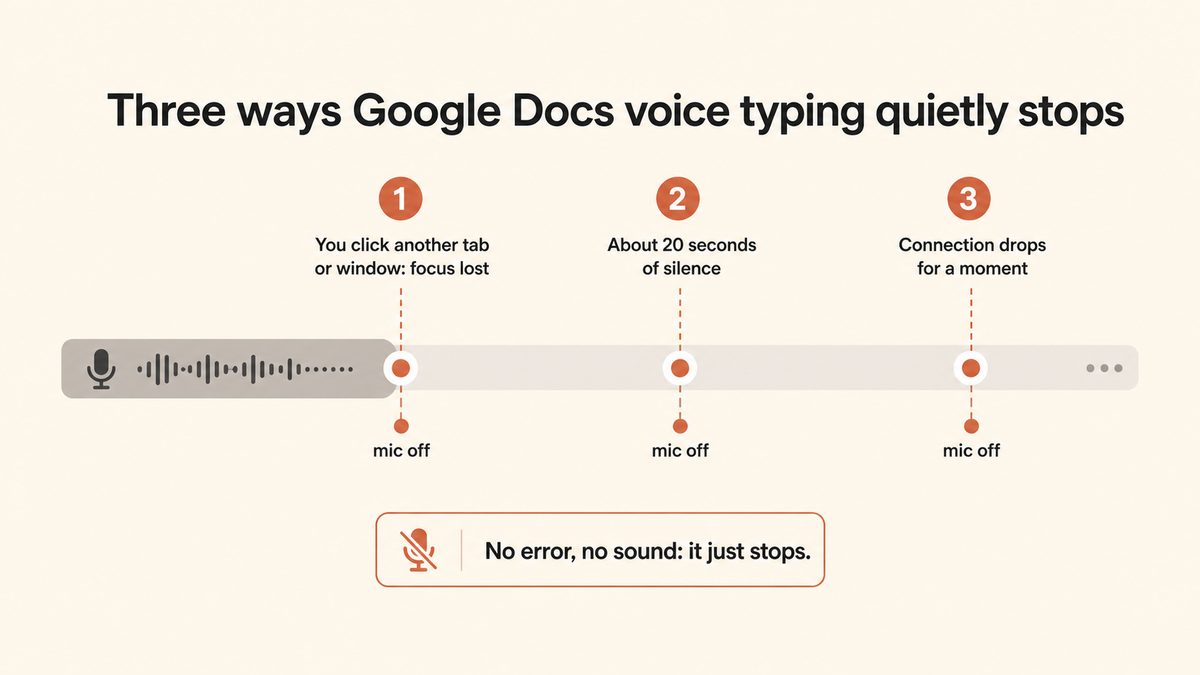
The four failure points, in plain terms
Here is what is going wrong, ranked by how often it bites people.
When the built-in tool is genuinely fine
Before the pivot, an honest concession. If you dictate a quick paragraph in a quiet room, in Chrome, without clicking away, Google Docs voice typing works. It is free, it is already there, and for a short burst of dictation it does the job.
The trouble starts when you dictate seriously, or across more than one app. Long-form drafting means thinking pauses, and every pause risks the timeout. Real work means switching tabs to check a reference, and every switch kills the mic. And Google Docs is only one app, so the moment you want to dictate an email, a Slack message, or a note, you are back to typing. That is the ceiling of an in-browser feature.
The durable fix: system-wide dictation with Yaps
If the fragility is a dealbreaker, the fix is not another Google Docs workaround. It is a dictation tool that does not live inside the browser at all. Yaps is system-wide dictation: you push the Yaps hotkey, speak, and clean text lands in whatever field your cursor is in, whether that is Google Docs, Gmail, Slack, Notion, or any other app.
Because Yaps is not bolted onto one browser tab, none of the Google Docs failure points apply. There is no tab-focus rule, because Yaps types wherever your cursor is. There is no silence timeout that ends your session on a thinking pause. There is no Chrome-only restriction. And the core speech recognition runs on-device, so it does not depend on a connection to Google's servers at all.
- Chrome and Edge only; missing or flaky elsewhere
- Stops the instant the tab loses focus
- Auto-shuts off after ~20 to 30 seconds of silence
- Streams your audio to Google's cloud; needs a connection
- Works in Google Docs and nowhere else
- Dumps raw text; punctuation only by spoken command
- Works in any app: Docs, Gmail, Slack, Notion, everywhere
- No tab-focus rule; types wherever your cursor is
- No silence timeout; pause and think as long as you like
- Core dictation runs on-device and works offline
- On Android, iPhone, iPad, Windows, macOS, and Linux
- On-device cleanup fixes punctuation, caps, and filler
The cleanup step is the part people underrate. Google Docs voice typing hands you a raw, mostly unpunctuated stream unless you speak every "period" and "comma" out loud. Yaps cleans the text on-device before it lands: it removes filler words and false starts, fixes punctuation and capitalisation, and auto-formats lists. You speak naturally, and readable text appears.
Google Docs voice typing is a feature inside one tab. Yaps is a dictation layer across your whole computer. That single difference is why the tab focus, the timeout, and the Chrome requirement all disappear.
Here is how it maps to each platform. On Mac, Windows, and Linux, dictation is triggered by pushing the Yaps hotkey (hold the Fn key to record, or tap to toggle), and the text goes into whatever app is in front, including a Google Docs tab. On Android, you tap the dictation button on the Yaps keyboard, which means you can dictate into the Google Docs app on your phone as well. iOS is available now.
- The "did the mic stop again?" glance every few sentences
- Re-clicking the mic after every thinking pause
- Losing dictation the moment you switch tabs
- Being locked to Chrome for one specific app
- Your audio leaving the device for core dictation
- Yaps is a paid subscription after a 7-day free trial
- Read-aloud covers 31 languages on desktop, but mobile ships a smaller voice set
- Google's tool is free and fine for a quick paragraph in Chrome
If you want the wider picture, we put together the full rundown of dictation apps with no time limit in the no-time-limit dictation guide, which is the hub this post links into. For working without a connection, the offline dictation guide covers the on-device side in depth, and if accuracy is your real concern, the dictation accuracy tips post has the practical adjustments that move the needle.
Dictate into Google Docs (and every other app) with no tab focus and no timeout.
Push the Yaps hotkey and speak. Clean, punctuated text lands wherever your cursor is, on-device and offline. On Android, iPhone, iPad, Windows, macOS, and Linux, with a 7-day free trial.
Frequently Asked Questions
Why does Google Docs voice typing keep stopping?
Google Docs voice typing keeps stopping for three main reasons: the tab lost focus, the mic auto-timed-out after a silence, or your browser or microphone permission is misconfigured. The two most common are silent: clicking into another tab or window turns the mic off instantly with no warning, and the mic shuts itself off after roughly 20 to 30 seconds of no detected speech. Neither is a bug; both are how the Web Speech API behind voice typing works. Neither appears in Google's official help page, which is why they surprise so many people.
Why does Google Docs voice typing stop after a few seconds?
It stops after a few seconds because the microphone auto-shuts off when it does not detect speech, and the timeout is short. Users report cutoffs anywhere from 10 to 15 seconds up to 20 to 30 seconds of silence. Background noise (an HVAC unit, music, a nearby conversation) can also trip the auto-stop, and a mic with a low input level can look like silence to the tool. There is no setting to extend or disable the timeout, so the only workarounds are to speak continuously and move to a quieter room.
How do I keep Google Docs voice typing active without it turning off?
You cannot fully stop the silence timeout, but you can minimise the shutoffs. Keep the Google Docs tab in focus the entire time, do not click into other tabs or windows, speak continuously without long pauses, and re-click the mic after any pause longer than about 20 to 30 seconds. If you need genuinely continuous dictation with thinking pauses, a system-wide dictation tool like Yaps has no silence timeout at all, so you can pause as long as you like and keep going.
Why does voice typing stop when I click on another tab?
It stops because voice typing only runs while the Google Docs tab is the focused, active tab. This is documented, by-design behaviour: the moment the tab loses focus (you click another tab, open a notification, alt-tab to a window, or let a second tab claim the microphone), the mic silently turns off. There is no warning, so you often keep talking into a dead mic. To avoid it, do not click away while dictating, or use a dictation tool that types into whatever app your cursor is in regardless of focus.
Does Google Docs voice typing only work in Chrome?
In practice, yes: Chrome and Edge (both built on Chromium) are the only browsers where voice typing works reliably. Google's help page lists Chrome, Edge, and Safari as supported, but community reports and troubleshooting guides consistently find Safari, Firefox, Brave, and Arc to be flaky or missing the Tools then Voice typing option entirely. If you cannot find Voice typing in the Tools menu, you are almost certainly in an unsupported browser and should switch to Chrome.
Why is Google Docs voice typing not working on my Mac?
On a Mac, the usual cause is that Chrome is blocked from the microphone at the operating-system level, even when the site permission looks granted. Open System Settings, Privacy and Security, Microphone, and make sure Chrome is toggled on. If it is off, the browser permission appears fine but no audio ever reaches the page. Also check that the correct input device is selected under System Settings, Sound, Input, and that its level bar moves when you speak. If those are all correct and it still fails, work through the browser, tab-focus, and permission steps above.
What does the voice typing "trouble hearing you" error mean?
It means Google's speech service cannot get a clear signal from your microphone: the input volume is too low, the wrong or a dead microphone is selected, or background noise is drowning out your voice. Google's own fix is to move to a quiet room, plug in an external or headset mic, and adjust the input volume so the level bar responds clearly to your speech. The same background noise that triggers this error can also trip the silence auto-stop, so a quieter environment helps on both fronts.
Does Google Docs voice typing work offline or without internet?
No. Google Docs voice typing streams your audio to Google's servers for processing, so it requires an active internet connection and will stop if the connection drops or the document falls into offline mode. If you need to dictate on a plane, in a basement, or anywhere with poor connectivity, you need a tool that processes speech on your device. Yaps runs its core dictation on-device, so it works fully offline with no connection required.
What is the best alternative to Google Docs voice typing that works in every app?
The strongest alternative for dictating across every app is Yaps, because it is system-wide rather than tied to one browser tab. You push the Yaps hotkey and speak, and clean, punctuated text lands wherever your cursor is: Google Docs, Gmail, Slack, Notion, or anywhere else. It has no tab-focus rule and no silence timeout, its core dictation runs on-device and works offline, and it ships on Android, iPhone, iPad, Windows, macOS, and Linux with a 7-day free trial. On Android, you dictate with the dictation button on the Yaps keyboard, so it works in the Google Docs app on your phone too.
How do I enable voice typing in Google Docs?
Open the document in Chrome, then choose Tools, then Voice typing, and click the microphone that appears. Chrome asks for microphone permission the first time, and you must allow it for docs.google.com. The document has to be a native Google Doc rather than a Word file opened in Docs. The equivalent in Google Slides is Tools, then Dictate speaker notes. One limitation worth knowing before you start: Google states that the spoken voice commands, the ones for punctuation and formatting, are available only in English, and require both your account language and your document language to be set to English.
Why is Voice typing missing from the Tools menu?
Two things hide it: an unsupported browser, or a file that is not a native Google Doc. If you are in Safari, Firefox, Brave or Arc, switch to Chrome and reopen the document. If you are already in Chrome, look at the document title for a .DOCX marker, because voice typing does not run in a Word file opened inside Docs. Use File, then Save as Google Docs, and the menu item comes back in the converted copy.
How do I fix "Google Docs can't turn on your microphone"?
That message means something between Chrome and your microphone is blocking access, in one of three places. Check them in this order: the address-bar permission for docs.google.com, then Chrome Settings, Privacy and security, Site settings, Microphone, where docs.google.com may be sitting in the Blocked list, then your operating system's microphone settings, where Chrome itself can be denied even though the site permission looks granted. If all three are clear, close any app already holding the microphone, such as Zoom, Teams or Meet.
Can my school or workplace block Google Docs voice typing?
Yes, and if they have, you cannot work around it. A Google Workspace administrator can block microphone access for docs.google.com, block Chrome extensions, or restrict Docs features on managed accounts, and the usual symptom is a "no permission to enable voice typing" message or a mic that never activates. The only route is to ask whoever administers the account to allow it. Signing into a personal account on a personal device is the other option, though not for anything work-related.
Does Google Docs voice typing work on mobile?
No. The Tools, Voice typing menu item is a browser feature and does not exist in the Google Docs apps for Android or iPhone. On a phone or tablet you dictate using your keyboard's own microphone button instead, which is a different engine with its own behaviour and its own failure modes. A system-wide dictation tool sidesteps this: on Android and iOS the Yaps keyboard carries its own dictation button, so it works inside the Google Docs app the same way it works anywhere else.
Why does Google Docs hear me but type the wrong words?
Almost always because the language does not match what you are speaking. Voice typing transcribes against the language set in the voice-typing dropdown and in File, then Language, so speaking English into a document set to another locale produces confident nonsense. After that, the usual accuracy factors apply: a low input level, a microphone across the room, and background noise all degrade the transcript, and a headset microphone is the single biggest improvement most people can make.
Final thoughts
If Google Docs voice typing keeps stopping, run the fixes first: open the doc in Chrome, keep the tab focused, grant the microphone permission in both the browser and the operating system, set the language, and check your connection. Those steps clear most cases. But the silence timeout and the tab-focus shutoff are baked into the tool, so if you dictate seriously, no amount of tweaking will make an in-browser feature behave like a real dictation setup.
For a quick paragraph in a quiet room in Chrome, Google's free tool is fine, and there is no shame in using it. For anyone who dictates across apps, pauses to think, or wants their audio to stay on their device, the durable answer is Yaps: push the hotkey, speak, and readable text lands wherever your cursor is, with no tab focus, no timeout, and no connection required. Install it once and the "did the mic stop again?" glance goes away for good.