Your Mac, reading to you
Select any text on your screen and hear it spoken aloud in a natural voice. Proofread by ear, listen to articles while you stretch, or give your eyes a rest. All processed locally on your Mac.
The research paper argues that privacy-preserving machine learning models can achieve competitive accuracy without sending user data to remote servers. This has profound implications for healthcare, legal, and financial applications where data sovereignty is paramount.
Natural voices
Speed range
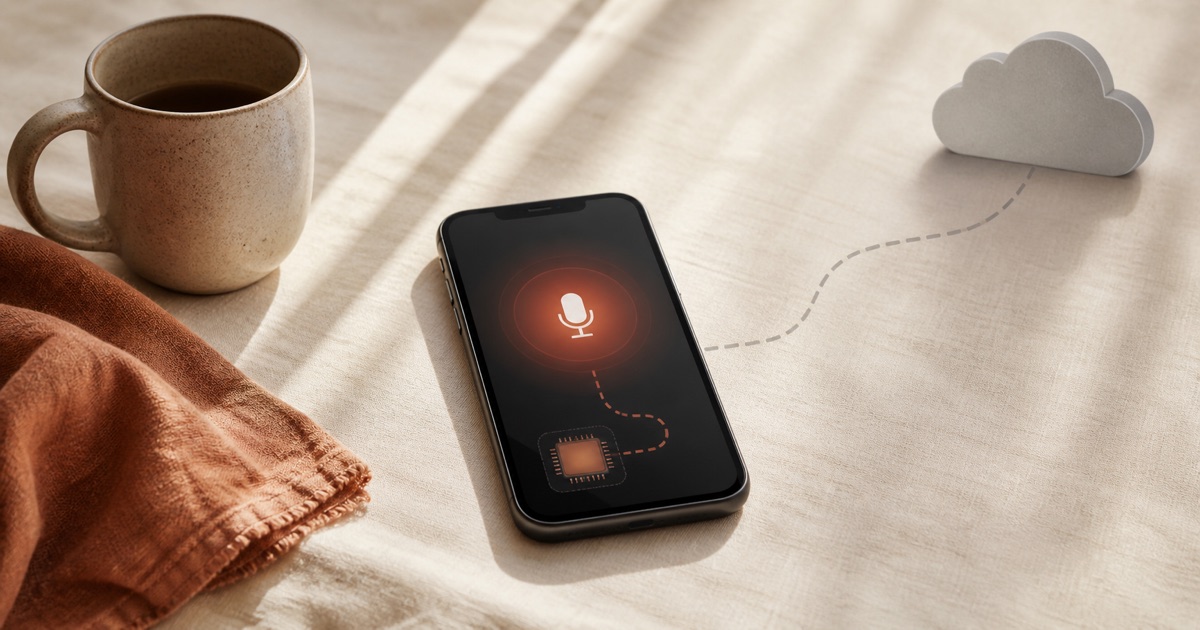
Local processing
Select and listen
Typing vs Dictation
Same sentence. Watch the difference.
Typing
~40 WPM
Dictation
~150 WPM
Hear your words come to life
Text-to-speech that sounds like a person, not a GPS.
Natural Neural Voices
Yaps ships with a curated set of natural-sounding voices. They handle emphasis, pacing, and intonation in a way that makes long-form listening comfortable and even enjoyable.
Select and Listen
Highlight text in any app - a webpage, a PDF, an email, your code editor - and press a keyboard shortcut. Yaps reads it aloud immediately. No context switching required.
Adjustable Speed
Slow it down to 0.5x for careful proofreading or crank it up to 3x for speed-listening through long documents. Find your own pace.
Proofread by Ear
Your brain auto-corrects mistakes when you read your own writing. Listening to it read aloud exposes typos, missing words, and awkward phrasing you would otherwise miss.
Multiple Voices
Choose from different voices to find the one that works best for you. Each voice is optimized for clarity and natural cadence across a range of content types.
Built for Accessibility
For users with dyslexia, low vision, or reading fatigue, TTS is not a novelty - it's essential. Yaps is built with accessibility at the core, not as a checkbox.
When listening beats reading
There are moments where hearing text is simply better than staring at it.
Proofreading and Editing
Listen to your drafts, emails, and reports before hitting send. You'll catch mistakes that your eyes glide right over.
“I always run my client proposals through Yaps TTS before sending. It's saved me from embarrassing typos more than once.”
Long-Form Reading
Turn articles, PDFs, and research papers into audio you can listen to while stretching, cleaning, or taking a walk.
Multitasking
Listen to Slack threads, emails, or meeting notes while doing something else with your hands. Your ears are free - use them.
Studying and Learning
Students with different learning styles benefit from hearing material read aloud. Combine visual and auditory learning for better retention.
News and Articles
Turn your morning reading into a morning listen. Select an article, press the shortcut, and pour your coffee while you catch up.
Creative Writing
Hearing your dialogue and prose spoken aloud reveals rhythm, pacing, and tone issues that are invisible on the page.
“My dialogue improved dramatically once I started listening to it instead of just reading it.”
Hear from people like you.
“I use TTS to proofread every email before sending. Hearing my words read back catches awkward phrasing that I miss when reading silently. It has made me a better writer.”
Nina Petrov
Content Director
Read more about voice technology
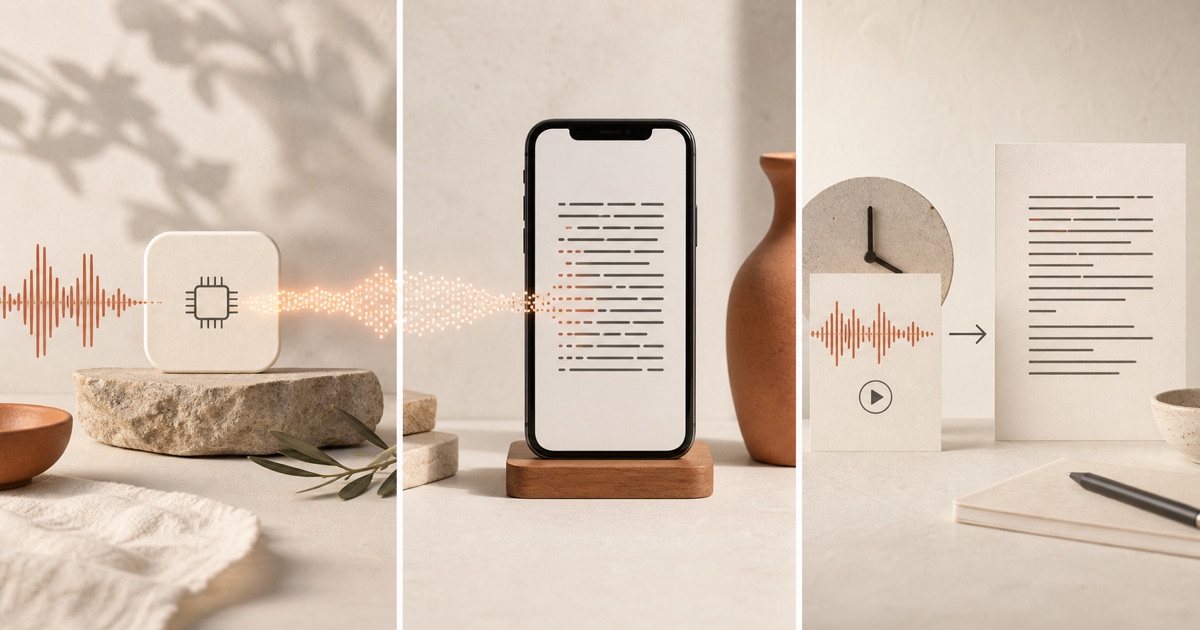

Give your eyes a break
Select text. Press a shortcut. Listen. It's that simple.
Requires macOS 13.0+ (Apple Silicon recommended)