
Preface
The average developer types at 40 to 80 words per minute. The average person speaks at 150. That is the headline number behind every "voice for Claude Code" pitch on the internet right now.
It is also the small story.
The bigger story is what your agent can actually see and touch. Voice gets your prompt into the terminal faster, but if the agent has no shared memory, no shared notes, no shared context across sessions, you are still the bottleneck. You will spend the saved time re-explaining yesterday's decisions, pasting the same architecture notes into every new chat, and reformatting standup notes by hand because Claude Code cannot see them.
Yaps closes both gaps. It is a voice-first capture tool, yes. It is also an MCP server with 35 tools, a Git-versioned markdown vault, and a CLI you can pipe through any agent. The combination is what makes the workflow change real. This is the practical guide to wiring it up.
What Yaps Gives an AI Agent (the Short Version)
Voice typing is the floor. The MCP server, the vault, the memory inbox, and the CLI are the ceiling. Most dictation tools stop at the floor. Yaps does not.
Voice Dictation: The Easy 3x
Push the Yaps hotkey, talk, watch clean text appear in whatever app you are in. The terminal counts. Cursor counts. Claude Code counts. Your browser, your IDE, your messaging app, all of them count.
On macOS, the Yaps hotkey is the Fn key. Hold to record, release to send. Or tap once to toggle, tap again to stop. On Android, the Yaps keyboard ships a dedicated dictation button you can reach with your thumb. There is no floating overlay, no app switching, no waiting for a cloud round trip. Speech runs through Yaps's on-device speech pipeline by default; the cloud option exists for users who want it.
Why does this matter for agents specifically? Because agent prompts are not tweets. They are paragraphs. You are explaining intent, constraints, edge cases, and the file you want touched. Typing that is the wrong activity for a human. Speaking it is fine.
The Real 10x: Yaps as an MCP Server
The Model Context Protocol is the glue that lets an agent reach into a third-party application and use its tools. Claude Code supports MCP. Cursor supports MCP. Codex CLI supports MCP. Most modern agent frameworks do.
Yaps ships its own MCP server. When your agent connects to it, the agent gains 35 tools that operate on your Yaps vault. The agent can list your notes, read them, write new ones, search across the whole vault, manage tags, walk version history, restore prior revisions, and follow wikilinks between notes. Everything you can do in the Yaps app, the agent can do programmatically.
This is the capability that nudges the workflow from "voice typing my prompts faster" to "the agent picks up from where I left off yesterday." Two examples.
You finish a long architecture conversation in Claude Code on Monday. You ask the agent to capture the decision, the rationale, and the open questions in a vault note titled "Auth migration plan." The agent calls vault_note_create, the markdown lands in ~/Documents/Yaps Vault/Projects/Auth migration plan.md, and Git auto-commits it. On Wednesday in a fresh session, you tell a new Claude Code instance to "read the auth migration plan note and continue the implementation." The agent calls vault_search, finds the note, calls vault_note_get, reads it, and proceeds with full context. No re-explaining required.
Or: you brain-dump for ten minutes about a feature idea via voice. Yaps captures it as a note tagged source: voice in your vault. You then ask Cursor to "turn the latest voice note in my vault into a one-page spec, save it to /Specs, and tag it 'spec'." Cursor calls vault_notes_list filtered by source, reads the dump, writes a new note via vault_note_create, applies the tag via vault_note_tags_add, and you get a spec ten minutes later that you barely had to type for.
Without Yaps MCP
You are the memory layer
Open the IDE. Paste yesterday's notes from a separate app. Re-explain what was already decided. Hope the agent's context window stretches that far. Repeat tomorrow, and the day after.
With Yaps MCP
The vault is the memory layer
Open the IDE. The agent calls vault_search for the project tag. Reads the relevant notes itself. Picks up exactly where it left off. The vault is a shared brain between every session and every agent.
The full tool catalogue covers note CRUD (vault_note_create, vault_note_get, vault_note_update, vault_note_delete, vault_note_move, vault_note_rename), listing and search (vault_notes_list, vault_search, vault_status), daily notes and templates (vault_open_daily_note, vault_create_from_template), version history (vault_note_history_list, vault_note_history_restore), tags (vault_tags_list, vault_note_tags_add, vault_note_tags_remove, vault_note_tags_replace, vault_tag_rename, vault_tag_delete), folders (vault_folders_list), and links (vault_mentions_list, vault_backlinks, vault_note_toggle_pin).
You do not need to memorise any of these. The agent picks the right tool for the job. You just describe what you want.
The Vault: A Markdown Brain Your Agent Can Read and Write
The Yaps vault is just a folder of Markdown files on your disk. By default it lives at ~/Documents/Yaps Vault/. You can move it anywhere, or rename it, or back it up to a private GitHub repo, or open it in Obsidian, or grep it from the terminal. It is plain text. There is no proprietary container.
Notes have YAML frontmatter at the top, then markdown body underneath. Frontmatter holds tags, aliases, links, source, kind, and a few other fields the app uses internally. The body is normal Markdown. Wikilinks ([[Like This]]) work and are auto-extracted into the link graph.
Three folder conventions matter:
- Vault root: anything you create lives here unless you choose a folder. Quick captures default here.
Daily/: date-stamped daily notes (2026-05-07.md,2026-05-08.md). Open one with the Yaps Daily Note shortcut, or have an agent open it viavault_open_daily_note.Templates/: reusable note templates (a meeting note skeleton, a project brief, a spec). Agents create from these viavault_create_from_template.
Because the vault is a Git repository, every change is a commit. You can roll back a note to a state from yesterday, last week, or three months ago, just by listing history and restoring a snapshot. The agent has access to this too, via vault_note_history_list and vault_note_history_restore. If an agent edit goes sideways, you do not lose anything; you walk the history back.
This is the missing piece for most "memory for Claude Code" stories floating around right now. Plugins like Claude-Mem and Anthropic's own Auto Memory store agent-only memory in a hidden file the agent reads at the start of each session. That works for some things. But it is not a place you, the human, can also read, edit, link to, search, or restore from. The Yaps vault is. The agent and the human read and write the same Markdown. The agent's memory is your notes.
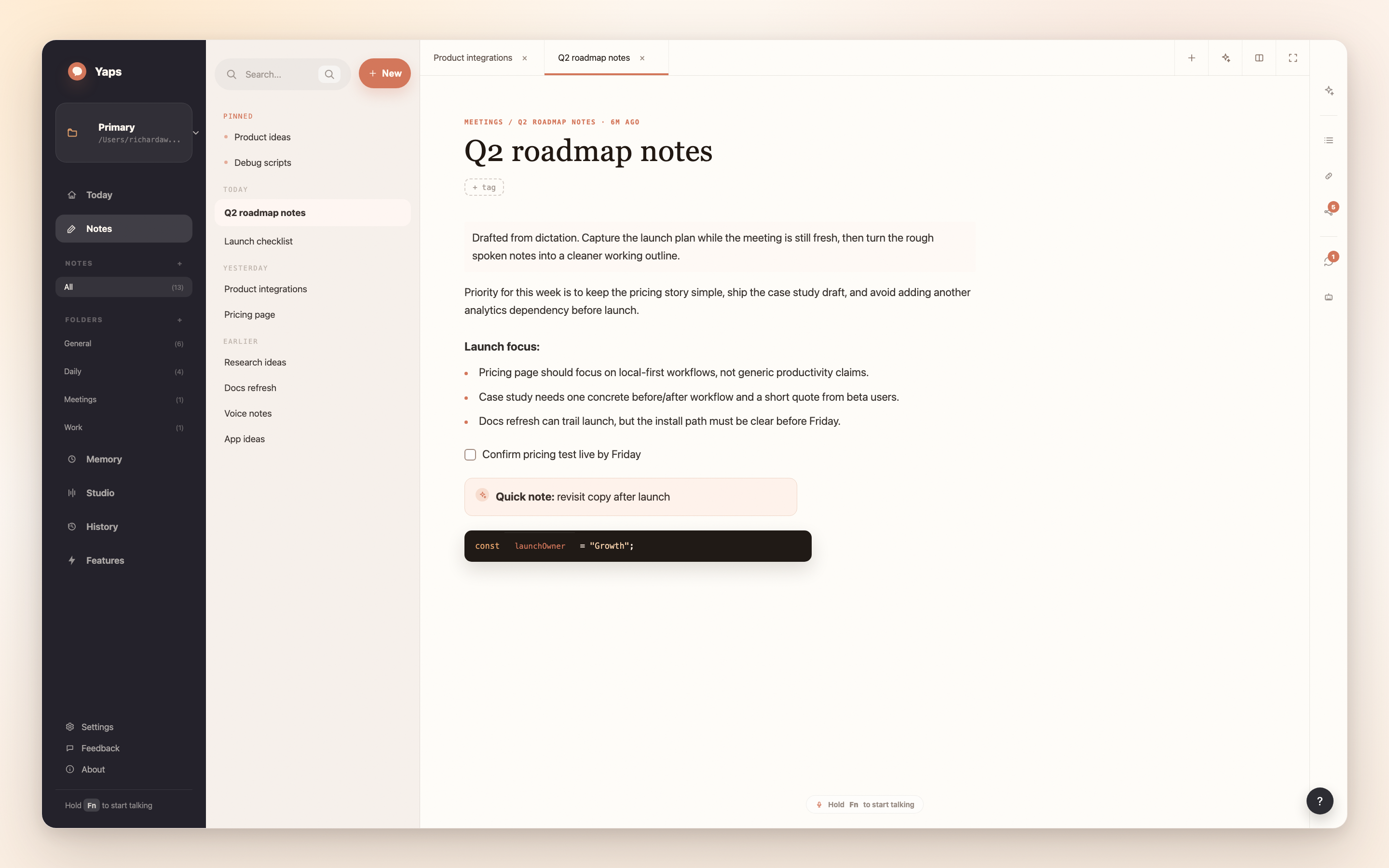
Memory: The Inbox
Yaps has a separate concept it calls Memory, which is best described as a triage inbox over your recent vault activity. Memory pulls together everything captured in the last seven days, grouped by source (voice dictation, dictation, meeting transcription, daily note, assistant, quick capture, manual edit) and by time bucket (Today, Yesterday, Earlier).
The point is to give you, and your agent, a single view of what is unprocessed. A voice note you dropped on Monday morning that you have not turned into anything yet. A meeting transcript from Tuesday afternoon that needs a follow-up email written. A daily note with a TODO line that has not been ticked off.
You triage from this inbox: keep, pin, dismiss, tag, move to a folder, or merge into the daily note. The state lives in the note's frontmatter, so it is durable across sessions and devices.
Memory is currently a Yaps-app feature rather than an MCP-exposed surface. But agents can replicate the same effect today by calling vault_notes_list with a date range and a source filter. The same files, queried directly. The Memory UI is sugar over what the MCP server already exposes.
The CLI: Scripting Yaps From Your Agent
The other surface worth knowing about is yaps_cli. It is a single binary you can invoke from any shell, any script, any agent that has Bash access. Eight top-level subcommands:
| Subcommand | What it does | Example agent use |
|---|---|---|
yaps_cli vault |
Note CRUD | Bulk-create notes from a CSV; back up the vault to another folder |
yaps_cli speech |
Text-to-speech | Generate audio of a release note for a podcast intro |
yaps_cli srt |
Subtitling | Subtitle a Loom recording before sharing it with a client |
yaps_cli features |
Feature toggles | Switch on cloud cleanup for one task, switch back to local after |
yaps_cli settings |
Configuration | Snapshot current config before testing a new dictation mode |
yaps_cli auth |
Account state | Verify subscription state before kicking off a long batch job |
yaps_cli history-list |
Versioning | Diff a note before and after an agent edit |
yaps_cli status |
Diagnostics | Print runtime paths from a fresh agent shell to verify wire-up |
The MCP server is the ergonomic path for an agent doing native tool calls. The CLI is the universal escape hatch when you want to pipe Yaps through Bash, into a script, or onto a server. You can reach for either; sometimes both, in the same workflow.
The Other Capabilities Worth Knowing About
A few more Yaps features show up in agent workflows often enough to mention:
Text cleanup. After a dictation pass, Yaps can run the raw transcription through a cleanup model that fixes punctuation, paragraph breaks, filler words, and small errors. You can choose a small on-device cleanup, a larger on-device cleanup, or cloud cleanup. The agent does not have to ask for this; it happens before the text ever lands in your terminal.
Subtitling. yaps_cli srt generate <media> produces an SRT file from any audio or video. Useful when you record a Loom or a screen capture and want to ship it with subtitles, especially since web players parse SRT natively.
Transcription of recordings. Drop an audio or video file into the Yaps app and it will transcribe it into a vault note. From there your agent can read it, summarise it, draft a follow-up, or quote specific timestamps in another note.
Text-to-speech. Feed any text to yaps_cli speech synthesize and get back a WAV. Useful for proofreading by ear, generating short audio responses, or wiring up a script that reads release notes aloud.
Voice notes that survive the session. Dictation defaults to a clipboard hand-off, but you can also drop a voice note directly into the vault as a Markdown file with source: voice frontmatter. The agent treats it as just another note. No special format, no special handling.
None of these are headline features in isolation. Together they are why a single voice capture can become a typed message, a vault note, a working spec, a subtitle file, and an audio playback within the same workflow without you switching tools.
Setup in Five Minutes
The wire-up is short. The shape works for Claude Code, Cursor, Codex CLI, and any other MCP-aware client.
Install Yaps and dictate something30 sec
Once Yaps is running, push the Yaps hotkey, say a sentence, watch it land. This confirms the speech path works before you wire anything else up.
Open the vault folder10 sec
Hit the Daily Note shortcut, or open ~/Documents/Yaps Vault/ in Finder. Confirm the folder exists. This is where the agent will read and write.
Locate the MCP binary30 sec
It ships with Yaps as yaps_mcp. On a release install it lives alongside the app bundle; on a development build the path is src-tauri/target/debug/yaps_mcp.
Register the MCP server with your agent2 min
In Claude Code: claude mcp add yaps /path/to/yaps_mcp. In Cursor: open MCP settings and add a stdio server pointing to the same binary. In any agent: configure a stdio MCP server with command yaps_mcp.
Test the connection1 min
Open a fresh agent session and ask: "List my five most recently updated Yaps vault notes." The agent should call vault_notes_list and return them. If it does, you are wired up.
That is the whole setup. There is no API key juggling, no usage cap, no rate limit between you and the vault. Everything runs locally between Yaps and the agent on your own machine.
What This Looks Like in Practice

Three workflows that compound across a working week.
The brain-dump-to-spec loop. Push the Yaps hotkey. Spend two minutes talking through a feature idea: what it does, who it is for, the edge cases that worry you, the open questions. Yaps drops the cleaned-up transcript into a vault note. In Cursor or Claude Code, ask the agent to read the latest note tagged source: voice and turn it into a one-page spec under /Specs. The agent reads, drafts, links the original brain-dump as a wikilink, applies the spec tag, and you have a reviewable document. Total time, six minutes.
The standup-to-update loop. Each morning you dictate a thirty-second status into a daily note. Across a week you accumulate seven notes in /Daily. On Friday you ask the agent to read the week's daily notes, summarise progress against your active project, draft a customer-facing update, and save it to /Outbound. The agent does the whole thing in one prompt because it has access to all seven files via vault_search. Total time, two minutes.
The recorded-meeting-to-action-items loop. You record a meeting (Zoom, Loom, a phone capture). Drop the file into Yaps; it transcribes into a vault note. Ask the agent to extract decisions, owners, and deadlines from the transcript, write them to a new note linked back to the source via wikilink, tag everything with the project name, and generate an SRT file alongside in case you want to share the recording. Three sub-tasks the agent stitches together because it has the vault tools and the CLI in the same session. Total time, four minutes.
The pattern is the same in each case. Voice gets the raw material in cheap. The vault gives the agent a place to read and write durably. The MCP and CLI surfaces let the agent operate on that material without you copy-pasting between apps. The compounding shows up at the end of the week.
Final Thoughts
Speed is the floor. Context is the ceiling. Yaps is the only tool I know of that ships both: voice capture for getting prompts in fast, plus an MCP server, a markdown vault, and a CLI for keeping the agent in context across sessions and weeks. If you build with agents every day, the workflow change is real and it sticks.
If you want voice typing alone, plenty of tools deliver that. If you want voice plus a memory layer your agent can actually read and write, Yaps is currently the most direct path. Push the hotkey, talk, let the agent take it from there.
Download Yaps and try the wire-up against your agent of choice. Five minutes of setup. The compounding starts on day one.
Frequently Asked Questions
What is the MCP server in Yaps?
The Yaps MCP server is a binary that ships with the Yaps app and exposes 35 tools to any AI agent that speaks the Model Context Protocol. Claude Code, Cursor, Codex CLI, and other MCP-aware agents can connect to it and use those tools to read, write, search, and manage notes in your Yaps vault. It runs locally over standard input and output and never sends your data anywhere.
How does Yaps compare to Wispr Flow for AI agent workflows?
Wispr Flow is a voice dictation tool. Yaps is a voice dictation tool plus an MCP server, a Git-versioned markdown vault, and a CLI. If you only want voice input for your agent prompts, Wispr Flow covers that. If you also want your agent to read and write durable notes across sessions, run subtitling and TTS jobs, and operate on a shared memory layer, Yaps is the more complete fit. Yaps also runs its speech pipeline on-device by default, where Wispr Flow is cloud-only.
Can Claude Code dictate prompts into Yaps?
It is the other way around. Yaps captures your voice anywhere on your system and lets you dictate into Claude Code (or any other app) by pushing the Yaps hotkey. Claude Code itself has a built-in voice mode released in March 2026 that you can also use, but Yaps works system-wide rather than only inside the Claude Code terminal.
What hotkey triggers Yaps dictation on Mac?
The Fn key. Hold it to record and release to send, or tap once to toggle recording on and tap again to stop. On Windows the default is Ctrl and the Windows key, and on Linux it is a double-tap of Ctrl. You can rebind any of them in Yaps settings if you prefer a different key.
Does the Yaps MCP server work with Cursor?
Yes. Cursor supports MCP servers natively. Add Yaps as a stdio server in Cursor's MCP settings, point it at the yaps_mcp binary, and Cursor will discover and use the tools it exposes. The setup is identical to wiring it up in Claude Code.
Where does Yaps store notes by default?
In a folder called Yaps Vault inside your Documents directory. You can move it anywhere by changing the vault root in settings. The folder is a Git repository, so every note change is committed automatically and you can walk the history forwards and backwards.
Can my AI agent read notes I wrote in Obsidian?
Yes, if you point Yaps at the same vault folder Obsidian uses. The Yaps vault is just Markdown files with YAML frontmatter, which is the same format Obsidian uses. Yaps preserves unknown frontmatter keys so anything Obsidian adds stays intact. The agent reads the same files you read in Obsidian.
How does Yaps compare to Obsidian MCP servers?
Obsidian MCP servers expose your Obsidian vault to an agent over MCP. Yaps does the same for the Yaps vault, plus it ships its own dictation, transcription, TTS, subtitling, and CLI. So if you also want voice capture and audio workflows in the same tool, Yaps is the bundled option. If you only want vault access and you already live in Obsidian, an Obsidian MCP server is fine. The two can coexist if you want.
Is voice processing on-device?
By default, yes. Yaps's speech pipeline runs locally on your machine and your audio never leaves the device. There is an optional cloud mode for users who explicitly opt into it. The MCP server, CLI, and vault all run locally regardless.
Can the agent see my note history?
Yes. The Yaps vault is Git-versioned and the MCP server exposes vault_note_history_list and vault_note_history_restore. The agent can list every revision of a note and roll back to any prior state. Useful for diffing changes the agent itself made, or for recovering from an edit that went sideways.
How do I give Claude Code persistent memory across sessions?
Point Claude Code at the Yaps MCP server and use the vault as the memory layer. Capture decisions, plans, and context as vault notes during a session. In a future session, ask the agent to search the vault by tag or filename and read the relevant notes. Because the vault is plain Markdown on disk, the memory survives session boundaries, agent restarts, and even agent swaps (Claude Code one day, Cursor the next).
Can I use Yaps with the Codex CLI?
Yes. Codex CLI supports MCP servers in the same way Claude Code does. Register yaps_mcp as a stdio server in your Codex configuration and the same 35 tools become available there. The CLI surface (yaps_cli) also works from inside any agent that can call shell commands.
Does Yaps support kanban-style notes for project management?
Notes carry a kind field in their frontmatter, including kanban and checklist values. Agents can create and read notes tagged this way and you can pin or filter on kind in the app. The richer kanban experience is being rebuilt against the new vault model and is not yet a polished feature; for project tracking today, plain markdown checklists in vault notes work well and give the agent direct read and write access.
How long does it take to set up Yaps with Claude Code?
Five minutes for a clean install. Two of those minutes are downloading and installing Yaps. The remaining three are running claude mcp add to register the MCP server and verifying with a test prompt. There is no API key, no auth flow, and no cloud configuration in the wire-up.
What happens if Yaps stops working mid-session?
The agent loses access to the vault tools but the vault itself does not go anywhere. It is just files on disk under Git. You can keep editing notes by hand, or in Obsidian, or with git directly. When Yaps comes back, the agent picks up where it left off because the underlying state is in the filesystem rather than in Yaps's process memory.
Is there a free way to try this?
Yes. Yaps has a 7-day free trial that covers core dictation, vault, MCP server, and CLI. Cloud-only features such as cloud cleanup and cloud TTS sit behind a Pro tier. The agent integration story works during the trial, so you can wire it up before you subscribe.