Preface
You open a message, tap the Samsung Keyboard, and the microphone button is gone. Or it is still there, you tap it, and Google Voice Typing sits on "Listening" without typing a single word. This started right after a One UI update on your Galaxy S24, S25, or S26, and now voice typing that worked for months does nothing.
You are not doing anything wrong, and your phone is not broken. A recent One UI update almost certainly reset a keyboard setting rather than removing the feature. Reports of the mic disappearing or Google Voice Typing breaking after an update span the Galaxy S23, S24, S25 Ultra, and S26, plus the Z Fold and Flip and A-series, and some users saw the mic vanish right after installing the Gemini app.
The 60-Second Fix
Settings > General management > Keyboard list and default > Keyboard button on navigation bar > On.
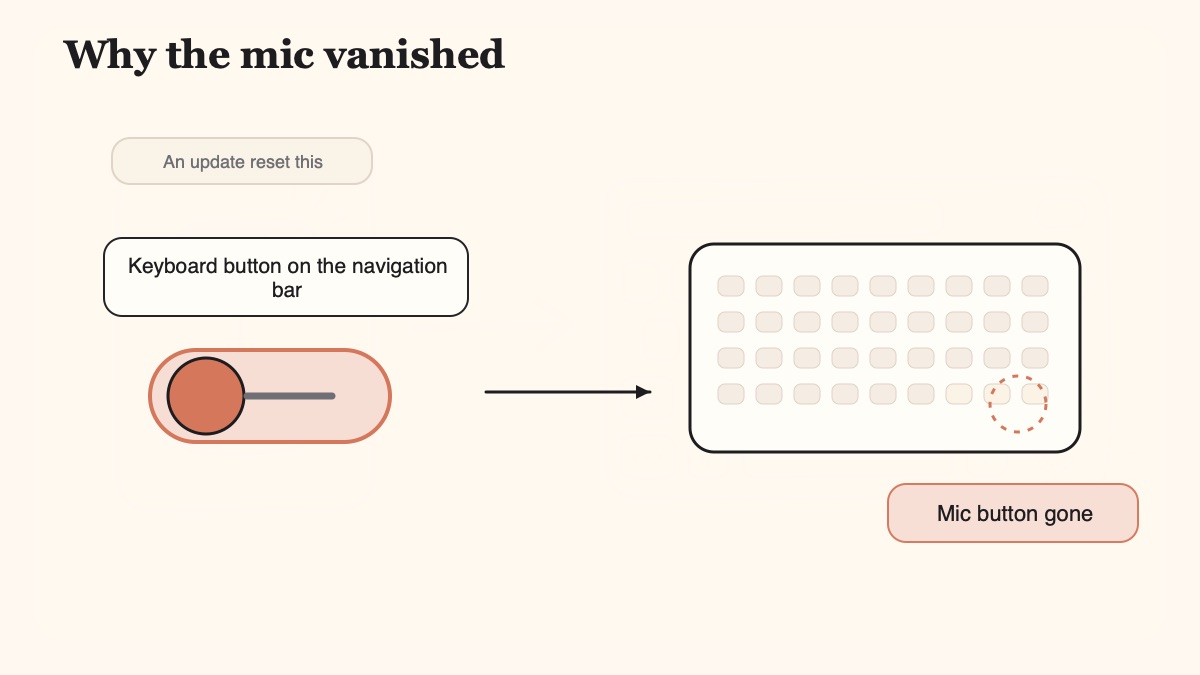
That single toggle brings back the microphone for most people, and the mic reappears in the bottom-left corner of the Samsung Keyboard rather than in the navigation bar where you might expect it. Samsung tied voice input to this switch, and One UI updates keep resetting it to off, which is why the feature looks removed when it is only hidden.
If the mic is back but still does nothing, do these two next:
- Settings > General management > Keyboard list and default, confirm Google Voice Typing is toggled on, then tap Samsung Keyboard > Voice input and select it.
- Settings > Apps > Samsung Keyboard > Permissions > Microphone > Allow. Updates reset this silently.
Two shortcuts worth knowing while you are in there. Long-press the comma key or the space bar to reach the mic icon directly, and under Samsung Keyboard you can set Touch and hold space bar to Voice input so holding the space bar always starts dictation, whatever the nav-bar toggle is doing.
The full list, including the cases the toggle does not fix, is below.
What Is Samsung Voice Typing, Actually?
Samsung voice typing is two separate things stacked on top of each other, and knowing which is which is what makes the fixes make sense.
The Samsung Keyboard is the input method: the keys, the layout, the microphone button. It is Samsung software, updated through the Galaxy Store.
The voice input engine is what turns your speech into words, and on most Galaxy phones that is Google Voice Typing, provided by Speech Services by Google and updated through the Play Store. Samsung Keyboard just hands the microphone over to it.
So when people say "Samsung voice typing," they usually mean a Samsung microphone button calling a Google speech engine, selected in a Samsung settings screen, running under a permission Android controls. Four moving parts, four different things an update can knock loose. That is why the failure looks so arbitrary and why the fix is almost always re-connecting a link in the chain rather than repairing anything.
Why Samsung Voice Typing Stops Working After an Update
The single most-reported cause on the Galaxy community forums is a settings reset that hides the mic rather than a broken feature. This is not a one-release bug. Samsung moved the microphone under the Samsung Keyboard around One UI 6.1, tied voice input to the "Keyboard button on navigation bar" setting, and the toggle has been reported flipping itself off through One UI 7 on the S24 and S25, One UI 8 and 8.5 on the S26, and now the One UI 9 (Android 17) rollout that began in August 2026 and reached the Galaxy S26 in September. Whichever version you are on, the symptom and the fix are the same: voice input only works once that setting is turned on. When that toggle is off after an update, the keyboard mic button disappears and Google Voice Typing greys out. Flip the toggle on and the mic reappears in the bottom-left corner.
So the first thing to understand is that "my voice typing stopped working" is usually not a bug at all. An update quietly changed a default, and the feature is waiting behind a switch.
But the nav-bar toggle is not the only trigger. A few other things stop Samsung voice typing after an update, and it helps to know which one you are hitting.
The voice engine got deselected. On the "Keyboard list and default" screen, "Google Voice Typing" can be toggled off, or Samsung Keyboard can be left pointing at the wrong voice engine. When that happens the mic is either missing or greyed out until you re-enable and re-select it.
A permission reset killed the mic. Updates sometimes reset app permissions. If the microphone permission for the Samsung Keyboard (or Gboard) is revoked, the keyboard opens normally but captures nothing when you tap the mic.
The network dropped mid-session. Google Voice Typing is cloud-dependent by default. Your audio is streamed to Google's servers for transcription, so a weak or unstable connection, a dropped signal, or the app losing focus mid-sentence makes it stall on "Listening" with no text. This is the classic "it works, then it stops" symptom.
The keyboard cache got corrupted. An update can leave the keyboard in a bad state where the cached data no longer matches the new version. Clearing the cache resets that without wiping your learned words.
The Gemini app changed the default. Some Galaxy owners report that installing the Gemini app made the keyboard mic vanish, because the voice-input default shifted underneath them.
How to Fix Samsung Voice Typing (The Galaxy Steps, In Order)
Work through these in order. Reboot first, then start at the top. The nav-bar button in step two is the single most common fix on every One UI version from 7 through 9, so do not skip it. The exact menu is Settings > General management > Keyboard list and default, not the top-level "Language and input," so get that path right. Samsung has reshuffled these menus repeatedly, so if a label does not match on your build, search Settings for "keyboard" and the right screen surfaces.
Reboot, then check if the mic is hiddenCheck
Restart the phone. Open any text field, tap the Samsung Keyboard, and look for the microphone icon in the top row or the bottom-left corner. If it is simply missing, an update reset a setting rather than breaking anything, and the next step brings it back.
Turn on the nav-bar keyboard buttonMost common
Go to Settings, General management, Keyboard list and default, and toggle on Keyboard button on navigation bar. On the Galaxy S24, S25, and S26, across One UI 7, 8, 8.5 and 9, this is the fix that solves most cases, and the mic reappears in the bottom-left corner of the keyboard, not in the navigation bar.
Re-enable and re-select Google Voice TypingEngine
On the same Keyboard list and default screen, confirm Google Voice Typing is toggled on. Then tap Samsung Keyboard, Voice input, and choose Google Voice Typing, which gives you spoken punctuation like "comma" and "period." If it stays greyed out, set it as the default input method.
Grant microphone permissionApps
Go to Settings, Apps, Samsung Keyboard, Permissions, Microphone, and set it to Allow. Repeat for Gboard if you use it. An update sometimes resets this, which makes the keyboard open normally but capture nothing when you tap the mic.
Clear the keyboard cacheStorage
Go to Settings, Apps, Samsung Keyboard (or Gboard), Storage, Clear cache, then restart the phone. This clears the corrupted post-update state and does not wipe your dictionary or learned words, so it is safe to try before any reset.
Re-add your language and update the appsLanguage
Under Settings, General management, Language and input, On-screen keyboard, Samsung Keyboard, Languages and types, remove and re-add your language so the voice model re-registers. Then update Samsung Keyboard in the Galaxy Store, and Gboard and Speech Services by Google in the Play Store, and restart. An out-of-date Samsung Keyboard against a freshly updated One UI is a common mismatch after an over-the-air update.
Switch keyboards, then switch back30 sec
Tap the keyboard icon to change input method, pick any other keyboard, then switch straight back to Samsung Keyboard. This forces the system to re-register the input method and its voice engine, and it is the fastest thing to try when the mic is present but inert. While you are in Samsung Keyboard settings, check that "Enable voice input" is on under Voice input, and try turning off "Autofill with Google," which some Galaxy owners report interfering with the mic.
If the mic still refuses to appear, there are two manual workarounds. Long-press the comma key or the space bar on the Samsung Keyboard to reach the mic icon, then long-press the mic to pick "Google voice input" by hand. You can also set Samsung Keyboard > "Touch and hold space bar" to "Voice input," so holding the space bar always starts dictation.
The last resort on the stock keyboard is a reset. Go to Settings > General management > Keyboard list and default > Samsung Keyboard > Reset to default settings, then walk through the toggles above again. Be warned that this wipes your learned words and you will have to re-add your languages, so treat it as the final option, not the first.
That is the complete, genuine fix for the built-in tool. Notice what none of it changes: the voice typing still runs on Google's engine, still streams your audio to Google's servers, and can still be reset by the next update. The steps fix today's outage. They do not stop the next one.
Does Samsung Voice Typing Work Offline?
Not really, and this is worth understanding because it explains the "works, then stops" behaviour. Google Voice Typing streams your audio to Google's servers for transcription by default, so a weak signal or a dropped connection stalls it on "Listening" with no text.
Gboard does have an offline voice-typing option, downloaded at Gboard Settings > Voice typing > Offline speech recognition, and an English (US) pack is roughly 200 to 300 MB. But the offline model is smaller and meaningfully less accurate than the online path. It struggles with complex sentences, accents, and noisy rooms, and far fewer languages are supported offline than the 100-plus available online. So the honest picture is that Samsung and Gboard voice typing is cloud-first, with a weaker offline fallback bolted on.
If you have taken the privacy route further and de-Googled your phone, this gets worse. On setups like GrapheneOS, Google has at times disabled Gboard voice typing entirely without network access, and Gboard often fails to download the offline voice packs at all. That is why privacy users move to keyboards that keep speech fully on the device, such as FUTO Keyboard (a fully local keyboard with local speech) or HeliBoard (an open-source AOSP fork with no built-in voice) paired with FUTO Voice Input for offline dictation. Those are more open-source than most commercial keyboards, and they are a genuinely good fit if maximum openness is your priority.
The Durable Fix: A Keyboard That Does Not Vanish on an Update
Every fix above either re-enables Google Voice Typing or works around a piece of it. None of them removes the underlying fragility: your dictation depends on a Google voice engine that a Samsung update, a permission reset, or the Gemini app can toggle away, and that streams your audio to the cloud by default. If your real pain is "it keeps breaking after updates," the honest answer is to stop depending on that chain.
That is where Yaps comes in. Yaps is a full customizable Android keyboard (a complete IME) with its own on-device voice typing built in. It does not borrow Google Voice Typing, so a One UI update that resets the Google engine does not touch it. You tap the dictation button on the Yaps keyboard and it runs a modern speech model on your phone, fully offline. Nothing is streamed to a server, and there is no network connection to drop mid-sentence.
- Depends on a Google voice engine an update, a permission reset, or the Gemini app can switch off
- Streams your audio to Google's servers by default, so a dropped connection stalls it on "Listening"
- The mic button can disappear entirely after a One UI update until you re-enable a hidden toggle
- The offline Gboard model is smaller, less accurate, and covers far fewer languages
- No built-in cleanup of filler words, so raw speech lands exactly as heard
- An independent keyboard with its own voice typing, so an OTA cannot toggle it away
- Runs a modern speech model on your phone, so your audio never leaves the device
- Works fully offline, on a plane, on the underground, or with no signal at all
- Multilingual dictation across about 25 languages, auto-detected from your speech
- A free tier on mobile, so you can test it without paying anything
- Cleans up filler words, fixes punctuation and capitalisation, and formats lists on-device
The privacy difference is not a footnote. Google Voice Typing sends your voice to Google to transcribe; Yaps runs its on-device speech engine on your own phone, so nothing is uploaded and nothing is logged to a server. Because the recognition happens locally, there is no "Listening" limbo when the signal wobbles. You tap, you talk, the text lands.
The fix for a mic that vanishes after an update is not to re-enable it faster. It is a keyboard that was never wired to a switch someone else controls.
There is one more thing the stock setup cannot do. When you dictate messy speech (with "um," restarts, and half-finished sentences) Google Voice Typing drops it into the field exactly as it heard it. Yaps runs on-device text cleanup: it strips the filler words, fixes the punctuation and capitalisation, and auto-formats lists and numbers, all without a cloud round-trip. And Yaps is a full keyboard, not just a mic, so you also get themes, selectable fonts, autocorrect, glide typing, one-handed mode, and clipboard history for text and images in the same package.
When the Built-In Tool Is Still Fine
To be fair to Samsung: if the fix steps above brought your mic back, you are usually online, and you do not mind your audio going to Google, the built-in voice typing is convenient and free. Re-enable the nav-bar button, re-select the engine, grant the permission, and it will serve you for everyday messages.
Gboard's offline pack is also a reasonable safety net for the occasional no-signal moment, as long as you accept that it is less accurate and covers fewer languages than the online path. And if maximum openness is your goal above all else, the FOSS route (FUTO Keyboard, or HeliBoard with FUTO Voice Input) is more open-source than Yaps and worth a look.
The moment your pain is specifically "it keeps breaking after updates," or "I do not want my voice going to Google," or "I need this to work with no signal," that is where an independent on-device keyboard wins. This post is one of a family: if your issue is the Google Voice Typing bubble crashing, see why Gboard voice typing keeps stopping, and if you want to leave the Google engine entirely, see how to do voice typing on Android without Google. For the wider picture, our guides to the best AI keyboard for Android, the best private voice keyboard for Android, and the best mobile dictation app cover the full landscape, and the offline dictation guide goes deeper on the no-internet angle.
Frequently Asked Questions
Why did my voice typing stop working after a Samsung update?
Your voice typing most likely stopped because a One UI update reset a keyboard setting rather than removing the feature. The most common cause on the Galaxy S24, S25, and S26, on every One UI version from 7 through 9, is that the "Keyboard button on navigation bar" toggle was switched off, which hides the microphone button. Updates can also reset the microphone permission, deselect Google Voice Typing as the engine, or leave the keyboard cache in a corrupted state. Turn the nav-bar button back on, re-select Google Voice Typing, and re-grant the mic permission, and it usually returns.
How do I get the microphone button back on my Samsung keyboard?
Go to Settings, General management, Keyboard list and default, and toggle on "Keyboard button on navigation bar." The microphone reappears in the bottom-left corner of the keyboard once this is on, which surprises people looking for it in the navigation bar. If it is still missing, confirm Google Voice Typing is toggled on in that same list, then tap Samsung Keyboard, Voice input, and select Google Voice Typing. As a manual workaround you can long-press the comma key or the space bar to reach the mic icon directly.
Why is Google Voice Typing greyed out on my Samsung keyboard?
Google Voice Typing greys out when it is not enabled or not set as the active voice engine after an update. Go to Settings, General management, Keyboard list and default, and make sure Google Voice Typing is toggled on. Then tap Samsung Keyboard, Voice input, and choose Google Voice Typing. If it still stays greyed out, set Google Voice Typing as the default input method, which several Galaxy users had to do before it would work again.
Why does my Samsung keyboard mic say "Listening" but not type anything?
That symptom is almost always a network problem, because Google Voice Typing streams your audio to Google's servers to transcribe it. A weak or unstable connection, a dropped signal, or the app losing focus mid-sentence leaves it stuck on "Listening" with nothing appearing. Try a stronger connection, or download Gboard's offline voice pack for a weaker but local fallback. For dictation that never waits on a server, an on-device keyboard like Yaps runs the speech model on your phone, so there is no "Listening" limbo.
How do I enable the keyboard button on the navigation bar on Samsung?
Go to Settings, General management, Keyboard list and default, and toggle on "Keyboard button on navigation bar." That single switch is the fix for most post-update cases on the Galaxy S24, S25 and S26, across One UI 7, 8, 8.5 and 9, because a One UI update commonly resets it to off. Once it is on, a small keyboard button appears in the navigation bar and the microphone reappears in the bottom-left corner of the keyboard.
Did One UI remove Google Voice Typing from Galaxy phones?
No. No One UI release has removed Google Voice Typing, but several are widely reported to have reset the settings that expose it, which makes it look removed. This has been reported on One UI 7, on One UI 8 and 8.5, and on the One UI 9 (Android 17) rollout that started in August 2026. The most common change is that voice input only works once "Keyboard button on navigation bar" is turned on, so the mic disappears when that toggle is off after the update. Re-enable that setting, confirm Google Voice Typing is toggled on, and re-select it as the voice engine, and it comes back.
How do I set Google Voice Typing as the default on a Samsung Galaxy?
Open Settings, General management, Keyboard list and default, and make sure Google Voice Typing is toggled on in the list. Then tap Samsung Keyboard, Voice input, and select Google Voice Typing as the engine. If it still refuses to activate or stays greyed out, set Google Voice Typing as the default input method from that same screen, which forces the system to route voice input through it.
Why did the mic disappear from my keyboard after installing Gemini?
Some Galaxy owners report that installing the Gemini app changed the voice-input default, which made the Samsung Keyboard mic vanish. The fix is the same as for a general post-update reset: go to Settings, General management, Keyboard list and default, confirm Google Voice Typing is toggled on, re-select it under Samsung Keyboard, Voice input, and turn on "Keyboard button on navigation bar." If you prefer voice typing that no app can reassign, an independent keyboard like Yaps runs its own on-device engine and is not affected by which assistant app is installed.
Does Samsung voice typing work offline, without internet?
Not by default. Google Voice Typing streams your audio to Google's servers to transcribe, so it needs a connection to work reliably. Gboard offers an offline voice-typing pack at Gboard Settings, Voice typing, Offline speech recognition, but the offline model is smaller, less accurate, and supports far fewer languages than the online path. For genuinely offline dictation, Yaps runs a modern speech model entirely on your phone, so it works with no signal and never uploads your audio.
How do I clear the Samsung Keyboard cache without losing my words?
Go to Settings, Apps, Samsung Keyboard, Storage, and tap "Clear cache," then restart the phone. Clearing the cache resets the corrupted post-update state without touching your dictionary, so your learned words are safe. Do not tap "Clear data" or "Reset to default settings" unless nothing else works, because those do wipe your learned words and your added languages, which you would then have to set up again.
How do I use the space bar for voice typing on a Samsung keyboard?
Open Samsung Keyboard settings and set "Touch and hold space bar" to "Voice input." After that, holding the space bar starts dictation directly, no microphone button required. This is the most reliable workaround when the mic keeps disappearing after updates, because it does not depend on the "Keyboard button on navigation bar" toggle that One UI keeps resetting. Long-pressing the comma key also reaches the mic on most Galaxy builds.
Why is my Samsung Keyboard microphone not working even though the button is there?
A visible but inert microphone means the button is fine and the engine behind it is not. Check three things in order: that Google Voice Typing is toggled on under Settings, General management, Keyboard list and default, then selected under Samsung Keyboard, Voice input; that Samsung Keyboard has microphone permission under Settings, Apps, Samsung Keyboard, Permissions; and that "Enable voice input" is on in Samsung Keyboard's own Voice input settings. If all three are correct, switch to another keyboard and back to force the input method to re-register.
Will updating Samsung Keyboard fix voice typing?
Often, yes, and it is worth doing early because it takes seconds. Open the Galaxy Store, search Samsung Keyboard, and install any pending update, then do the same for Gboard and Speech Services by Google in the Play Store. An out-of-date keyboard app running against a freshly updated One UI is a common mismatch after an over-the-air update, and it produces exactly the "worked yesterday, broken today" pattern. Restart the phone afterwards.
Does One UI 9 change Samsung voice typing?
The One UI 9 rollout does not remove voice typing, and the fixes on this page still apply. One UI 9, built on Android 17, went stable in July 2026 and reached the Galaxy S26 in early September 2026, with S25, S24 and S23 following. What has been consistent across One UI 6.1, 7, 8, 8.5 and now 9 is that a major update can reset the "Keyboard button on navigation bar" toggle, the microphone permission, or the selected voice engine, and any of the three makes voice typing look removed when it is only disconnected.
Final thoughts
If your Samsung voice typing is not working after an update, work the Galaxy steps in order: reboot, turn on the keyboard button on the navigation bar, re-enable and re-select Google Voice Typing, grant the microphone permission, clear the keyboard cache, and re-add your language. On the S24, S25 and S26, whichever One UI version you are on, the nav-bar toggle alone solves most cases. Those steps fix today's outage, and they are worth doing.
What they cannot fix is the fragility underneath. Your dictation still runs on a Google voice engine that the next update, a permission reset, or a new assistant app can switch off, and that streams your audio to the cloud by default. No dictation is perfect, and accuracy always depends on your microphone, background noise, and accent. But a keyboard that keeps its voice typing on the device, and does not borrow an engine an OTA can toggle away, does not vanish on you every few months.
For that specific pain, Yaps is the default recommendation. It is a full Android keyboard with its own on-device voice typing that works offline, cleans up your speech locally, and does not depend on Google Voice Typing at all. On mobile there is a free tier you can use without paying, and on desktop a 7-day free trial, and it carries across Android, iPhone, iPad, Windows, macOS and Linux, with vault sync between your phone and your desktop. Fix the Galaxy settings today, and if you are tired of fixing them, switch to a keyboard that was never wired to a switch someone else controls.