Preface
You can speak an essay about four times faster than you can type it. At a normal speaking pace of roughly 150 words per minute against roughly 40 words per minute typing, a 1,500-word assignment drafts in about 12 minutes of talking instead of 40 minutes of hunched keyboarding. For a student juggling a reading list, a part-time job, and three deadlines in the same week, that gap is the difference between a first draft tonight and a first draft never.
The catch is that most "best dictation software" lists are written for professionals with a company card. They rank paid tools first, treat "best free" as a throwaway line, and quote free-tier numbers that are out of date. This guide is the opposite. It leads with the price-sensitive student, ranks the five tools that genuinely fit that life, and gives you the actual current free-tier limits so nothing dies in the middle of your essay.
What Students Actually Need From Dictation
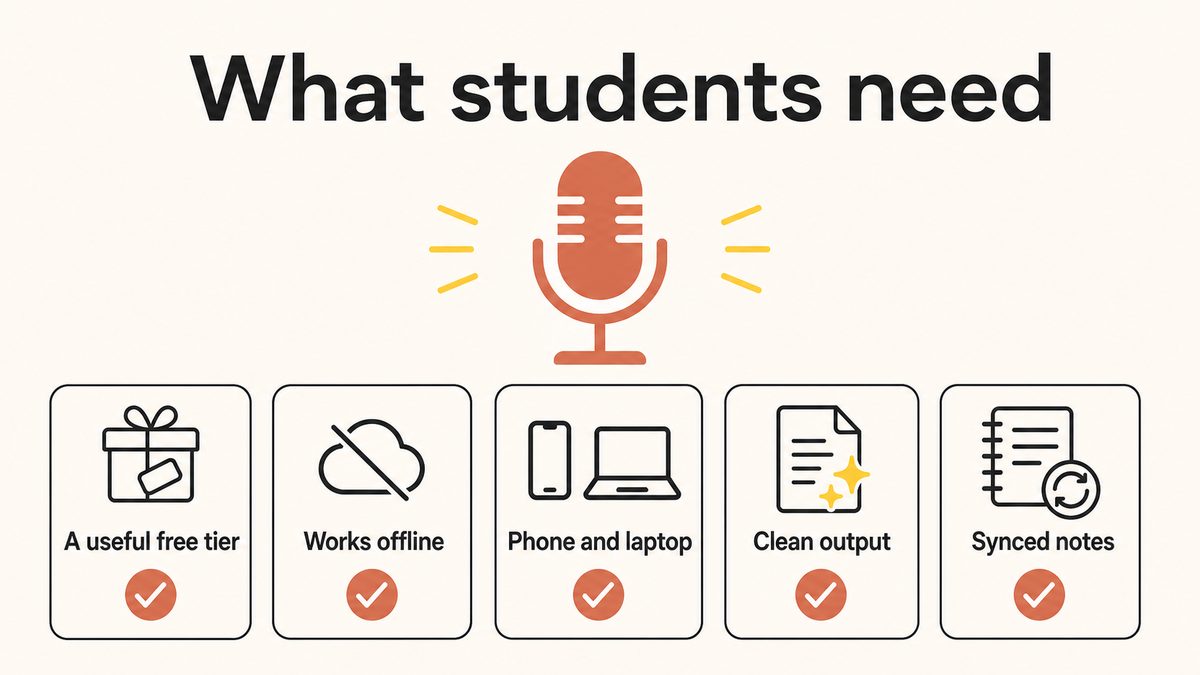
Marketing pages list twenty features. For a student, five things decide whether a dictation tool survives past the first week.
A genuinely useful free trial. One with full access to every feature, not a cap so small it runs out mid-paragraph. Most students want to try before they buy, so the trial has to carry real work.
Offline capture. Lecture halls with dead wifi, trains, dorms with flaky routers, airplane mode on the flight home. On-device processing means your capture never depends on a signal, and your recordings never leave the device.
Phone and laptop, ideally the same tool. You catch an idea walking out of a seminar on your phone, then draft the essay on your laptop that night. One tool across both beats stitching two apps together.
Clean output. Auto-punctuation and filler-word removal so the dictated draft needs light editing, not a full rewrite. Raw speech is full of "um", "like", and false starts; the tool should strip them.
Notes that travel with you. A hallway voice note is only useful if it is on the laptop when you sit down to write.
Keep one more thing in mind as you read: dictation is an input method, not a shortcut around the work. You are speaking your own ideas, which is categorically different from generative AI writing the essay for you. Still cite your sources, still check the syllabus, and know that speech-to-text is a recognised accommodation under the ADA and Section 504 for students who need it.
The 5 Best Dictation Tools for Students in 2026
This list is ranked, not just counted. Yaps comes first because it is the only pick that covers the whole student checklist at once. The four tools after it each win a specific job better than the others, and we say so plainly.
1. Yaps: The Best All-Round Pick for Students
Yaps is the only tool on this list that ticks every box a student cares about at the same time: a 7-day free trial, on-device dictation that works fully offline, true cross-platform support, automatic cleanup of rambling and filler, and a voice-notes workspace to keep it all. The built-in options each fail one of those axes. Yaps is built to fail none of them.
The workflow is the part that matters. On your laptop, push the Yaps hotkey (Fn on macOS, Ctrl and the Windows key on Windows, both rebindable), talk, and clean text appears in whatever you are writing in, whether that is a Google Doc, Word, or your own notes. On Android, tap the dictation button on the Yaps keyboard and speak into any app. The on-device speech engine handles natural speech at talking speed, and the on-device cleanup step removes the "ums", trims false starts, fixes punctuation, and structures lists, so what lands on the page is close to a usable draft rather than a wall of run-on text.
All of that runs on your device. Nothing is uploaded, no signal is required, and the audio never leaves the machine. That is the offline hook that the cloud tools cannot match: you can draft on a train in a tunnel, in a basement lecture hall with no bars, or in airplane mode on the flight home, and it just works. Dictation is multilingual too, covering about 25 languages and auto-detecting what you speak, which matters if you write across languages for a modern-languages module.
Yaps is genuinely cross-platform. The app ships on Android, iPhone and iPad, Windows, macOS, and Linux (macOS 13.0 Ventura or later), plus a Chrome "Save to Yaps" extension for clipping web research straight into your vault. That means capturing an idea on your Android phone or iPhone walking out of a lecture, then finishing the essay on your laptop later, is one tool doing both jobs.
Underneath the dictation sits Yaps Voice Notes, a workspace for text notes, checklists, and Kanban boards that exports to Markdown and plain text. Speak a hallway thought into a note, tag it, and it is there when you open your laptop to write. Syncing those notes between phone and laptop is a premium feature (see the honest limits below).
The free trial, honestly. Yaps gives you a 7-day free trial with access to every feature, the same on every platform. That is plenty of time to test whether dictation fits how you work, but the trial does end, and after it Yaps is a paid subscription. If you need unlimited free drafting specifically, Speechnotes and Google Docs Voice Typing (both below) win on raw volume. Paid plans are Pro at $15/month and Max at $25/month. Read-aloud is a nice extra for proofreading: hearing your essay read back catches clumsy phrasing the eye skims over.
Where Yaps is not the answer: live lecture transcription. Yaps dictates and can import an existing audio file for offline transcription in its Studio editor, but it does not sit in on a class and produce a live, speaker-labelled transcript with a summary. For that one job, Otter is the better tool, and we say so below.
2. Google Docs Voice Typing: Best Free Tool for Drafting Essays
Google Docs Voice Typing is the default "best free" answer for a reason: it lives inside Google Docs, which is where your essay already is, it costs nothing, and there is zero install. Open a doc, choose Tools and then Voice typing (or press Ctrl + Shift + S, or Cmd + Shift + S on a Mac), and start pouring out a first draft by voice. For unlimited free drafting into the document you are actually writing, it is hard to beat.
The limits are real, though. It is cloud-based, so it needs an internet connection every time. It works only inside the Google Docs web app, and only in Chrome or Edge, so it is not system-wide and will not help you dictate into anything else. Accuracy on clean conversational English is solid, but it drops on technical, medical, or legal jargon, which matters for specialised coursework. The biggest friction for essays is punctuation: there is no automatic punctuation, so you have to say "period", "comma", "new line", and "new paragraph" out loud as you go, which breaks the flow of thinking out loud.
Pick Google Voice Typing when you draft essays directly in Google Docs, you always have wifi, and unlimited free volume matters more than clean output or offline use.
3. Apple Dictation: Best Free Option for All-Apple Students
If you live entirely on Apple gear, Apple Dictation is excellent and there is little reason to add anything else for light use. It is free, built into macOS and iOS, on-device (and therefore offline) on Apple Silicon Macs and on iPhone and iPad running iOS 15 or later, and it works system-wide in nearly any text field: Notes, Pages, a browser, Messages. Apple Intelligence added automatic punctuation, and accuracy in a quiet room is strong.
The honest gaps are shape, not quality. Apple Dictation is a short-form feature: older Intel Macs have a session timeout of roughly 30 to 60 seconds that makes long-form dictation painful, and it is not a recorder or a notes app, so there is no history, no lecture capture, and no synced workspace. It is also Apple-only, so it does nothing for you on Windows or Android, which rules it out as your one cross-platform tool if you carry an Android phone.
Pick Apple Dictation if every device you own is Apple and your needs are light, everyday dictation into whatever app is open.
4. Speechnotes: Best for Unlimited Free Dictation With Zero Friction
Speechnotes is the pick when you just want to talk and have words appear, with no account and no clock. It runs in the browser on desktop Chrome and Edge and on Android, needs no download or signup, and has no time limit and no cap on how much you dictate. For banging out long notes or a rough draft in one sitting, that unlimited, frictionless quality is genuinely useful.
It uses the browser or operating system speech engine, so the audio is handled by Google or Microsoft rather than a Speechnotes server, and your notes are stored locally in browser storage. You can also upload an audio file for it to transcribe. The trade-offs: it still needs an internet connection because the underlying browser engine is cloud-based, the output is fairly basic, and there is no real cross-device sync, so a note on your laptop browser is not automatically on your phone. It is ad-supported, with a roughly $1.90/month premium to remove ads.
Pick Speechnotes when you want unlimited free dictation in a browser, do not want to sign up for anything, and are fine copying the text into your document afterwards.
5. Otter.ai: Best for Recording Live Lectures
Otter is the fair pick for the one job the others do poorly: capturing a full live lecture. It records and transcribes in real time, labels speakers, and produces AI summaries and shareable notes, which is exactly what you want from a 50-minute class you can revisit later. This is where a cloud tool honestly earns its place, and it is the tool we would point you to for lecture capture specifically.
Be clear-eyed about the free plan, because it is strict. Otter Basic gives you 300 minutes per month, caps each conversation at 30 minutes (a problem for a full lecture), allows only 3 file imports total for the lifetime of the account, is English-only, and keeps just your 25 most recent conversations. There is a 20% student discount on Otter Pro with a .edu email if you decide it is worth paying for. And because it is cloud-based, it is a poor fit for private notes or offline use.
Pick Otter when your priority is turning live lectures into searchable, summarised transcripts, and you are comfortable with cloud processing and the free-plan caps.
The Free Dictation You Already Own, Named
Before you install anything, it is worth knowing exactly what is already sitting on your laptop and your phone. Every one of these costs nothing, and for a lot of students one of them is enough.
Windows voice typing (Win + H). On Windows 11 and Windows 10, press the Windows key + H in any text box and a voice typing bar appears. It works system-wide, so it covers Word, your browser, your LMS, and your email, which is more than Google Docs Voice Typing does. The catch students trip over: Windows voice typing uses online speech recognition and needs an internet connection, so it is not the answer for a dead-wifi lecture hall.
Windows Voice Access. This is the separate accessibility feature, found under Settings, Accessibility, Speech. Once you download its language pack it runs on-device, so it keeps working offline, but it supports a much shorter list of languages than voice typing does and it is built around voice commands as much as dictation. If offline dictation on Windows for free is the goal, this is the one to look at, not Win + H.
Gboard voice typing. Google's keyboard on Android has a microphone button, and on many recent phones the speech model runs on the device, so it keeps working in airplane mode. It is free, it is already installed on most Android handsets, and for short messages it is genuinely fine. It has no cleanup step, so filler and false starts land in your text as spoken.
Microsoft Word Dictate. If your university gives you Microsoft 365, you already have Dictate in Word, Outlook, OneNote and PowerPoint. It is cloud-based and needs a connection, but the punctuation is better than Google's and it lives in the app where a lot of coursework is actually written.
Notta. Worth naming because it appears on most other student lists: it is a cloud transcription tool in the same category as Otter, with a free tier metered in minutes per month. If you want a cloud lecture recorder, compare it against Otter rather than against the dictation tools above; it solves the recording job, not the drafting job.
The pattern across all of them is the same. The free built-ins are good at inserting words and bad at everything after that: no filler removal, no notes that follow you between devices, and, apart from Voice Access and Apple Dictation, no offline mode. That gap is the reason a paid tool earns its place, and it is the only reason.
Before You Record a Lecture, Read This
Dictating your own essay raises no questions. Recording a class does, and this is the part most "best dictation for students" lists skip entirely.
Most universities require the instructor's permission before you record a lecture. Policies at institutions including Columbia and Penn State state this explicitly, and unauthorised recording can be a disciplinary matter. Three practical rules follow from that:
- Ask first, in writing if you can. An email to the lecturer at the start of term is usually all it takes, and it means you are not negotiating in the corridor before a class you needed to record.
- Permission is usually personal and non-transferable. Where recording is allowed, it is normally for your own study only. Sharing the file with a group chat, uploading it, or selling notes from it is where students get into real trouble.
- If you have a documented accommodation, use it. Recording is a common approved accommodation through a disability or accessibility office, and going through that route makes the permission durable rather than dependent on one lecturer's goodwill. In the US, speech-to-text and recording both appear as accommodations under the ADA and Section 504.
There is also a privacy dimension that is not about you: a recording that captures classmates asking questions can contain identifiable student information, which is why some institutions treat those portions as protected education records under FERPA. It is one more reason to keep the file to yourself.
If any of that feels like more friction than it is worth, note that it disappears entirely when you dictate your own notes rather than record the room. Dictating a two-minute summary of a lecture in the corridor afterwards needs nobody's permission, works offline, and is often more useful at revision time than a 50-minute transcript.
How the Five Compare
Every cell below reflects the current, verified state of each tool. The rows are the five things that actually decide this for a student.
| What matters | Yaps | Google Voice Typing | Apple Dictation | Speechnotes | Otter.ai |
|---|---|---|---|---|---|
| Best for | All-round student tool | Drafting in Google Docs | All-Apple students | Unlimited free notes | Live lectures |
| Useful free tier | Yes (7-day trial) | Yes (unlimited) | Yes (free) | Yes (unlimited) | Limited (300 min/mo) |
| Works fully offline | Yes | No (cloud) | Yes (Apple Silicon) | No (cloud) | No (cloud) |
| On-device / private | Yes | No | Yes | Partial | No |
| Phone and laptop | Android + Win + Mac | Chrome/Edge only | Apple only | Browser + Android | Cross-platform |
| Auto-cleanup / punctuation | Yes (on-device) | No (say it aloud) | Yes (auto-punct) | Basic | Transcript only |
| Notes workspace | Yes (vault) | No | No | Basic | Yes (transcripts) |
| Live lecture capture | No (import files) | No | No | No | Yes |
| Price | $15/mo (7-day trial) | Free | Free | Free (~$1.90 no ads) | Free, then paid |
Who Should Choose Which
No single tool wins every situation. Here is the honest routing.
You want one tool that does most of it: offline on-device dictation, clean output you can nearly hand in, a notes workspace, and the same app on your Android phone and your Windows or Mac laptop. This is the default for the student who wants capture that works anywhere and does not want to stitch four apps together.
You only ever draft inside Google Docs on wifi (Google Voice Typing), you live entirely on Apple devices for light use (Apple Dictation), you want unlimited free browser dictation with no signup (Speechnotes), or your main job is recording and summarising live lectures (Otter).
All-Apple, light use: Apple Dictation is free, on-device, and system-wide. There is honestly no reason to add another tool if that describes you.
iPhone or iPad: the Yaps app is live on the App Store, with on-device dictation and cleanup in the keyboard. If you carry an Android phone, the full Yaps app with the keyboard and dictation is available too.
Unlimited free drafting is the priority: Speechnotes and Google Docs Voice Typing both give you unlimited free dictation, which the Yaps trial does not. If you write several long essays a week and will not pay, start there.
Live lectures: Otter, clearly. Yaps does not live-transcribe a class. It can import a recording you already have into its Studio editor for offline transcription, but it will not sit in on the lecture for you.
Getting Started as a Student
You can go from download to your first dictated paragraph in about a minute.
Install Yaps30 sec
Get the app on your Android phone from Google Play, or on your Windows or Mac laptop (macOS 13 or later). Grant the microphone permission at first launch.
Open your essay and push the hotkey10 sec
In your document, push the Yaps hotkey on the laptop, or tap the dictation button on the Yaps keyboard on Android. No wifi needed.
Talk through your argument12 min
Speak the whole draft in one pass without stopping to fix things. Cleanup strips the filler and adds punctuation as you go, so you end with a structured draft.
Edit and citethe real work
Tidy the draft with the keyboard, add your citations, and check it against the syllabus. Dictation gave you the raw draft fast; the thinking is still yours.
This is the comparison-and-pick guide. If you want the full study workflow, how to build an essay outline by voice, revise with read-aloud, and capture reading notes, read the companion piece on voice tools for student productivity. For deeper dives, we cover why an offline dictation tool matters, dictation apps with no time limit, and how accurate AI dictation really is.
Frequently Asked Questions
What is the best dictation software for students?
Yaps is the best all-round dictation software for students in 2026 because it is the only option that combines a 7-day free trial, offline on-device voice typing, true cross-platform support across Android, Windows, Mac, and Linux, automatic cleanup of filler and rambling, and a notes workspace, all in one tool. For narrower jobs, Google Docs Voice Typing is the best free drafting tool inside Google Docs, Apple Dictation is best for all-Apple students, Speechnotes is best for unlimited free browser dictation, and Otter is best for recording live lectures.
Is there a genuinely free dictation app for students?
Yes, several. Google Docs Voice Typing and Speechnotes both offer unlimited free dictation, Apple Dictation is free and built into every Mac and iPhone, and Yaps has a 7-day free trial that unlocks its on-device dictation, cleanup, and notes. If your main need is unlimited free drafting volume, Google Voice Typing and Speechnotes win; if you want offline capture and clean output across phone and laptop, the Yaps free trial is the stronger all-rounder.
Can I use voice typing for my college essays and assignments?
Yes. Dictation is an input method, the same as typing, so speaking your own ideas into an essay is your own work. Most students dictate a fast first draft at speaking speed, then edit it on the keyboard for precision and add citations. Always check your course syllabus for any specific rules, and treat dictation as distinct from generative AI writing the essay for you, which is a different thing entirely.
Is using dictation for essays considered cheating or against academic integrity?
No. Dictation transcribes the words you speak, so the ideas and the writing are still yours, which is fundamentally different from having AI generate the content. It is also a recognised accommodation under the ADA and Section 504 for students who need it. You still have to research, structure your argument, and cite your sources, so it changes how you get words onto the page, not whose work it is. When in doubt, check your syllabus.
What is the best voice-to-text app for recording lectures?
Otter is the best pick for live lectures specifically, because it records and transcribes in real time with speaker labels and AI summaries. Note the free-plan limits: 300 minutes per month, a 30-minute cap per session, only 3 lifetime file imports, English only, and just your 25 most recent conversations kept. Yaps does not live-transcribe lectures, though it can import a recording you already have and transcribe it offline in its Studio editor.
Does dictation work offline without internet?
Yes, with an on-device tool such as Yaps or Apple Dictation on supported hardware. It depends on the tool. Yaps and Apple Dictation (on Apple Silicon Macs and modern iPhones) process speech on-device and work fully offline, so you can dictate on a train, in a dead-wifi lecture hall, or in airplane mode. Google Docs Voice Typing, Speechnotes, and Otter are cloud-based and need an internet connection. If reliable offline capture matters, choose a tool that runs the speech engine on your device.
Does Apple Dictation work without internet, and does it have a time limit?
On Apple Silicon Macs and iPhones or iPads running iOS 15 or later, Apple Dictation runs on-device and works offline; on older Intel Macs it is cloud-based. It has no word limit, but it is a short-form feature: older Macs have a session timeout of roughly 30 to 60 seconds that makes long-form dictation awkward. Apple Intelligence added automatic punctuation, and it works system-wide in nearly any text field, though it is Apple-only.
Is Google Docs Voice Typing free, and does it work in any browser?
Google Docs Voice Typing is completely free but works only inside the Google Docs web app, and only in Chrome or Edge, via Tools and then Voice typing. It requires an internet connection because it is cloud-based, and it does not add punctuation automatically, so you must say "period", "comma", "new line", and "new paragraph" out loud. It is excellent for drafting directly in a Google Doc but does nothing outside that one document.
Which speech-to-text app works on both Android and iPhone?
Yaps does, with a full app on Android and on iPhone and iPad, including the on-device dictation, cleanup, and keyboard. If you would rather use a free system default on iPhone, Apple Dictation is on-device and system-wide across iOS. Either way, you can pair the phone app with your Windows or Mac laptop for one tool across phone and desktop.
How much does Otter.ai cost for students and what are the free-plan limits?
Otter's free Basic plan costs nothing but is strict: 300 transcription minutes per month, a 30-minute cap per conversation, only 3 file imports for the lifetime of the account, English only, and it keeps just your 25 most recent conversations. If you upgrade to Otter Pro, students and teachers with a .edu email get a 20% discount. It is best for live lecture capture rather than private notes or offline work.
Which dictation app syncs between my phone and laptop?
Yaps is the strongest fit here because it runs on both your Android phone and your Windows or Mac laptop, so a note you speak on the phone can be part of the same workspace you write in on the laptop. Be aware that syncing notes between devices is a premium Yaps feature (paired over your local network or an encrypted link), so without it your notes live on each device but do not sync automatically. That upgrade is what turns "capture on phone, finish on laptop" into one seamless flow.
How do I use voice typing on a Windows laptop?
Press the Windows key + H in any text box and the voice typing bar opens, then start speaking. It works system-wide across Word, your browser, your LMS and email, which is broader coverage than Google Docs Voice Typing. It needs an internet connection, because Windows voice typing uses Microsoft's online speech recognition. For free dictation that keeps working offline on Windows, use Voice Access instead, under Settings, Accessibility, Speech, which runs on-device once you download its language pack but covers far fewer languages.
Do I need permission to record a lecture?
Usually yes, and the rule is set by your institution rather than by the app. Most universities require the instructor's express permission before a class is recorded, permission is normally personal to you and for study use only, and unauthorised recording can be a disciplinary matter. Ask in writing at the start of term, and if you have a documented accommodation, arrange recording through your disability or accessibility office so the permission is durable. Dictating your own summary after class needs no permission at all.
Is there a free offline dictation app for students?
Yes, but the list is short. Apple Dictation runs on-device on Apple Silicon Macs and on iPhone and iPad from iOS 15, Windows Voice Access runs on-device once its language pack is installed, and Gboard voice typing works offline on many Android phones. Google Docs Voice Typing, Windows voice typing via Win + H, Speechnotes and Otter all require a connection. Yaps runs offline on every platform it ships on, but after the 7-day free trial it is paid on desktop.
Does Yaps have a student discount?
No. Yaps is priced the same for everyone: Pro at $15 a month and Max at $25 a month, with a 7-day free trial that unlocks every feature. If a student price is the deciding factor, Otter gives 20% off Pro with a .edu address, and Google Docs Voice Typing, Apple Dictation, Windows voice typing and Speechnotes are free outright. We would rather tell you that than pretend a discount exists.
Can I dictate in a language other than English?
Yes, on most of these tools, though the counts differ a lot. Yaps dictation covers about 25 languages and detects which one you are speaking automatically, and it does that offline. Google Docs Voice Typing has the widest raw coverage at over 100 languages and dialects, though its voice commands are English-only. Otter's free plan is English-only. If you take a modern-languages module and switch languages mid-session, automatic detection is the feature that matters more than the raw language count.
Final Thoughts
If you want one dictation tool to carry through a degree, install Yaps first. It is the only pick that gives you a 7-day free trial, offline on-device capture in any lecture hall, clean output you can nearly hand in, and the same tool on your Android phone and your laptop. The 7-day free trial covers a real capture-and-draft habit before you commit, and the paid plan is there if your essay load grows past it.
Be honest with yourself about the edge cases, because the built-ins are genuinely good at their one job. If you write several long essays a week and refuse to pay, Speechnotes or Google Docs Voice Typing give you unlimited free drafting. If every device you own is Apple and your use is light, Apple Dictation is free and needs nothing added. And if your real problem is turning a 50-minute lecture into a searchable transcript, Otter is the tool for that, not Yaps. For most students juggling a phone, a laptop, and a dead-wifi campus, though, the tool that does the most for the least is Yaps.