Preface
Teachers write more than almost anyone outside a newsroom. Feedback on every essay, comments for every report card, lesson plans, worksheets, behaviour notes, and a steady stream of parent emails. Most of it happens in stolen minutes: at a desk after the bell, on a phone during hall duty, in the ten minutes before the next class walks in.
Dictation is the obvious lever. You speak a feedback comment in fifteen seconds that would take ninety to type, and you capture the observation while the lesson is still fresh in your head. The catch is that most "best dictation for teachers" lists recommend tools that only work inside one app, stop working when the school Wi-Fi drops, or ship your students' names to a cloud transcriber you did not vet. This guide fixes that. It leads with the tool that types into any app you already use, then covers the free built-ins and the specialist picks honestly, so you can match the tool to how you actually work.
What Actually Matters in Dictation Software for Teachers
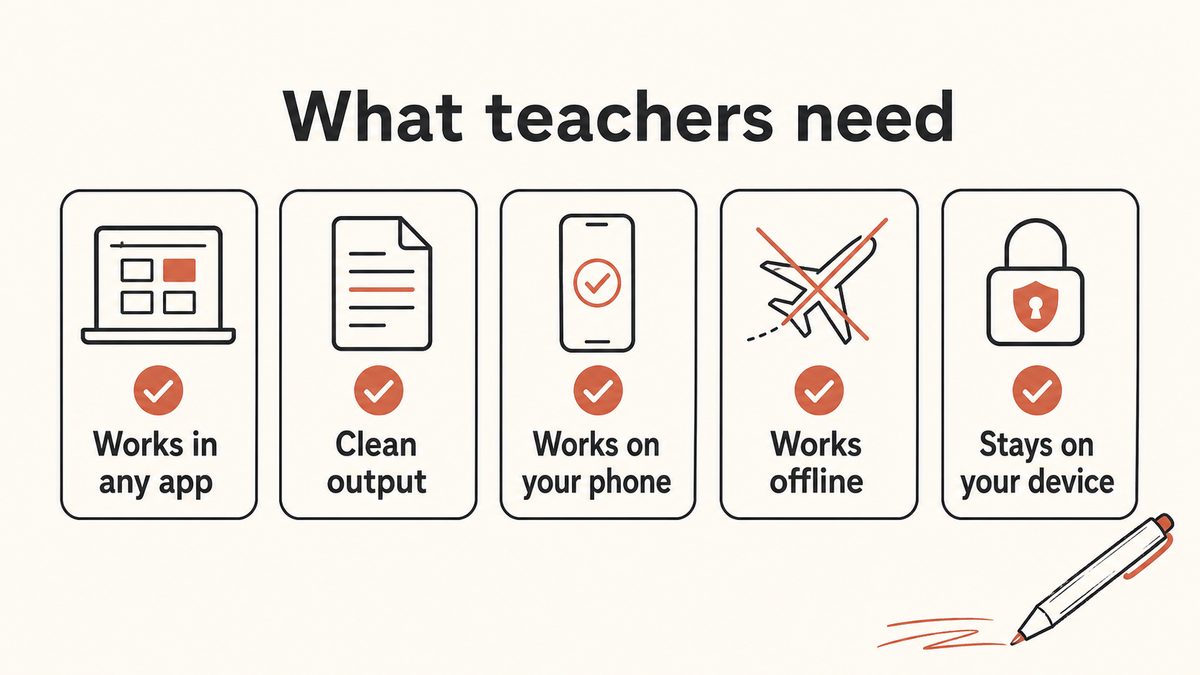
Before the list, here is the short version of what separates a tool you keep using from one you abandon by half-term. These are the criteria the rest of this guide is scored against.
It has to work in any app, not just one editor. Name the actual boxes you type into: the Canvas SpeedGrader comment field, a Schoology or Moodle assignment, Google Classroom private comments, a PowerSchool or Infinite Campus report-card comment, Seesaw, ClassDojo, Gmail or Outlook, Google Docs, and Word. All of those need to accept dictated text. This is the single biggest gap in most teacher picks, because the most-recommended free option only works inside Google Docs and does nothing in any of the rest.
The output has to be clean without heavy editing. If you have to retype half of what you dictated to strip out "um", "so", and false starts, the time you saved by speaking is gone. Automatic punctuation and filler-word cleanup are what make a spoken comment paste-ready.
It has to run on your phone between classes. The biggest wins teachers report come from capturing feedback and observations on a phone right after a session, not at a desk two hours later.
It should work offline. School networks are often locked down or flaky, and cloud dictation simply stops when the connection drops, usually mid-comment.
It should keep student information on your device. Student names, grades, and behaviour notes are education records, so keeping the audio and text on your own machine rather than sending it to a third-party cloud transcriber is a real buying criterion. Honesty note: vetting a tool against FERPA is your school's job, not something a consumer app can certify away. Treat on-device processing as privacy by design, then let your IT or privacy office make the call.
It should be cross-platform and cheap to start. You may have a school-issued Windows laptop or Chromebook, a personal Mac, and an Android or iPhone, and one tool that behaves the same everywhere beats three. Because teachers frequently pay out of pocket, a real free trial matters more than a procurement-cycle price list.
The 5 Best Dictation Tools for Teachers in 2026
This list is ranked, not enumerated. Yaps comes first because it is the only pick that types into every app a teacher touches while keeping student data on the device. Each tool below it earns its place for a specific need.
1. Yaps: Best Overall for Teachers
Yaps is a privacy-first, offline-first voice tool that types system-wide into any app on your device, which is why it leads this list. When you dictate a feedback comment, the text lands directly in whatever field your cursor is in: the grading portal comment box, the report-card system, a parent email, a Google Doc, or a Word document. You do not switch to a special window, transcribe there, then copy and paste back. You work where you already work.
The workflow is one motion. On desktop you push the Yaps hotkey and talk; on Android you tap the dictation button on the Yaps keyboard. The Yaps on-device speech engine turns your speech into text, and the built-in cleanup step removes filler words and self-corrections, fixes punctuation and capitalisation, and formats lists. So "um, so, Maya, uh, her thesis is strong but, like, the second paragraph kind of loses the thread" becomes a clean, paste-ready sentence. That cleanup is the difference between dictation saving you time and dictation just moving the editing work around.
Everything for the core pipeline runs on your device, so students' names, grades, and behaviour notes stay on your own machine rather than being sent to a cloud transcriber. That directly addresses the student-records concern most teacher-focused tools ignore. To be clear and honest: this is privacy by design, not a compliance certification. Yaps is not FERPA-certified or HIPAA-certified and has no signed district data agreement, so you should still clear any tool with your school's IT or privacy office before using it with student records. On-device processing simply gives that conversation a much better starting point than a cloud transcriber does.
Because it runs on your device, Yaps also works offline, so a flaky school network does not kill your dictation mid-comment, the exact failure mode of cloud tools. It is genuinely cross-platform: Android, iPhone and iPad, Windows, macOS (13.0 Ventura or later), and Linux are all shipped, plus a Chrome "Save to Yaps" extension. So the same tool captures a note on your phone between classes and finishes the report on your laptop, one tool, not three. Dictation is multilingual across roughly 25 auto-detected languages, which helps with proper names and mixed-language classrooms.
The 7-day free trial is the on-ramp. It gives you access to every feature, so you can start today out of your own pocket without waiting on a procurement cycle. If you dictate heavily, Pro is $15 per month and Max is $25 per month. Beyond dictation, Yaps includes Voice Notes for capturing spoken observations into searchable notes, which is handy for logging behaviour or progress notes on the fly. If you also set dictation up for the class, our guides to dictation software for students and, for learners who find writing effortful, dictation software and dyslexia cover that side.
2. Google Voice Typing: Best Free Pick for Chromebook and Google Classroom
If you live inside Google Classroom and Google Docs on a Chromebook, Google Voice Typing is the best free option, full stop. It costs nothing, installs nothing, and is genuinely good for drafting lesson plans, worksheets, and first-pass feedback right inside a Doc. On an Android phone, Gboard voice typing can also dictate into many apps, and it can run on-device once you download a language pack.
The honest limits matter for teacher work. Google Docs Voice Typing runs in Chrome only and works inside Google Docs, not system-wide, so you cannot use it to dictate into your grading portal, your report-card system, or a non-Google app. It also requires an internet connection, because the Docs feature sends audio to Google's servers, and it does not work offline even with Docs offline editing turned on. That cloud dependency is both the student-data question to weigh and the reason flaky school Wi-Fi can stop it mid-sentence. Pick it if your workflow genuinely lives in Google Docs on a Chromebook, and move to a system-wide tool the moment you need your LMS or offline use.
3. Apple Dictation: Best Free Pick if You Stay on Mac and iPhone
Apple Dictation is the best built-in, no-cost choice for a teacher who works entirely on a Mac and an iPhone. It is system-wide, so it types into any text field, including a web-based grading portal. It is free, and on recent Apple Silicon Macs and modern iPhones a lot of the processing happens on device, which makes it reasonably private for quick notes, short feedback, and email drafts.
The catches are real. It is Apple-only, so it does nothing for a school-issued Windows laptop, a Chromebook, or an Android phone. There is no filler-word cleanup and no reusable templates, so a rambling spoken comment comes out as a rambling written one that you then tidy by hand. Accuracy and punctuation trail a dedicated tool, and on older devices or for certain languages the processing may fall back to Apple's servers rather than staying on device. Pick it if you never leave the Mac and iPhone ecosystem and your dictation needs are light, in which case the built-in may be all you need.
4. Dragon: Best for Windows Power Users Who Dictate All Day
Dragon is the pick for a Windows teacher who dictates constantly and needs the deepest custom-vocabulary and voice-command control, for example building specialised subject or clinical terms into the dictionary so they transcribe correctly every time. The desktop product, Dragon Professional version 16, runs on-device and is widely treated as the accuracy benchmark, with voice commands that go well beyond dictation.
The trade-offs are steep for typical classroom use. Dragon Professional is a $699 one-time license, Windows only, and setup-heavy, and there is no current consumer Dragon desktop app for Mac. The mobile option, Dragon Anywhere, is subscription-only at $14.99 per month or $149.99 per year and is cloud-backed, which reintroduces the student-data question that the on-device desktop version avoids. For a teacher writing occasional feedback and reports, that is a lot of cost and configuration for power you will rarely use. Pick it if you are a Windows power user who dictates all day and the $699 fits your budget; for everyone else it is the specialist tool, not the everyday one.
5. Otter.ai: Best for Recording and Transcribing Meetings
Otter earns a place for a different job entirely: recording and transcribing spoken sessions rather than typing feedback. If your real need is a searchable transcript of an IEP meeting, a parent conference, staff professional development, or your own spoken lesson reflections, Otter does that well, with speaker labels and notes you can revisit later.
Be clear about what it is not. Otter is not a system-wide dictation tool, so you do not use it to dictate a comment into your grading portal, and it is cloud-based, so student information in a recorded session lives on Otter's servers. The free Basic plan gives you 300 transcription minutes per month, capped at 30 minutes per conversation, with only three lifetime file imports; Pro is $16.99 per month, or roughly $8.33 billed annually. A HIPAA add-on exists at the enterprise level, but that is a school procurement conversation, not a personal purchase. Pick it when the job is capturing and searching a live spoken session; for writing feedback into your everyday apps it is the wrong shape.
Two More Options Worth Naming: Word Dictate and Windows Voice Typing
Neither of these made the ranked five, because one is locked to Microsoft's own apps and the other is cloud-only. But both are free to a large number of teachers who already have them, so leaving them unnamed would be dishonest.
Microsoft Word Dictate. If your district gives you Microsoft 365, Dictate is already built into Word, Outlook, OneNote and PowerPoint across Windows, Mac, the web and mobile, at no extra cost. Its punctuation is better than Google's, and Outlook coverage matters because parent email is a large share of a teacher's writing. The limits: it is cloud-based, so it stops when the school network does, and it does not follow you into your grading portal or your SIS, which is where the tedious writing actually lives.
Windows voice typing (Windows key + H). On a school-issued Windows laptop, press Windows key + H in any text field and a dictation bar appears. Unlike Google Docs Voice Typing this is genuinely system-wide, so it does reach Canvas, Schoology and your report-card module. It uses Microsoft's online speech recognition and needs a connection, and it has no filler-word cleanup, so "um, so, I think Maya has, has really" arrives in the comment box exactly as spoken. Windows Voice Access, a separate feature under Settings, Accessibility, Speech, runs on-device after you download its language pack, but it covers far fewer languages and is built around voice commands.
A note on voice feedback, which is a different thing. Tools like Mote let you leave an audio comment on a Google Doc or a Google Classroom assignment, so the student hears your voice rather than reads your text. That is a genuinely good pedagogical tool and it is not what this guide ranks. Dictation converts your speech into written text you own and can edit; voice feedback ships the recording itself. Plenty of teachers use both, for different moments.
At a Glance: Dictation Software for Teachers Compared
| Criterion | Yaps | Google Voice Typing | Apple Dictation | Dragon | Otter.ai |
|---|---|---|---|---|---|
| Best for | Any-app feedback + reports | Docs on Chromebook | Mac + iPhone only | Windows power users | Meeting transcripts |
| Types into any app | Yes, system-wide | Docs only (phone: Gboard) | Yes, system-wide | Yes (Windows) | No (records only) |
| On-device / private | Yes, on-device | Docs is cloud | Mostly on-device | Desktop on-device | Cloud |
| Works offline | Yes | No (Docs feature) | Mostly | Desktop only | No |
| Filler-word cleanup | Yes, built in | No | No | Limited | Transcript only |
| Cross-platform | Android, Win, Mac | Chrome + Android | Apple only | Windows-centric | Web + mobile |
| Free tier | 7-day trial | Free | Free | No | 300 min/mo |
| Price to go further | $15–$25/mo | Free | Free | $699 one-time | $16.99/mo |
Who Should Choose Which
There is no single right answer for every teacher, so here is the honest routing. Start with the one question that decides the most.
Google Docs Voice Typing and Otter send audio to their servers, and they stop working when the network drops. For drafting lesson plans in a Doc or transcribing a meeting, that can be fine. For dictating student feedback across many apps on flaky school Wi-Fi, it is the wrong trade.
Yaps, Apple Dictation, and desktop Dragon process speech on your own machine. The audio does not leave, dictation keeps working offline, and student names stay local. This is the safer default for anything that touches student records, before your school signs off.
Choose Yaps if you write feedback, reports, and parent emails across several different apps, want the output cleaned up automatically, need it to work offline and on your phone between classes, and want student data to stay on your device. This is the everyday teacher workflow, and it is what Yaps is built for.
Choose Google Voice Typing if your entire workflow genuinely lives in Google Docs on a Chromebook, you are always online, and free with zero install is the deciding factor.
Choose Apple Dictation if you never leave the Mac and iPhone ecosystem and your dictation needs are light enough that built-in and free covers them.
Choose Dragon if you are a Windows power user who dictates all day and needs the deepest custom vocabulary and voice commands, and the $699 desktop license fits your budget.
Choose Otter if the real job is recording and transcribing a live spoken session, an IEP meeting, a parent conference, or staff training, with speaker labels and a searchable transcript. Note that Yaps does not live-transcribe meetings; its Studio only imports and transcribes recordings you already have, so for live capture Otter is the honest pick.
Getting Started as a Teacher in Under Three Minutes
If Yaps is the right fit, here is the fastest path from install to a feedback comment typed into your grading portal.
Install Yaps60 sec
Get it on your Android phone from Google Play, or on your Windows or macOS (13.0 Ventura or later) laptop. Grant the microphone permission at first launch. Nothing else is required to start.
Open the app you actually grade in10 sec
Your grading portal, the report-card system, Gmail, Google Docs, or Word. Put your cursor in the comment box exactly where the text should go. Yaps types wherever the cursor is.
Push the Yaps hotkey and talk30 sec
On desktop, push the Yaps hotkey: Fn on macOS, Ctrl and the Windows key on Windows, or a double-tap of Ctrl on Linux, all rebindable. On Android, tap the dictation button on the Yaps keyboard. Speak the comment naturally, filler words and all. Clean, punctuated text appears in the field, ready to save.
Frequently Asked Questions
What is the best dictation software for teachers in 2026?
Yaps is the best overall dictation software for teachers in 2026 because it types clean, punctuated text system-wide into any app you already use, including the grading portal, the report-card system, email, Google Docs, and Word. It runs on your device, so student names and feedback stay local and it keeps working offline on flaky school Wi-Fi. It is cross-platform across Android, iPhone, iPad, Windows, macOS, and Linux with a 7-day free trial, so you can start today. Google Voice Typing, Apple Dictation, Dragon, and Otter each suit narrower needs covered above.
Is there a free dictation or voice typing tool for teachers?
Yes, several. Google Voice Typing is free inside Google Docs, and Apple Dictation is free and built into Mac and iPhone. Yaps offers a 7-day free trial, which adds system-wide typing into any app, offline use, and automatic cleanup that the free built-ins do not have.
Can teachers use voice typing to grade papers and write feedback faster?
Yes, and this is where teachers report the biggest time savings. Speaking a feedback comment takes a fraction of the time typing it does, especially for the same kinds of comments you give dozens of times. The key is a tool that cleans up filler words and adds punctuation automatically, so the spoken comment is paste-ready. With Yaps you dictate straight into the grading portal or comment box, and the cleanup step turns rambling speech into a tidy comment without a retype.
Does Google Docs voice typing work offline?
No. Google Docs Voice Typing requires an internet connection because it sends your audio to Google's servers for processing, and it does not work offline even when Docs offline editing is enabled. It also runs in Chrome only and works inside Google Docs rather than system-wide. If you need dictation that keeps working when the school network drops, choose an on-device tool such as Yaps, which processes speech locally and works offline. There is more on this in the offline dictation guide.
What dictation software works in any app, not just Google Docs?
Yaps and Apple Dictation both work system-wide, meaning they type into any text field rather than a single editor. Yaps runs across Android, iPhone and iPad, Windows, macOS, and Linux and keeps processing on your device, so it works offline and keeps student data local. Apple Dictation is system-wide too, but only on Mac and iPhone, and it has no filler-word cleanup. Google Docs Voice Typing, by contrast, only works inside Google Docs.
Can I dictate feedback directly into my grading portal or LMS?
Yes, if you use a system-wide dictation tool. Yaps types wherever your cursor is, so you can dictate a comment straight into a grading portal, a learning management system comment box, or a report-card field, then save it without copying from a separate app. Google Docs Voice Typing cannot do this because it only works inside Google Docs; on a Mac or iPhone, Apple Dictation can.
Is dictation software safe for student data and FERPA?
Not automatically. It depends on where the audio and text go, and the final call belongs to your school, not the app. Tools that process speech on your own device, such as Yaps, keep student names and feedback local instead of sending them to a cloud transcriber, which is a strong privacy-by-design starting point. That is not a compliance certification, though: Yaps is not FERPA-certified and has no signed district agreement, so still clear any tool with your IT or privacy office before using it with student records. Cloud tools like Google Docs Voice Typing and Otter send audio off your device, which is exactly the data question to raise.
Is voice typing accurate enough for student feedback and report comments?
Yes, modern on-device dictation is accurate enough for feedback and report comments, and the automatic cleanup matters as much as raw accuracy. A tool that fixes punctuation and removes filler words produces a comment you can save with a light proofread rather than a heavy rewrite. Reading the result back before you save is still worth the few seconds, especially for student names and subject terms. There is a fuller look at this in is AI dictation accurate.
Can I dictate on my phone between classes?
Yes, and this is one of the highest-value habits for teachers. Capturing a feedback note or an observation on your phone in the two minutes after a class means the detail is fresh and the writing is already half done by report time. Yaps runs on Android and iPhone today, and on either you dictate by tapping the dictation button on the Yaps keyboard. Because it works offline, a weak signal in the hallway does not stop you.
What is the best dictation option for Chromebooks in the classroom?
For a Chromebook teacher who works inside Google Classroom and Google Docs, Google Voice Typing is the best free option, since it is built in and needs no install. The honest limits are that it only works inside Google Docs, only in Chrome, and only online, so it cannot dictate into a separate grading portal and it stops when the Wi-Fi drops. If you need to dictate across other apps or work offline, a system-wide tool is the better fit, though your device mix will determine which one runs on your hardware.
How much does Dragon cost, and is it worth it for teachers?
Dragon Professional version 16 is a $699 one-time license for Windows, and the mobile app, Dragon Anywhere, is a separate subscription at $14.99 per month or $149.99 per year. It is worth it for a Windows power user who dictates all day and needs deep custom vocabulary and voice commands. For a teacher writing occasional feedback and reports, it is expensive and setup-heavy for power you will rarely use, and a free or low-cost system-wide tool covers the everyday workflow. For heavy dictation without time limits, see the no-time-limit dictation breakdown, and for the parent-email side there is executive email dictation.
How do I dictate into Canvas SpeedGrader, Schoology or PowerSchool?
Use a system-wide dictation tool, because none of those platforms has voice typing of its own. Put your cursor in the comment or narrative field, trigger the tool, and speak. Yaps works this way on Windows, macOS and Linux via a hotkey, and on Android and iPhone through its keyboard; Windows voice typing (Windows key + H) and Apple Dictation do the same job for free, without the filler cleanup. Google Docs Voice Typing will not work in any of them, because it only runs inside the Google Docs web app, which is the single most common disappointment teachers report with it.
What is the difference between dictation and voice feedback tools like Mote?
Dictation turns your speech into editable text; voice feedback sends the student the audio recording itself. With dictation you speak a comment, it lands as words in the box, and you can trim it before it goes out. With a tool like Mote you record a short audio note attached to a Google Doc or Classroom assignment, and the student listens to your voice. They solve different problems, and many teachers use both: dictation for report cards and parent email, voice notes for warm, personal feedback on a piece of work.
Can I dictate IEP reports and progress notes?
Yes, and it is one of the highest-value uses of dictation for teachers, because IEP narratives are long, repetitive and written under time pressure. Two cautions. First, these documents contain identifiable student information, so a tool that processes speech on your own device rather than uploading it to a transcription service is the lower-risk shape. Second, whether any specific tool is approved for student records is a decision for your district's privacy or IT office, not something an app can settle for you. Draft the narrative by voice, then edit for the precise, compliant language the document needs.
Do I get Word Dictate free as a teacher?
If your school gives you Microsoft 365, yes: Dictate is included in Word, Outlook, OneNote and PowerPoint at no extra cost, across Windows, Mac, web and mobile. It is cloud-based, so it needs a working connection, and it only operates inside Microsoft's own apps, which means it does not help in Canvas, Schoology, PowerSchool or a browser-based report-card module. For a teacher whose writing is mostly parent email in Outlook and documents in Word, though, it is a strong free starting point you may already be paying for through the district.
What is the fastest way to write report card comments by voice?
Speak each comment as one continuous, plain-English sentence and let the tool punctuate it, rather than dictating punctuation aloud. The workflow that saves the most time is to put your cursor in the comment field, say what you would tell the parent at a conference, then edit the two or three words that need to be more formal. Batching helps more than anything: do a whole class in one sitting while the phrasing is warm rather than one comment per sitting. Filler-word cleanup matters most here, because report-card fields are short and a spoken "um, so" is very visible in three sentences.
Final Thoughts
For most teachers in 2026, Yaps is the default. It is the one pick that types clean feedback into any app you already grade in, keeps student names and notes on your own device, works offline when the school network wobbles, and follows you from a school laptop to the phone in your pocket between classes, all with a 7-day free trial you can start on without asking anyone to pay. That combination is what the everyday teacher workflow actually needs.
The honest edge cases are worth respecting. If your whole world is Google Docs on a Chromebook, the free built-in Voice Typing may be all you need. If you never leave the Mac and iPhone, Apple Dictation is a fine, free starting point. If you are a Windows power user who dictates all day, Dragon still wins on the deepest custom vocabulary. And if the real job is transcribing a live IEP meeting or parent conference, Otter is built for that, where Yaps is not. Whichever you choose, run it past your school before it touches student records, then let dictation give you back the hours you currently spend typing.