Preface
If spelling every word correctly is the thing that makes writing exhausting for you, dictation removes that barrier in one move: you speak, and the words appear already spelled. Pair that with read-aloud, where the tool reads your finished draft back to you, and you get the second thing that helps most with dyslexia, which is catching mistakes by ear that the eye slides straight past.
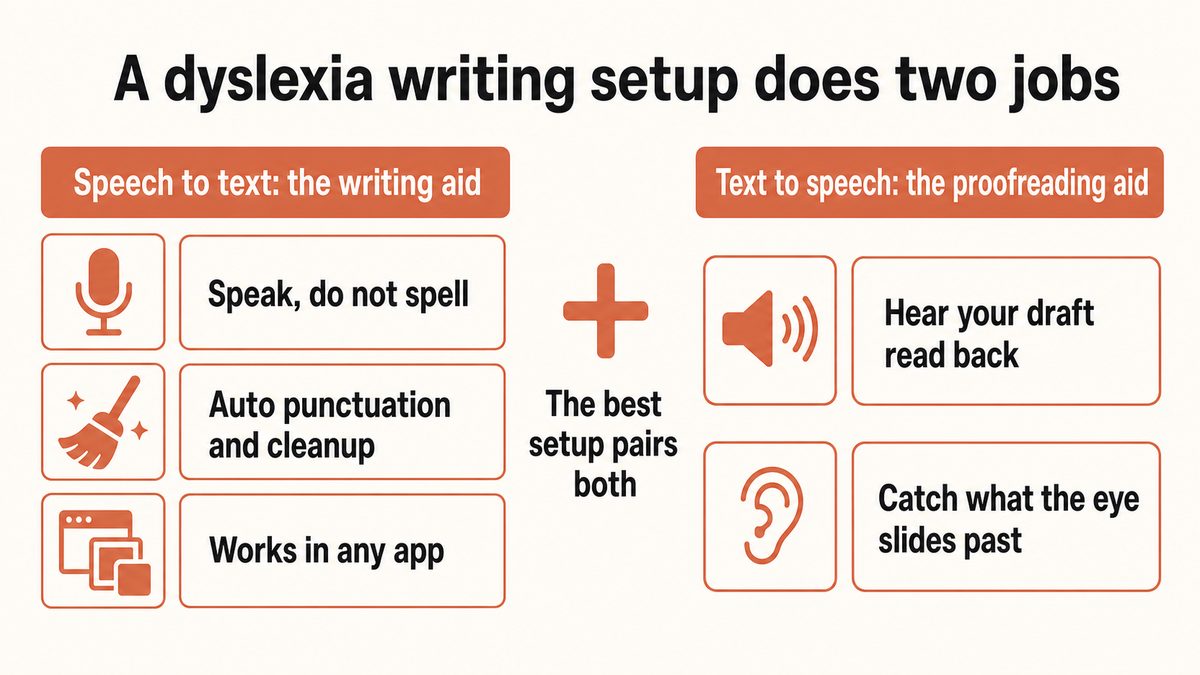
That combination is the whole point of this guide. Most "best dictation for dyslexia" lists blur two different tools together and never separate them. Speech-to-text (dictation) is the writing aid: it turns your voice into text. Text-to-speech (read-aloud) is the reading and proofreading aid: it turns text back into speech. The strongest setup uses both. Below we tested seven tools and ranked them for the way people with dyslexia actually write, not for how good their landing pages look.
One thing up front, in plain language. We build Yaps, so treat the ranking as informed but biased, and use the honest concessions to decide for yourself. Yaps is a general writing tool that lowers the effort of getting words down. It is not a certified assistive technology, it does not treat or diagnose dyslexia, and nothing here is medical advice. It is software that makes writing less tiring, and for many people that is exactly the help that matters.
What Actually Matters When You Have Dyslexia
Before the list, here is what separates a tool you keep using from one you abandon after a week. These are the features that count for this specific need.
Accurate dictation you do not have to fix. The entire point is to bypass the spelling bottleneck. A tool that constantly mis-hears words and forces you to hand-correct spellings gives the barrier back with extra steps. Accuracy on natural, everyday speech is the first thing that matters.
Automatic punctuation, capitalization, and light formatting. Punctuation and paragraphing are often part of the struggle too. A good tool produces clean sentences without you having to say "comma, new paragraph, period" out loud or clean it all up afterward.
Filler and false-start cleanup. Spoken drafts are messy. They have "um", "like", repeated words, and half-finished thoughts. A tool that tidies that raw stream into readable prose removes an editing pass that is genuinely draining.
Read-aloud to proofread by ear. Hearing your own draft read back is one of the most reliable ways to catch errors and awkward phrasing. Having dictation and read-aloud in one place, instead of juggling two apps, is a real advantage.
Low friction and low setup. Install-and-talk beats long voice training, complex profiles, and app-juggling. Friction is exactly where accommodations get dropped.
Works where you already write, and stays private if you want. Email, docs, browser, chat, not locked to one editor. And for school, work, or personal writing, an on-device option that keeps your words on your machine lowers both the privacy worry and the number of moving parts.
What Is Assistive Technology for Dyslexia, and Where Does Dictation Fit?
Assistive technology for dyslexia is any software or device that removes a barrier between what you know and what you can get onto a page or off it. Dictation is one category inside that toolkit, not the whole of it, and it helps to know the map before you buy anything, because a tool that is excellent at one job is often useless at another.
The categories that come up repeatedly in guidance from organisations like the British Dyslexia Association, AbilityNet and Understood are these:
- Speech-to-text (dictation). You speak, the words appear already spelled. This is the writing aid, and it is what most of this guide tests.
- Text-to-speech (read-aloud). The device reads text back to you. This is the reading aid and, just as importantly, the proofreading aid.
- Optical character recognition (OCR) and reading pens. Scanning printed pages or a physical book into text that can then be read aloud. Useful when the barrier is paper, not screens.
- Word prediction. The tool suggests the next word as you type, which cuts spelling effort without removing typing.
- Homophone and confusable-word checking. Catching "their" for "there", which a normal spellchecker passes because both words are correctly spelled.
- Mind mapping. Getting structure out of your head visually before you write a sentence.
- Accessible book libraries. Services such as Bookshare and Learning Ally supply books in audio and other accessible formats to people with a documented reading disability.
Names you will meet in this space that are not on our tested list, because they are literacy or reading suites rather than dictation tools, include ClaroRead, Kurzweil 3000, Ghotit Real Writer & Reader and NaturalReader. We have not benchmarked those, so we are not going to rank them. Read&Write from Texthelp is the one literacy suite we did include, because its dictation is a real part of the product.
The short version: dictation solves the "getting words out" barrier, and read-aloud solves the "checking what came out" barrier. Nearly everything below is judged on those two jobs.
The 7 Best Dictation Tools for People With Dyslexia in 2026
This list is ranked, not just enumerated. Yaps comes first because it is the most complete answer to "what should I install to write by voice and check my work by ear?" Each pick after it fits a specific need, and several beat Yaps on one axis. We will be clear about which.
1. Yaps: Removes the Spelling Barrier and Reads Your Draft Back
Yaps is first because it does the three things this need calls for inside one app: accurate dictation that spares you from spelling, on-device cleanup that automatically adds punctuation and strips the mess out of a spoken draft, and built-in read-aloud so you can proofread your own writing by ear. Most tools do one of those. A literacy suite might do two. Yaps is the pick that does all three without you stitching apps together.
Start with dictation, the part you meet first. Push the Yaps hotkey on desktop, or tap the dictation button on the Yaps keyboard on Android, then just talk. Clean text appears in whatever app you are working in: your email, a doc, the browser, a chat box. The Yaps on-device speech engine handles natural, everyday speech, including the restarts and half-sentences everyone produces, and it works in about 25 languages that it detects automatically from how you speak. You are never asked to spell a word, and the audio never leaves your device.
The cleanup step is the part that matters most for this need, and it is the part most rivals skip. After you speak, Yaps tidies the raw transcript on your device: it adds punctuation and capitalization, formats lists and numbers, and removes filler words and false starts like "um" and repeated phrases. So the draft comes out reading as clean prose, not as one long run-on sentence you then have to fix. That removes an entire editing pass, which is exactly the pass that tends to be exhausting.
Then there is read-aloud, and this is why Yaps covers both halves of the job. Once you have written something, Yaps can read it back to you so you catch the errors and clunky phrasing your eye skips over. On desktop that is 18 voices, 8 of them fully offline; on mobile there are 2 voices. Desktop read-aloud covers 31 languages and runs on your own machine, so nothing is uploaded to be spoken. The honest limits to know: cloud readers still offer more voices and more accents per language, and mobile ships a smaller voice set than desktop. More on that in the concessions.
Because dictation and cleanup run on your device and work offline, your school, work, or personal writing stays on your machine with nothing uploaded, and there are fewer moving parts to give up on. Yaps runs on Android, iPhone, iPad, Windows, macOS, and Linux 13 or later, with a "Save to Yaps" Chrome extension, and iOS is available now. Yaps gives you a 7-day free trial with access to every feature, which is enough to genuinely test whether dictation clicks for you before paying anything. Paid plans are Pro at $15 a month, or $12 a month billed annually, and Max at $25 a month, or $20 a month annually. That is a long way below Dragon's roughly $700. You can read more on the dictation feature page and the text-to-speech page.
Where Yaps is honestly not the best pick: it does not offer dyslexia-specific spelling supports like a homophone checker, word prediction, or a picture dictionary, and a dedicated cloud reader still offers more voices and more accents per language than its read-aloud does. If those are your priority, a literacy suite or a reading-first tool below fits better. Yaps is the strongest all-round pick, not the answer to every sub-need.
See how Yaps dictation works →
2. Dragon: The Heavyweight for Hands-Free Control and Custom Words
Dragon is the pick for adults who need to control the whole computer by voice, not just insert text. It has been recommended for years for people with learning differences because of its deep custom-vocabulary training and full hands-free navigation and correction. If writing is a large, daily part of your work, you are on Windows, and you want to operate the machine end to end by voice, this is its territory.
The facts set the boundaries. Dragon Professional v16 is Windows-only, sold as a one-time perpetual license at around $699.99, and it processes speech locally on the desktop. Dragon Anywhere, the mobile and cloud option, is roughly $15 a month or $150 a year. There is no current macOS client, since the Mac version was discontinued in 2018, and Dragon Home was discontinued in 2023. Since Microsoft acquired Nuance in 2022, Dragon has leaned toward enterprise and healthcare.
Choose Dragon if custom vocabulary and full voice control of Windows are your real needs and the price and setup are worth it. Choose Yaps if you want install-and-talk simplicity, on-device privacy across Android, Windows, Mac, and Linux, automatic cleanup, and read-aloud in the same app, without the license cost or the training overhead.
3. Speechify: The Read-Aloud Specialist for Proofreading by Ear
This is the honest concession on the read-aloud side: a reading-focused tool beats Yaps here. Speechify is primarily a text-to-speech app, so it is where you go to listen to a finished draft and catch mistakes, or to read long documents aloud. It is not the tool that turns your speech into text, so think of it as the proofreading and reading half of the pair, not the writing half.
On the facts, Speechify runs on iOS, Android, a Chrome extension, Mac, and the web. The free plan includes around 10 robotic voices, up to 1.5x speed, and a small library. Premium is about $139 a year, roughly $11.58 a month, or around $29 a month billed monthly, and it unlocks 200-plus natural AI voices, 60-plus languages, up to 5x speed, and offline downloads. It is cloud-based.
Choose Speechify if your main need is high-quality reading and listening, especially in multiple languages, or if you read long documents aloud often. Pair it with a dictation tool for the writing side. If you want read-aloud good enough to proofread your own drafts without adding a second subscription, Yaps covers that across 31 languages on desktop inside the same app you dictate in, and it does so on your own machine. For more on why hearing your draft catches what your eye misses, see our guide on using text-to-speech to proofread.
4. Apple Dictation and Voice Control: The Best Free, Already-Installed Start
If you are in the Apple ecosystem, this is the best free starting point, and it is privacy-friendly. Standard Dictation inserts text anywhere you can type. Voice Control adds full hands-free navigation plus a spelling mode for names and tricky words, and the newer Accessibility Reader gives systemwide read-aloud with adjustable fonts, spacing, and colors. Those are genuinely relevant extras.
The facts: it is free and built into iPhone, iPad, and Mac. Dictation and Voice Control process on your device, so your voice and transcripts can stay on the device rather than going to Apple's servers. Voice Control replaces standard Dictation when you turn it on and adds command-based navigation and letter-by-letter correction. Accessibility Reader offers customizable text and built-in read-aloud across the system.
The downsides matter for this need. Punctuation and formatting are weaker than dedicated tools, there is no automatic filler removal, so spoken messiness stays in your text, and it is Apple-only. Choose Apple Dictation if you want zero cost and zero install and you are willing to tidy the output yourself. Choose Yaps when the missing punctuation and the lack of cleanup start to bite, or when you want the same experience on Android or Windows.
5. Google Docs Voice Typing: The Easiest Free Entry, Especially for Students
Google Docs Voice Typing is the easiest genuinely-free entry point, and if your school already lives in Google Docs, you can test it in minutes and feel the spelling barrier lift immediately. It also has the broadest language support of the free options.
The facts: it is free, but the desktop feature works only inside Chrome (Tools, then Voice typing, or Ctrl and Shift and S), not Firefox, Safari, or Edge, and not in the Docs mobile app. It supports 120-plus languages and dialects, though voice commands are English-only. It adds automatic punctuation and spoken formatting commands, and it is generally accurate in quiet conditions with clear speech. It is cloud-based, so it needs internet.
The two real limits: it is locked inside Google Docs, so it does not help in your email or browser or chat, and it has no built-in read-aloud in the dictation flow, so you need a separate tool to proofread by ear. Choose Google Docs Voice Typing if you write mostly in Docs and want free and instant. Choose Yaps if you want dictation everywhere you write, plus cleanup and read-aloud in one place, on or offline. If you are a student, our sibling guide to the best dictation software for students goes deeper on exam-friendly and free options.
6. Read&Write (Texthelp): The Most Dyslexia-Specific Suite
This is the most dyslexia-specific pick on the list, because it was built for this need rather than adapted to it. Read&Write is a literacy toolbar that sits on top of the apps you already use and layers dictation, read-aloud, word prediction, a homophone and confusable-word checker, and a picture dictionary together. It covers both the writing and the reading side, and it adds spelling supports that general dictation tools simply do not offer.
The facts: it runs on Windows, Mac, Chrome, iPad, and Android, sitting on top of Google Docs, Word, and the browser. Its text-to-speech reads aloud with dual-color word highlighting, and it bundles speech-to-text, word prediction, the homophone checker, and picture dictionary. There is a limited free Read&Write for Google Chrome extension; the full version is a paid subscription, roughly $145 a year for home use, and it is frequently funded for students and employees through schools, or in the UK through DSA or Access to Work.
The trade-offs are cost and heft, and its dictation is not its single strongest feature. Choose Read&Write if you specifically want homophone checking, word prediction, and synchronized read-aloud in one literacy suite, especially if a school or employer funds it. Choose Yaps if you mainly want fast, accurate, private dictation with automatic cleanup and read-aloud, without the suite and the licensing.
7. Microsoft Word Dictate and Immersive Reader: Best Value If You Have Microsoft 365
If you already pay for Microsoft 365, you may already own both halves of the pair. Word Dictate gives you cross-app dictation, and Immersive Reader reads text aloud with word highlighting and dyslexia-friendly spacing and fonts, which is a strong proofreading aid.
The facts: both are included with a Microsoft 365 subscription at no extra cost. Dictate is built into Word, Outlook, OneNote, and PowerPoint across Windows, Mac, web, and mobile, but it is cloud-based, so it needs internet. Immersive Reader is free and systemwide across Office and Edge, offering read-aloud with synchronized highlighting, adjustable spacing and fonts, and a picture dictionary.
The downsides: cloud dictation requires a connection, and its punctuation and cleanup accuracy trail dedicated dictation tools, so spoken messiness tends to survive into the text. Choose this combination if you already have Microsoft 365 and want to spend nothing extra. Choose Yaps if you want on-device, offline dictation with stronger automatic cleanup and read-aloud that does not depend on a Microsoft subscription.
Compare the 7 at a Glance
Every cell below reflects what actually matters for this need. Yaps is the leftmost result column.
| What matters | Yaps | Dragon | Speechify | Apple Dictation | Google Voice Typing | Read&Write | Word + Immersive |
|---|---|---|---|---|---|---|---|
| Best for | Dictation + cleanup + read-aloud | Hands-free control | Read-aloud | Free Apple start | Free in Docs | Literacy suite | Microsoft 365 users |
| Turns your speech into text | Yes | Yes | No (read-aloud) | Yes | Yes | Yes | Yes |
| Auto punctuation + filler cleanup | Yes (on-device) | Partial | No | Weak | Punctuation only | No cleanup | Partial |
| Read-aloud to proofread | Yes (built in) | No | Yes (best) | Yes | Separate tool | Yes (highlight) | Yes (highlight) |
| On-device / private dictation | Yes | Yes (desktop) | Cloud | Yes | No (cloud) | No (cloud) | No (cloud) |
| Works fully offline | Yes | Yes (desktop) | Premium only | Partial | No | No | No |
| Free entry point | Yes (7-day trial) | No | Yes (limited) | Free | Free | Limited free ext | 365 needed |
| Works across your apps | Yes | Yes (Windows) | Reading only | Apple only | Docs only | Yes | Office apps |
| Dyslexia spelling supports | No | Custom words | No | Spelling mode | No | Yes (full) | Partial |
| Platforms | Android, Win, Mac, Linux, Chrome | Windows | Broad | Apple | Chrome | Broad | Broad |
| Price | $15 to $25/mo | ~$700 once | $0 to ~$139/yr | Free | Free | ~$145/yr | With 365 |
Who Should Choose Which
Different needs point to different tools. Here is the honest routing, including where an alternative wins.
You want accurate dictation you do not have to spell-check, automatic punctuation and filler cleanup so the draft reads clean, read-aloud to proofread by ear, and all of it private and offline across Android, Windows, Mac, and Linux. This is the all-round pick, and the 7-day free trial lets you test it before paying.
Read&Write for homophone checking, word prediction, and a picture dictionary. Speechify for the widest voice library and the most accents per language in read-aloud. Dragon for full hands-free Windows control and custom vocabulary. Apple Dictation or Google Docs Voice Typing when free-and-installed is the deciding factor.
If you need dyslexia-specific spelling help, such as a homophone or confusable-word checker, word prediction, or a picture dictionary, Read&Write owns that niche. Yaps does not do those. Read&Write covers both writing and reading, at the cost of price and heft.
If your main need is reading and listening, especially long documents or content in several languages, Speechify is the read-aloud leader with 200-plus voices and 60-plus languages, so it still carries broader raw coverage and far more voices per language. Yaps read-aloud now covers 31 languages on desktop and runs entirely on your own machine, so nothing is uploaded to be spoken, which is the trade to weigh. Note that Yaps dictation is a separate feature at around 25 auto-detected languages, and mobile ships a smaller voice set than desktop.
If you want to operate your whole computer by voice and train deep custom vocabulary, that is Dragon, on Windows, at a much higher price. For most writing, install-and-talk tools now close the gap.
If free and already-installed is the priority, Apple Dictation and Voice Control on Apple devices, or Google Docs Voice Typing in Chrome, cost nothing and are honest starting points. Move up when the missing cleanup or the single-app lock starts to slow you down. If focus and executive load are part of the picture, our guide to dictation for ADHD and neurodivergent writers covers the low-friction angle in more depth.
Getting Dictation Written Into a Plan, or Funded
Plenty of people buy a dictation tool themselves and never involve anyone. But if you are at school, at university, or in a job where writing volume is the problem, there are established routes that can get the software paid for and, more usefully, get its use formally recognised. This section is a map of the vocabulary, not legal advice, and the details vary by country and by institution.
In US K-12 education, the two documents that matter are the IEP and the 504 plan. They sit under different laws and do different jobs. An IEP, under the Individuals with Disabilities Education Act, provides specialised instruction plus related services and accommodations, and IDEA requires the IEP team to consider whether the student needs assistive technology devices and services. A 504 plan, under Section 504 of the Rehabilitation Act, provides accommodations without specialised instruction, and speech-to-text is one of the accommodations commonly listed on them. Whether a particular student qualifies for either is decided by the school team on the evidence, not by the software. The practical point for parents: if dictation helps, ask for it to be named in the paperwork rather than relying on informal permission, because informal permission does not travel with the student to the next teacher or the next exam.
An assistive technology assessment (sometimes called an AT evaluation) is the process that produces a recommendation for specific tools. In a school setting it is usually carried out by a specialist as part of the IEP process. In UK higher education the equivalent sits inside a needs assessment for Disabled Students' Allowance, which is where products like ClaroRead and Read&Write are routinely funded. In UK employment, Access to Work can fund software and training for an employee.
A caution worth stating plainly. Funded programmes tend to buy from an approved supplier list, and Yaps is not on those lists. If your route to a tool is DSA, Access to Work, or a school district purchase, you will most likely be offered Read&Write, ClaroRead or Dragon, and those are reasonable tools. Yaps is something you buy yourself, so treat it as the option for personal writing, work you do outside a funded scheme, or as the thing you try during a free trial to find out whether dictation suits you at all before anyone fills in a form.
Getting Started If You Have Dyslexia
The fastest way to know whether dictation helps you is to try it on real writing today. Here is a four-step path using Yaps, though the shape works for any tool on this list.
Install Yaps1 min
Get it on Android, Windows, macOS 13 or later, or Linux. On desktop you sign in to start the 7-day free trial, and the dictation itself still runs on your own machine. On Android, add the Yaps keyboard; on desktop, allow the microphone at first launch.
Speak one real thing2 min
Open your email or a doc, push the Yaps hotkey on desktop or tap the dictation button on the Yaps keyboard, and say what you mean in plain speech. Do not spell anything, and do not worry about filler.
Let cleanup do the tidyingautomatic
On-device cleanup adds punctuation and capitalization and removes the "um"s and false starts, so what lands is readable prose rather than a raw transcript you have to fix.
Proofread by ear1 min
Select the text and have Yaps read it back. Errors and awkward phrasing that the eye slides past are much easier to catch when you hear them. Fix, then send.
Frequently Asked Questions
Does dictation software actually help people with dyslexia?
For many people, yes, because it removes two of the most tiring parts of writing at once: spelling and typing. You speak and the words appear already spelled, so the mental effort shifts to thinking rather than transcribing. Research on dictation and learning differences has repeatedly found that people who struggle with spelling often produce longer and more detailed writing when they dictate instead of type or handwrite. Yaps is a general writing tool that lowers this barrier; it is not a certified assistive technology or a treatment for dyslexia.
What is the best dictation software for dyslexia?
For an all-round pick, Yaps, because it combines accurate dictation you do not have to spell-check, automatic punctuation and filler cleanup, and built-in read-aloud to proofread by ear, all private and offline in one app. If you specifically need dyslexia spelling supports like a homophone checker and word prediction, Read&Write is stronger. If you mainly need high-quality read-aloud, Speechify leads. The best choice depends on whether you weight the writing side or the reading side more heavily.
Is speech-to-text good for dyslexic students?
Often, yes, because it lets students get ideas down without the spelling bottleneck slowing or stopping them. Free options like Google Docs Voice Typing and Apple Dictation are easy places to start, especially where the school already uses those tools. For homework and personal writing that you want kept on your own device, an on-device option like Yaps keeps the words private and works offline. Our sibling guide to the best dictation software for students covers exam rules and free picks in detail.
What is the difference between speech-to-text and text-to-speech for dyslexia?
Speech-to-text, also called dictation, turns your voice into written words, so it is the writing aid that bypasses spelling and typing. Text-to-speech, also called read-aloud, turns written words back into spoken audio, so it is the reading and proofreading aid that helps you catch errors by ear. Many guides blur the two, but they solve different problems. The strongest setup uses both, which is why a tool like Yaps that includes dictation and read-aloud together is convenient for this need.
Is there a free dictation app for dyslexia?
Yes, several. Apple Dictation is free and built into iPhone, iPad, and Mac. Google Docs Voice Typing is free inside Chrome. Yaps has a 7-day free trial with access to every feature, which also includes the automatic cleanup and read-aloud that the free system tools lack. Read&Write has a limited free Chrome extension. Try a free option first to see whether dictation suits how you write before paying for anything.
Does voice typing fix spelling for people with dyslexia?
In effect, yes, because the tool writes the words for you, so you never have to generate a spelling yourself. That removes the specific step that spelling difficulty makes hard. It is worth knowing the limit: dictation can still mis-hear a word and type the wrong correctly-spelled word, so a quick check is useful. Reading the draft back with a read-aloud tool is the most reliable way to catch those, which is why pairing dictation with read-aloud matters.
Can text-to-speech help me proofread my writing if I have dyslexia?
Yes, and for many people it is the single most effective proofreading method. Hearing your own words read back surfaces missing words, wrong words, and awkward phrasing that the eye slides straight over on the page. Read-aloud tools like Speechify, Read&Write, and Microsoft Immersive Reader are built for this, and Yaps includes read-aloud so you can proofread in the same app you dictated in. Our guide on proofreading with text-to-speech walks through the technique.
Does Google Docs Voice Typing work well for dyslexia?
It works well as a free, low-effort way to get words down without spelling, especially if you already write in Google Docs. It adds automatic punctuation and supports many languages. The catches are that it only runs in Chrome, only inside Google Docs, so it does not help in email or your browser, it needs an internet connection, and it has no built-in read-aloud in the dictation flow, so you would pair it with a separate tool to proofread by ear.
Is Dragon still a good choice for dyslexia in 2026?
It can be, for a specific person: an adult on Windows who needs to control the whole computer by voice and wants deep custom-vocabulary training, and who is fine with a roughly $700 one-time price and heavier setup. For most people who mainly want to write and proofread, lighter install-and-talk tools now cover the need with less cost and friction, and Dragon has no current Mac version. If custom words and hands-free control are your priority, though, Dragon is still the specialist.
Does dictation software work offline?
Some does and some does not, so check before you rely on it. Yaps runs dictation and cleanup on your device and works fully offline. Dragon processes locally on the desktop. Apple Dictation has a partial offline mode. Google Docs Voice Typing, Speechify, Read&Write, and Microsoft Word Dictate are cloud-based and need internet. If you write on planes, in areas with poor signal, or want your words to stay on your own device, choose a tool that processes speech on-device.
Is dictating better than typing for dyslexic writers?
For many people, dictating produces more, and often better-developed, writing than typing or handwriting, because it removes the spelling and motor effort and lets you focus on ideas. It is not automatically better for everyone or every task, and most people settle on a mix: dictate the first draft at speaking speed, then edit for precision, using read-aloud to catch what the eye misses. The honest test is to try it on real writing for a week and see whether it feels less tiring.
Can adults with dyslexia use dictation at work?
Yes, and many do, for email, reports, notes, and messages across the apps they already use. The main considerations at work are privacy and reliability: an on-device tool like Yaps keeps your writing on your machine and works offline, which suits sensitive or regulated environments and spotty connections better than cloud tools. Start by dictating low-stakes messages, add read-aloud to proofread before you send, and expand from there as it becomes second nature. If long sessions matter, note that some tools cap you; see our note on dictation with no time limit.
What is assistive technology for dyslexia?
Assistive technology for dyslexia is any tool that removes a barrier between what you know and what you can read or write. It covers speech-to-text for writing, text-to-speech for reading and proofreading, OCR and reading pens for printed pages, word prediction, homophone and confusable-word checkers, mind-mapping software for structure, and accessible book libraries such as Bookshare and Learning Ally. Dictation is one category inside that toolkit rather than the whole of it, which is why most people end up using two or three tools rather than one.
Is dictation software covered by an IEP or a 504 plan?
Not automatically. Whether speech-to-text is provided depends on the individual student's documented need and the decision of the school team, not on the software itself. In US K-12 education, an IEP under IDEA provides specialised instruction plus accommodations and requires the team to consider assistive technology, while a 504 plan under Section 504 provides accommodations only. Speech-to-text appears commonly on both, but it has to be written in for a specific student. If dictation helps, ask for it to be named in the paperwork rather than relying on an informal arrangement with one teacher.
Can I use dictation software in an exam?
Not by default, and the rules vary by exam board, school and country. Dictation in an assessment is usually treated as an access arrangement that has to be approved in advance and evidenced as your normal way of working, and some exams restrict which features are allowed, for example permitting speech-to-text but not automatic grammar correction. Check with your exam officer, disability service or awarding body well before the exam date rather than on the day. Nothing on this page overrides your institution's rules.
How do I get dictation software paid for?
The route depends on where you are. In UK higher education, a needs assessment for Disabled Students' Allowance can fund literacy software and training, and in UK employment Access to Work can fund software for an employee. In US schools, assistive technology can be provided through an IEP or 504 plan after an assessment. Funded routes usually buy from an approved supplier list, which typically means Read&Write, ClaroRead or Dragon rather than newer tools. Free options like Apple Dictation and Google Docs Voice Typing cost nothing at all and are a legitimate starting point while you wait for any of that.
Does dictation help with dysgraphia, dyspraxia or ADHD as well as dyslexia?
Often, yes, because dictation removes the handwriting and typing effort as well as the spelling effort, and those are the barriers dysgraphia and dyspraxia hit hardest. For ADHD the benefit people report is different: getting a thought down at speaking speed before it disappears, with fewer chances to stall on a blank page. None of this is a diagnosis or a treatment, and needs vary a great deal between individuals. If executive load rather than spelling is your main obstacle, our guide to dictation for ADHD and neurodivergent writers is the closer fit.
What is the difference between a spellchecker and a homophone checker?
A spellchecker flags words that are not real words, and a homophone checker flags real words used in the wrong place. "Their" written where "there" belongs passes a normal spellchecker cleanly, because both are correctly spelled English words, and that is precisely the error pattern that causes trouble for a lot of dyslexic writers. Read&Write and Ghotit include homophone and confusable-word checking; general dictation tools including Yaps do not. Reading a draft aloud catches many of the same errors, which is why the read-aloud step matters even when your spelling is being handled for you.
Final Thoughts
If you have dyslexia and you want one tool that does most of the job, start with Yaps. It removes the spelling barrier with accurate dictation, cleans up the punctuation and the filler on its own so the draft reads well without a tiring edit pass, and reads your writing back so you can proofread by ear, all private and offline on Android, Windows, Mac, and Linux. The 7-day free trial is enough to find out whether dictation genuinely helps you before you spend anything.
The honest edge cases still stand. If you need homophone checking, word prediction, and a picture dictionary, Read&Write is the literacy suite built for that. If you mainly need read-aloud with the widest voice library and the most accents per language, Speechify leads, though Yaps read-aloud now covers 31 languages on desktop without sending your text anywhere. If you want to run your whole computer by voice, Dragon is the specialist. And if free-and-installed is what matters most today, Apple Dictation and Google Docs Voice Typing are honest places to begin. Pick the tool that fits how you write, try it on something real this week, and let your voice carry the words that spelling used to hold back. If you want to understand how reliable modern dictation has become, our explainer on how accurate AI dictation is has the details.