Preface
You start dictating a paragraph, you pause for half a second to think of the right word, and Apple Dictation quietly shuts off. The microphone icon disappears, the last few words never land, and you have to reach up and re-trigger the whole thing. On anything longer than a sentence, macOS Dictation feels like it dies every thirty seconds.
You are not imagining it, and you are not doing it wrong. This is built into how Apple Dictation works, and there is no checkbox that turns it off. The fixes are first, below, because half the people who land here have a different problem that genuinely is fixable. The explanation comes after.
Start Here: The 60-Second Fix
Two different problems bring people to this page, and only one of them is fixable in settings.
If Dictation stops after you pause to think, that is the built-in silence timeout. Apple's support page states that "dictation stops automatically when no speech is detected for 30 seconds," and no toggle, Terminal command or configuration profile extends it. The fix is a different tool, covered further down.
If Dictation never starts, dies the instant you press the key, plays a low descending tone instead of the usual chime, or the microphone icon never appears, that is a permission, process or conflict problem, and it is fixable. Run these four first, in order:
- System Settings > Keyboard > Dictation. Switch Dictation off, wait five seconds, switch it back on.
- System Settings > Privacy & Security > Microphone. Confirm the app you are dictating into is toggled on. This is the "works in Notes but not in Chrome, Slack or VS Code" case.
- System Settings > Accessibility > Voice Control. Turn it off. Voice Control holds the microphone and Dictation never gets it.
- System Settings > Screen Time > Content & Privacy. If the Dictation toggle itself is greyed out and will not turn on, "Siri & Dictation" is restricted here. Allow it.
Those four clear most cases in under a minute. Everything else, including the failures that only appear after a macOS update, is in the table and the fix list below.
Match your symptom to the cause
| Symptom | Real cause | What to do |
|---|---|---|
| Stops after you pause to think | The ~30-second no-speech timeout (by design) | No settings fix. Re-trigger, or switch to a no-timeout tool. |
| Never starts, or dies the instant you press the key | Missing mic permission, or Voice Control grabbing the mic | Grant Microphone permission, disable Voice Control. |
| The Dictation toggle is greyed out and will not turn on | Screen Time is restricting Siri & Dictation | System Settings, Screen Time, Content & Privacy, allow Siri & Dictation. |
| Low descending "failure" tone, no orange mic indicator | Stale speech preference files or a hung speech daemon | Remove the speech plists, kill corespeechd, assistantd and SiriNCService, restart. |
| Pressing the key opens Siri instead of Dictation | The same key is assigned to the Siri shortcut | Change one of them in Keyboard, Dictation, Shortcut or in Apple Intelligence & Siri. |
| Mic icon appears but no text ever lands | The dictation language pack never finished downloading, or the wrong input device is selected | Re-add the language under Keyboard, Dictation, and check Sound, Input. |
| Silent when AirPods or a Bluetooth headset are connected | Input is routed to a device that is not actually capturing | Set the input device explicitly in Sound, Input, or disconnect and use the built-in mic. |
| The shortcut does nothing at all, anywhere | A key remapper owns the key first | Quit Karabiner-Elements, Raycast, BetterTouchTool or similar, then test. |
| Was working, then stopped after a macOS update | Reset setting, hung process, or corrupted cache | Toggle Dictation off/on, restart corespeechd, clear the cache. |
| Works in some apps but not others | Per-app microphone permission or a text field that blocks it | Grant that specific app microphone access. |
The step-by-step fix list
Work down this list only if your Dictation fails to start or dies instantly. If it stops after a pause, skip to the durable fix below, because none of these will help. Every path here is current as of macOS 26 Tahoe. The Dictation pane has lived at System Settings, Keyboard, Dictation since macOS Ventura, and macOS 27 Golden Gate, announced at WWDC in June 2026 for a late-2026 release, keeps the same layout.
Turn off auto-end30 sec
System Settings, Keyboard, Dictation, and turn off "Auto-Ends Dictation When You Stop Speaking." Buys a little breathing room, though the 30-second silence timeout still fires.
Grant microphone access20 sec
System Settings, Privacy and Security, Microphone. Make sure the app you are dictating into (and Dictation itself) has permission. This fixes "works in some apps, not others."
Disable Voice Control20 sec
System Settings, Accessibility, Voice Control, off. If Voice Control is on, it holds the microphone and Dictation never starts.
Restart the speech process1 min
Open Terminal and run killall corespeechd to clear a hung recognition daemon. If it started failing after an update, clear the SpeechRecognitionCore cache and the com.apple.assistant.plist file, then restart.
Clear a Screen Time restrictionGreyed out
If the Dictation toggle itself is greyed out and refuses to turn on, this is almost always Screen Time. Open System Settings, Screen Time, Content & Privacy, and allow "Siri & Dictation." Managed and school Macs often have this set by a configuration profile you cannot change yourself.
Stop the key opening Siri insteadShortcut clash
If pressing your dictation key opens Siri, the two shortcuts are fighting. Set the Dictation shortcut explicitly in System Settings, Keyboard, Dictation, Shortcut, where Customise lets you pick any combination, and change the Siri shortcut under System Settings, Apple Intelligence & Siri. If neither key does anything at all, quit key remappers such as Karabiner-Elements, Raycast or BetterTouchTool and test again.
Re-add the language, then check the input deviceNo text lands
If the microphone indicator appears but nothing is ever transcribed, the language model probably never finished downloading. In System Settings, Keyboard, Dictation, remove your language and add it back, then leave the Mac online and awake while it downloads. Next, open System Settings, Sound, Input, pick the microphone you actually want and watch the level bar move as you speak. AirPods and Bluetooth headsets are a common silent culprit here.
Reset the speech preference filesLast resort
This is the fix Mac owners report for the "low descending tone, no orange microphone indicator" failure on recent macOS builds. Back up and then remove com.apple.assistant.plist plus the com.apple.speech.recognition and com.apple.SpeechRecognitionCore files from your Library Preferences folder, run killall corespeechd, killall assistantd and killall SiriNCService, then restart. On the next boot macOS asks "Do you want to enable Dictation?" again, which is the sign it worked.
That covers the fixable failures. None of it touches the thing you actually came here for: continuous, long-form dictation that does not stop when you pause. For that, the tool itself is the problem.
Why Apple Dictation Stops After 30 Seconds
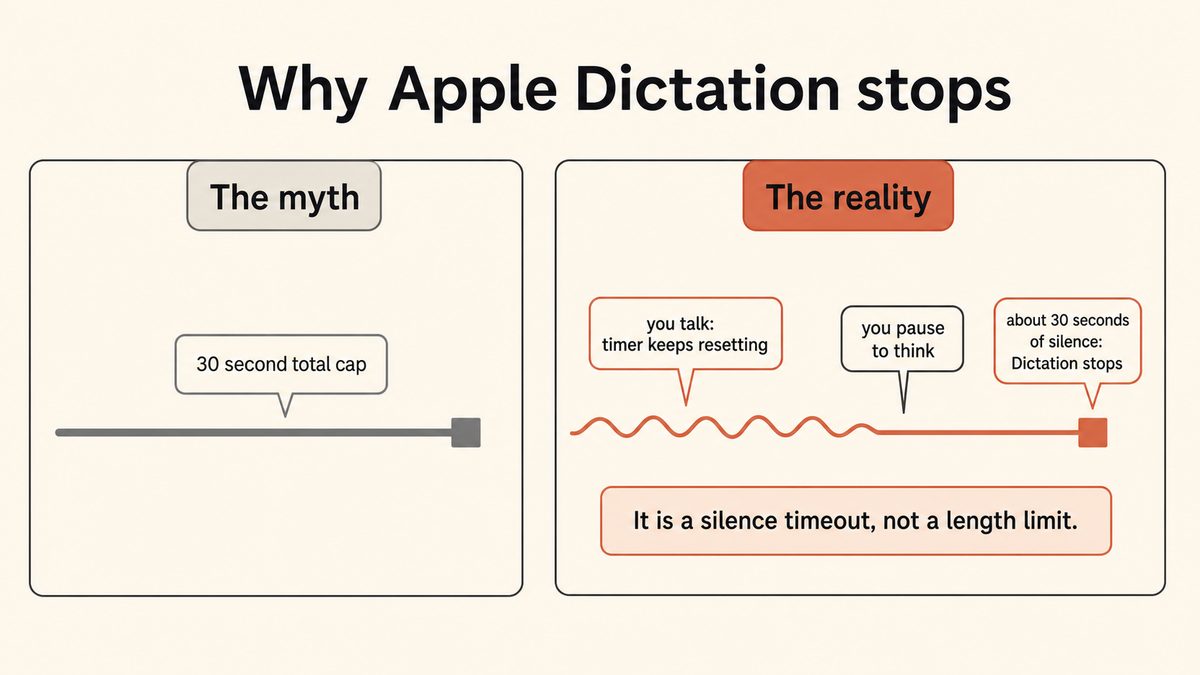
Here is the part every troubleshooting page gets slightly wrong. Apple Dictation does not have a hard cap on how long you can talk. Apple's own documentation says plainly that "you can dictate text of any length without a timeout."
The real trigger is silence. Apple's support page states that "dictation stops automatically when no speech is detected for 30 seconds." So the limit is not a stopwatch on your total dictation. It is a timer that fires after roughly 30 seconds of no detected speech: a pause to think, a mumble the microphone does not catch, a stretch of background noise that breaks the signal, or a quiet moment while you read what you just said.
In practice, that distinction does not help you much. Anyone doing real long-form work pauses constantly, so the silence timer feels exactly like a 30-second limit. You get stop-start dictation whether you wanted it or not.
The silence detection got more aggressive
If this feels worse than it used to, that is not nostalgia. After the recent macOS and iOS speech-engine changes, the silence detection became more sensitive. Several 2026 write-ups and Apple Community threads report that Dictation now cuts out mid-sentence when you pause to think, and in some cases silently drops the last words you spoke before the cutoff.
The result is a tool that punishes the exact rhythm of thoughtful dictation. Speak fast and without pausing and it holds on. Slow down to compose an actual sentence and it hangs up on you.
On Apple Silicon vs Intel
The behavior also depends on your Mac. On Apple Silicon, general text Dictation can run on-device and offline, and there is no fixed limit on the session length itself, but the 30-second no-speech auto-stop still applies. Apple's Keyboard settings tell you whether your voice inputs and transcripts for general text Dictation are processed on your device rather than sent to Siri servers, which is worth checking. On Intel Macs, Dictation processes audio on Apple's servers, so it requires an internet connection and short sessions can time out sooner. That distinction is about to stop mattering: macOS 27 Golden Gate, announced in June 2026, drops Intel support entirely, so macOS 26 Tahoe is the last release an Intel Mac can run.
Either way, the silence timeout is the wall you keep hitting.
Is There a Time Limit on Apple Dictation You Can Remove?
This is the question that drives people to search, and the honest answer is no. The 30-second no-speech timeout is a built-in architectural constraint. There is no user setting that extends it, and no Terminal command that removes it.
The setting people reach for is in System Settings, under Keyboard, then Dictation: a toggle labeled "Auto-Ends Dictation When You Stop Speaking." It sounds like the fix. It is not.
- It does not remove the separate 30-second silence timeout. Even with auto-end off, dictation still stops after about 30 seconds of no detected speech.
- It does not give you continuous, uninterrupted long-form dictation.
- It does not change how sensitive the silence detection is when you pause.
- It stops Dictation ending the instant you go quiet.
- With it off, you get a little breathing room between phrases before the hard timeout still fires.
- It is a small comfort, not a solution to the 30-second wall.
So turning off auto-end helps at the margins, and the ~30-second silence timeout fires regardless. That is confirmed across every 2026 ranking page and in the Apple Community thread titled "How to extend dictation timeout beyond 30 seconds," where the answer is consistently that you cannot.
What Happened to "Enhanced Dictation"?
Enhanced Dictation was a checkbox in the old Dictation preference pane that downloaded a local speech model, roughly 1.2 GB for US English, and let you dictate offline and continuously with live feedback. Apple removed it in macOS Catalina, and it has not existed in any macOS release since.
This matters because a lot of the advice still circulating on forums tells you to "tick Enhanced Dictation" to remove the cutoff. That checkbox is gone, and there is nothing in System Settings to put it back. If a guide references it, the guide predates Catalina and the rest of its advice is probably stale too.
What replaced it is split across two features. General text Dictation on Apple Silicon can run on-device, and Keyboard settings will tell you whether your voice inputs are processed on your device rather than sent to Siri servers. Voice Control, under System Settings, Accessibility, is the separate feature that works without an internet connection and carries the old formatting commands, but it is built as a hands-free computer controller rather than a fast drafting tool. Neither brings back the continuous, uninterrupted session Enhanced Dictation gave you.
Mac Dictation With No Timeout: The Real Answer
Here is the honest read. Apple Dictation was designed for short phrases and quick voice input into a field, not continuous long-form work. The 30-second silence timeout is a symptom of that design, not a bug you can patch. If you want to dictate an email, a chapter, a set of meeting notes, or a journal entry in one flow, you need a tool built for continuous dictation.
That is where Yaps comes in. Yaps is a system-wide dictation app for Mac with no 30-second cutoff. You push the Yaps hotkey, you talk for as long as you like, and pauses to think do not end the session. Hold to record, or tap to toggle, and the text lands at your cursor in whichever app you are working in.
- Stops after ~30 seconds of no detected speech, by design.
- Cuts off mid-sentence when you pause to think.
- No setting to extend or disable the timeout.
- The tedious workaround is re-triggering it every time it dies.
- Enhanced accuracy can send audio to Apple's servers.
- No 30-second cutoff. Dictate for as long as you like, pauses included.
- Works system-wide, at your cursor, in every app.
- Runs on-device and offline. Audio never leaves your Mac.
- On-device cleanup removes filler words and fixes punctuation.
- 7-day free trial with access to every feature.
The difference in feel is the whole point. With Apple Dictation, your rhythm is: talk, pause, watch it die, reach up, re-trigger, lose your train of thought, repeat. With Yaps, the rhythm is: push the hotkey, talk until you are done, release. One of those lets you actually think while you speak.
On-device and private
Because Yaps runs its speech model on your Mac, your audio never leaves the machine. There is no cloud round trip and no server-side processing of your voice. If you have ever wondered whether Apple sends your voice to its servers, we broke that down in Apple Dictation and data privacy. Yaps sidesteps the question entirely because the transcription happens locally. For the deeper picture, see the offline dictation guide.
The cleanup nobody else in this bracket ships
Raw long-form dictation is messy. You say "um," you restart sentences, you forget to add punctuation. Yaps cleans that up on-device: it removes filler words and self-corrections, fixes punctuation and capitalization, and auto-formats lists and numbers. So the paragraph you dictated in one continuous breath comes out as finished text, not a run-on transcript you have to repair by hand.
The fix for a 30-second timeout is not a setting. It is a tool that was built for continuous dictation from the start.
How to dictate longer than 30 seconds on a Mac today
The tedious native workaround exists: re-trigger Dictation every time it stops, double-tapping the Fn key over and over on anything longer than a sentence. It works, and it breaks your flow completely.
The durable answer is to replace the built-in tool. Install Yaps, push the Yaps hotkey, and dictate a full paragraph without the session ever ending on you. Yaps runs on macOS 13.0 (Ventura) and later. For the complete picture of dictation tools with no time limit, read the full rundown of dictation apps with no time limit, and see what Yaps dictation ships on the dictation feature page.
What About iPhone Dictation Stopping After 30 Seconds?
The same silence timeout affects iPhone Dictation, and the iPhone-side fixes are similar: check the Enable Dictation toggle in Settings under General and Keyboard, confirm Siri (which shares a process with Dictation) is working, check Screen Time restrictions, and make sure you have an internet connection where required.
Here is the honest status on Yaps and iPhone. Yaps ships today on Android, iPhone and iPad, Windows, macOS, and Linux. So if your frustration is Mac dictation, Yaps is the fix right now. If it is Android, the Yaps keyboard is out today with a dictation button. If it is specifically iPhone, the Yaps keyboard is out today there too, with the same dictation button.
Yaps vs Apple Dictation at a Glance
| Feature | Yaps | Apple Dictation |
|---|---|---|
| 30-second silence cutoff | None | Yes, unavoidable |
| Continuous long-form dictation | Yes | No |
| Works system-wide in every app | Yes | Yes |
| Runs on-device and offline | Yes | Partial (enhanced uses servers) |
| On-device text cleanup | Yes | No |
| Multilingual, auto-detected | ~25 languages | Yes |
| Account required for core use | Yes | No |
| Price | 7-day trial, then $15/mo | Free |
Apple Dictation is free and already on your Mac, and that is a genuine point in its favor. Yaps gives you a 7-day free trial, then Pro at $15/month and Max at $25/month for heavier use. If you dictate a few short phrases a week, Apple Dictation is fine. If you keep hitting the 30-second wall, the switch pays for itself in recovered flow. For the wider field, see the best dictation apps for Mac comparison and how to use dictation on Mac. If you want the direct matchup, we keep a running Yaps vs Apple Dictation comparison.
Dictate for as long as you like. No 30-second cutoff.
Install Yaps for Mac for on-device dictation with no time limit, on-device cleanup that fixes punctuation and removes filler, and a 7-day free trial. Also available on Android and Windows. iOS available now.
Frequently Asked Questions
Why does my Mac dictation keep stopping after 30 seconds?
Because Apple Dictation stops automatically after about 30 seconds of no detected speech, not after 30 seconds of talking. The trigger is silence: a pause to think, a mumble the microphone misses, or a stretch of quiet counts as no speech, and the timer ends the session. Apple's documentation confirms you can dictate text of any length, so the wall you keep hitting is the silence timeout, not a cap on how long you can speak.
Is there a time limit on Apple Dictation, and can I remove it?
There is no hard time limit on total dictation length, but there is a ~30-second no-speech timeout that you cannot remove. It is a built-in architectural constraint with no user setting to extend or disable it. The only durable way around it is to use a dictation tool that was built for continuous input, such as Yaps, which has no 30-second cutoff.
How do I dictate for longer than 30 seconds on a Mac?
The tedious native workaround is to re-trigger Apple Dictation every time it stops, which breaks your flow on anything longer than a sentence. The real fix is to install a dedicated dictation app with no timeout. With Yaps, you push the Yaps hotkey, talk for as long as you like with pauses included, and the text lands at your cursor without the session ever ending on you.
Why does Apple Dictation cut off in the middle of a sentence?
Because the silence detection ends the session when it does not detect speech for long enough, and after recent macOS speech-engine changes that detection became more sensitive. When you pause mid-sentence to find a word, that pause can register as silence, so Dictation stops and sometimes drops the last words you spoke. It is a side effect of a tool designed for short phrases rather than continuous composition.
What does "Auto-Ends Dictation When You Stop Speaking" actually do?
It controls whether Dictation ends the instant you go quiet. With it on, Dictation stops immediately when you stop speaking. With it off, you get a little breathing room between phrases, but the separate ~30-second silence timeout still fires. It is a small comfort setting, not a way to get continuous long-form dictation.
Does turning off the auto-end setting stop the 30-second timeout?
No. Turning off "Auto-Ends Dictation When You Stop Speaking" only stops Dictation ending the moment you go quiet. The separate ~30-second no-speech timeout is a different mechanism, and it still fires even with auto-end disabled. There is no combination of settings that removes the 30-second wall.
Does Apple Dictation work offline on a Mac?
On Apple Silicon Macs, general text Dictation can run on-device and offline, though the 30-second silence timeout still applies. On Intel Macs, Dictation processes audio on Apple's servers and requires an internet connection. If offline dictation with no timeout matters to you, Yaps runs its speech model entirely on your Mac, works offline, and has no 30-second cutoff.
What is the best alternative to Apple Dictation for long, continuous dictation?
Yaps is the strongest alternative for continuous dictation on a Mac because it has no 30-second timeout, works system-wide at your cursor in every app, and runs on-device so your audio never leaves the machine. It also cleans up the transcript on-device, removing filler words and fixing punctuation so long-form dictation comes out as finished text. For the full field of options, see the rundown of dictation apps with no time limit.
Is Yaps available for iPhone, and what can I use right now?
Yaps is available today on Android, iPhone and iPad, Windows, macOS, and Linux, plus a Chrome "Save to Yaps" extension. So if you are on a Mac, you can fix the 30-second dictation problem right now with Yaps; on Android, the Yaps keyboard with its dictation button is out today; and on iPhone, the same Yaps keyboard and dictation button are out today too.
Why is my Mac dictation not working after a macOS update?
A macOS update usually breaks Dictation by resetting state rather than removing anything. The three most common results are a Dictation toggle that flipped itself off, a revoked microphone permission for the app you dictate into, and a dictation language model that only partly downloaded. Work those three in order, then, if Dictation still fails silently, reset the speech preference files and restart the corespeechd, assistantd and SiriNCService processes as described above.
Why does the dictation icon appear but no text shows up when I speak?
The microphone indicator appearing means Dictation started, so the failure is downstream: either macOS is capturing from a device that is not hearing you, or the language model never finished downloading. Open System Settings, Sound, Input, select the microphone you are actually speaking into and confirm the level bar moves. If it does, go to System Settings, Keyboard, Dictation, remove your language and add it back, then stay online while it downloads.
Why is the Dictation toggle greyed out on my Mac?
A greyed-out Dictation toggle almost always means Screen Time is restricting it. Open System Settings, Screen Time, Content & Privacy, and allow "Siri & Dictation." On a work, school or otherwise managed Mac the same restriction can be pushed by a configuration profile, in which case you cannot change it yourself and have to ask whoever administers the machine.
Why does dictation work in Notes but not in Chrome, Slack or VS Code?
Microphone access on macOS is granted per app, so Dictation works in the apps that have permission and silently fails in the ones that do not. Open System Settings, Privacy & Security, Microphone, and toggle on the specific app you are trying to dictate into. A few apps also draw their own text fields rather than using the standard macOS text system, and Dictation cannot insert into those at all regardless of permissions.
Why does my dictation key open Siri instead of starting dictation?
Because the same key is assigned to both, and Siri wins. Set the Dictation shortcut explicitly in System Settings, Keyboard, Dictation, Shortcut, where the Customise option lets you press any combination you like, then change the Siri shortcut under System Settings, Apple Intelligence & Siri so the two no longer collide. If pressing either key does nothing at all, a remapper such as Karabiner-Elements, Raycast or BetterTouchTool is intercepting it before macOS sees it.
How do I get Mac dictation working with AirPods or a Bluetooth headset?
Set the input device by hand instead of trusting macOS to pick it. Open System Settings, Sound, Input, choose the headset explicitly, and watch the level bar respond as you speak. Bluetooth headsets frequently register as an available input without actually capturing audio, which looks exactly like Dictation being broken. If the level bar stays flat, disconnect the headset and test with the built-in microphone to confirm the problem is the device and not Dictation.
Final thoughts
The 30-second stop is not something you are doing wrong, and it is not a setting you overlooked. Apple Dictation ends after about 30 seconds of no detected speech, by design, and no toggle removes that. If your Dictation fails to start or dies instantly, the permission and process fixes above will sort it out. If it dies every time you pause to think, no fix in System Settings will help, because the tool was built for short phrases, not continuous work.
For long, continuous, private dictation on a Mac today, Yaps is the default answer: no 30-second cutoff, system-wide at your cursor, on-device and offline, with cleanup that turns raw speech into finished text. Apple Dictation stays a reasonable choice if you only ever dictate a phrase or two and want zero setup. The moment you are composing anything longer, the 30-second wall is the whole reason to switch, and Yaps is what you switch to.