01
·
Try Yaps
A voice keyboard that keeps your voice on your phone.
Install Yaps on Android for offline dictation, a familiar full-size keyboard, and no screen capture. Scan the QR on desktop, or tap the Play badge on mobile.
Windows Speech Recognition is retired, not just dated. Microsoft replaced it with Voice Access in September 2024, and the legacy engine gets no further accuracy work. Here are the seven best Windows Speech Recognition alternatives in 2026, ranked by privacy, accuracy, and value.
Here is the fact most "best alternative" lists bury: Windows Speech Recognition is not bad. It is retired.
Microsoft announced in March 2024 that Windows Speech Recognition (WSR) would be replaced by Voice Access on Windows 11 (version 22H2 and later), and the handoff started in September 2024. On current Windows 11 builds, WSR is removed or hidden with no supported way to bring it back. It still technically runs on Windows 10 and the earliest Windows 11 (21H2) as a frozen legacy feature, but it receives no further development and no accuracy improvements. It is end-of-the-road software.
So if you are searching for a Windows Speech Recognition alternative in 2026, you are really choosing between Microsoft's newer built-ins (Voice Access for control, Win+H voice typing for quick dictation) and third-party tools that do dictation better. WSR's one genuine strength, the part worth keeping, is that it ran entirely on your device. No cloud, no account, no audio leaving the machine.
We built Yaps, so we are biased. But the honest way to earn your trust is to be clear about where each tool wins and where it does not. Yaps is our pick for most people who want WSR's privacy without the abandonware, and we will tell you exactly where Voice Access, Talon, or Dragon is the better call instead.
Deprecated, frozen
A 2007-era engine, retired in 2024 and no longer updated. Offline and private, but no modern accuracy layer, a tedious training step, and Windows-only. Microsoft now points you to Voice Access instead.
Modern, private, multi-platform
On-device dictation in about 25 auto-detected languages, no training step, plus text cleanup, voice notes, a studio, and read-aloud. Audio never leaves the device, and it ships on Android, Windows, and macOS.
Here is the shortlist, ranked for most users, with a "Best for" label and the trade-off for each. Deeper write-ups follow.
Yaps is a privacy-first, offline-first voice toolkit, and it is the closest thing to "Windows Speech Recognition, but modern and still maintained." Core dictation runs entirely on your device. Your audio never leaves the machine, it works offline, there is no telemetry, and no account is required for core use. It runs in under 200MB of RAM. That is WSR's one real strength (on-device processing) kept intact, paired with accuracy a frozen 2007 engine cannot touch.
The dictation itself is multilingual. Yaps recognizes about 25 languages, auto-detected from your speech, so there is no language toggle to flip and no guided training step to sit through. You push the Yaps hotkey (Fn on Windows and Mac, the dictation button on the Android keyboard), speak, and clean text appears in whatever app you are in.
That last word matters. WSR's most common complaint, and Voice Access's after it, is shaky punctuation and capitalization. Yaps answers that directly with on-device text cleanup, on by default. It removes filler words and self-corrections, fixes punctuation and capitalization, and auto-formats lists and numbers as you go. You speak the way you actually talk and the text comes out the way you would have typed it.
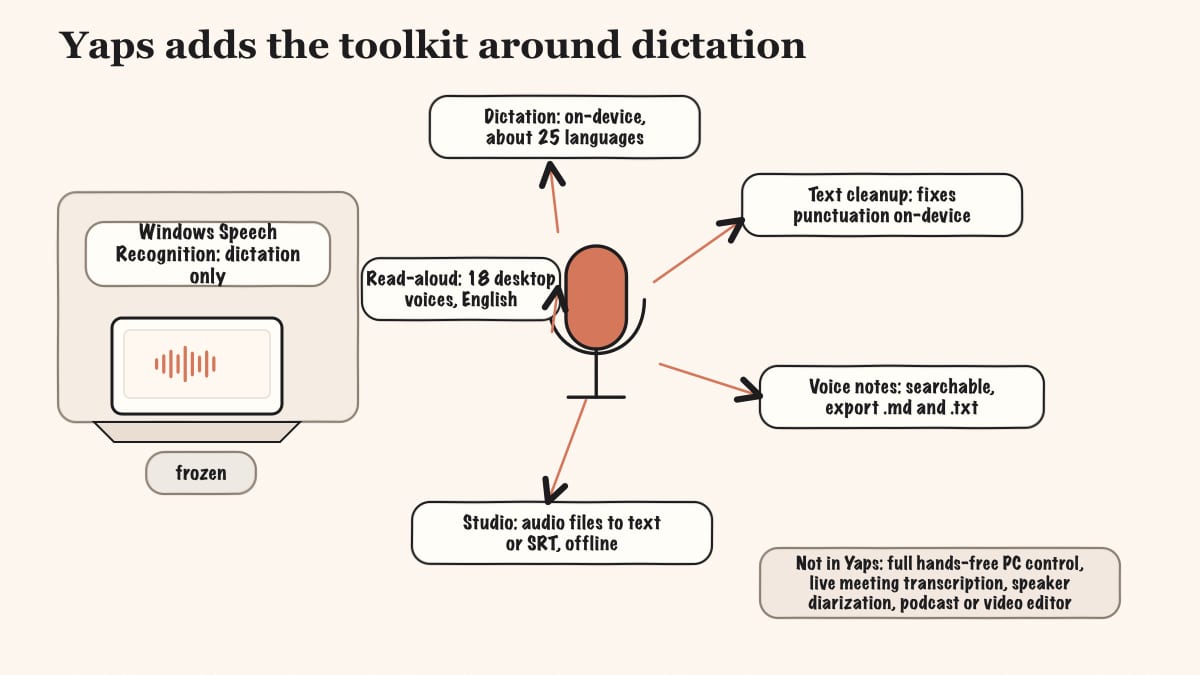
But dictation is only the start. Yaps is a toolkit, not a single feature:
It is genuinely cross-platform, which WSR never was. Yaps ships on Android (the headline platform, a full AI keyboard), Windows, and macOS, plus a Chrome "Save to Yaps" extension that saves articles, bookmarks, and images into your vault. Premium encrypted vault sync keeps notes in step between mobile and desktop over your local network or peer-to-peer. The free tier is real: 5,000 words per week on desktop and 1,000 on mobile, shared across dictation and read-aloud. Paid plans are Basic at $15/mo and Max at $25/mo, with roughly 20% off annually.
Best for: anyone who wants WSR's private, offline dictation without the abandonment, plus a modern toolkit around it.
Trade-off: Yaps does dictation and a toolkit, not full hands-free operating-system control. If you need to move the mouse, click, and navigate apps entirely by voice, that is Voice Access or Talon, not Yaps. Read-aloud voices are English speakers in practice, so multilingual listening is a genuine gap, and the iPhone and iPad app is coming soon rather than out today.
Voice Access is Microsoft's chosen replacement for Windows Speech Recognition, and the honest first place to look if you are on a current PC. It runs on-device, works offline, and ships free with Windows 11 (22H2 and later). It covers more than 80 voice commands for full operating-system navigation: move the mouse, click, open and switch apps, and dictate into any field. It supports around 15 English dialects and a handful of other languages.
Best for: free, hands-free control of the whole PC.
Trade-off: it is Windows 11 22H2-and-later only, so Windows 10 users cannot run it. And while control is its strength, its dictation is not. Users report mistyping, shaky punctuation and capitalization, and accuracy that lags behind iPhone or Apple dictation. It was built to operate the computer first and to write second.
Press Win+H in any text field and Windows Voice Typing starts listening. It is the modern built-in dictation box: auto-punctuation, around 46 languages, nothing to download. For a quick reply or a short note, it is genuinely convenient.
Best for: instant, zero-install quick dictation.
Trade-off: it is cloud-based. Win+H sends your audio to Microsoft's speech service, so it requires an internet connection and your voice leaves your device, which rules it out for confidential work. Accuracy sits around 85 to 90 percent on conversational English and drops on less-resourced languages, and it is dictation only with no operating-system control. If on-device privacy is the reason you liked WSR, Win+H is a step in the wrong direction.
Wispr Flow is a polished, cross-platform AI dictation app (Mac and Windows) with strong accuracy and smart formatting straight away. Power users reach for it because it gets the words right with very little setup.
Best for: users who want the most accurate AI dictation without tuning anything.
Trade-off: it is cloud-based, so audio leaves your device, and the free tier is capped at 2,000 words per week, which heavy users burn through in two or three days. Real use means a subscription: Pro is $15/mo, or $12/mo billed annually (about $144/yr). If you want the same hotkey-and-speak flow but on-device, our Wispr Flow alternative write-up covers the trade.
Dragon has been the enterprise dictation standard for two decades. Version 16 claims up to 99 percent accuracy, supports extensive custom vocabularies and voice macros, and runs offline. For legal and medical professionals whose work depends on niche terminology, it still leads.
Best for: legal and medical pros needing deep custom vocabulary and offline accuracy.
Trade-off: it is expensive (around $699 for a perpetual Pro v16 license), Windows-only, heavy, and dated, with a steep learning curve and no Mac version since 2018. Dragon Anywhere mobile is a separate $15/mo or $150/yr. It is overkill for everyday dictation. For the cases where it is not worth the price, see our Dragon alternative and Dragon Medical alternative guides.
Talon is the gold standard for operating a computer (and writing code) entirely by voice, eye-tracking, and mouth-noises, on Windows, Mac, and Linux. For serious accessibility needs and repetitive-strain injury, nothing else gives you this much hands-free control.
Best for: hands-free coding and accessibility users who need full computer control by voice.
Trade-off: it has a steep setup and learning curve, it is community-driven rather than turnkey, and the best builds sit behind a Patreon beta. It is a control system, not a polished dictation app you install and forget.
OpenWhispr is the genuinely Windows-capable open-source pick. It is MIT-licensed, cross-platform (Windows, Mac, Linux), and runs local speech models so your audio never leaves the device, with optional cloud if you want it. It adds AI cleanup and supports more than 100 languages.
Best for: privacy-focused users who want free, open-source, offline dictation on Windows.
Trade-off: it has an indie, do-it-yourself feel, you manage the model downloads yourself, and it is dictation only with no operating-system navigation. Free forever for local dictation, with optional Pro at $8/mo for cloud and mobile.
(A note on the SERP: VoiceInk and several Talon-adjacent tools show up in alternative lists, but VoiceInk is macOS and Apple-Silicon only, so it does not belong on a Windows list. OpenWhispr is the Windows-capable open-source option instead. For Mac readers, our VoiceInk alternative covers it.)
Credit where it is due. Before it was retired, WSR got two big things right.
On-device, offline processing. WSR processed speech locally on your machine. Your audio did not go to a server. This is the right architecture for privacy, and it is the part worth carrying forward. (Note that this is separate from Microsoft's "online speech recognition" and Win+H voice typing, both of which are cloud-based and send audio to Microsoft.)
Full hands-free operating-system control. WSR did not just dictate. It let you operate the whole computer by voice: move the mouse, click, open apps, and navigate, with custom voice commands. For accessibility and repetitive-strain workflows, that mattered.
Free and built-in. It shipped with Windows at no cost, with no account and no subscription, ever.
The problem is not the philosophy. The problem is that the engine froze in place. No modern accuracy layer, a tedious training step, and well-documented struggles with technical terms, proper nouns, accents, and background noise. The verdict that recurs across reviews and forums: adequate for basic commands, not reliable for professional dictation. The privacy was right. The accuracy and the maintenance were not.
The core difference between Windows Speech Recognition and Yaps is simple: WSR is a frozen single tool, and Yaps is a maintained voice toolkit that keeps WSR's privacy. Here is what that looks like feature by feature.
| Feature | Yaps | Windows Speech Recognition |
|---|---|---|
| On-device, offline dictation | Yes | Yes (frozen) |
| Actively developed | Yes | No (deprecated) |
| Multilingual dictation | ~25 auto-detected | Limited |
| No training step required | Yes | No (guided training) |
| On-device text cleanup | Yes | No |
| Voice notes (searchable) | Yes | No |
| Studio (audio files to text/SRT) | Yes | No |
| Read-aloud voices | 18 desktop | No |
| Full hands-free OS control | No | Yes |
| Cross-platform | Android, Win, Mac | Windows only |
Two of those rows go the other way on purpose. Yaps does not do full hands-free operating-system control, and WSR did. We will come back to that honestly below. Everywhere else, the gap is the gap between a maintained product and frozen software.
WSR's recognition stopped improving years ago. It struggles with technical terms, proper nouns, accents, and noise, and the errors pile up fast past a simple sentence. Yaps ships a current Windows desktop app whose on-device speech model is chosen automatically for your hardware, with no model files to manage and no guided training to endure. You install it, push the Yaps hotkey, and it works in about 25 languages without a toggle.
This is the heart of it. WSR's privacy was real, and so was its neglect. Yaps matches the privacy (audio never leaves the device, works offline, no telemetry, no account for core use, under 200MB of RAM) while being actively developed and far more accurate. The contrast with Win+H is sharper still: the built-in modern dictation box sends your audio to the cloud, while Yaps keeps it on your machine.
The single biggest gap between WSR and Yaps is everything around the dictation. On-device text cleanup answers the number-one Voice Access complaint by fixing punctuation and capitalization for you. Voice notes give you a searchable, timestamped archive of spoken thoughts. Studio turns recorded audio into text or subtitles offline. Read-aloud lets you proofread by ear. WSR did one thing and stopped; Yaps does the whole loop.
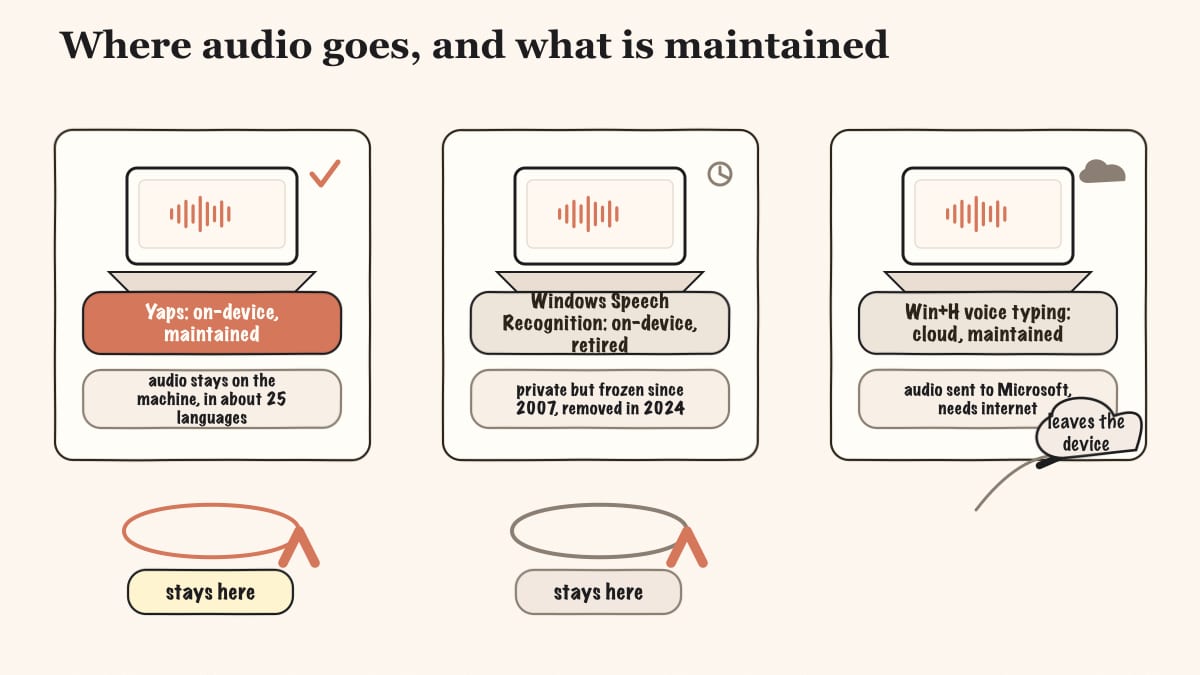
This is where WSR earned its loyalty, and where the field splits cleanly.
On your device: Windows Speech Recognition processed speech locally, and so do Yaps, Voice Access, OpenWhispr (local mode), Dragon, and Talon. For all of these, you can pull the network cable and dictation still works, because your audio never leaves the machine.
In the cloud: Win+H voice typing and Wispr Flow send your audio to a remote service. That is fine for a casual note, but it is the wrong fit for anything confidential, and it is a real change from the on-device behavior WSR gave you.
Yaps sits firmly in the on-device camp and goes a step further: no telemetry, and no account required for core use. The optional cloud read-aloud voices send text, never your voice, to a speech service, and they are clearly labeled. Your dictation audio is always processed locally. If privacy was the reason WSR worked for you, Yaps keeps that promise without the standstill.
| Tool | Free tier | Paid |
|---|---|---|
| Yaps | Yes (5K words/week desktop, 1K mobile) | Basic $15/mo, Max $25/mo (~20% off annually) |
| Voice Access | Free (built into Windows 11) | None |
| Windows Voice Typing (Win+H) | Free (built into Windows) | None |
| Wispr Flow | Free (2,000 words/week) | Pro $15/mo ($12/mo annual) |
| Dragon Professional v16 | None | ~$699 perpetual license |
| Talon Voice | Free (public build) | Patreon tiers for beta access |
| OpenWhispr | Free forever (local) | Pro $8/mo (cloud + mobile) |
The built-in Microsoft tools win on raw cost: they are free and already installed. Yaps and OpenWhispr both give you a free, on-device starting point with no audio leaving your device. Dragon is the outlier, and you pay for the custom-vocabulary depth that justifies it for a narrow set of professionals.
Choose Yaps if you want WSR's private, offline dictation without the abandonment: modern accuracy in about 25 languages, on-device text cleanup that fixes punctuation for you, plus voice notes, a studio, and read-aloud, across Android, Windows, and macOS.
Choose Voice Access if you are on Windows 11 22H2 or later and your priority is controlling the whole PC by voice for free, and you can live with weaker dictation accuracy.
Choose Win+H if you just want a free, zero-install dictation box for quick notes and you do not mind your audio going to the cloud.
Choose Wispr Flow if you want the most accurate AI dictation out of the box and the cloud is not a dealbreaker.
Choose Dragon if your work depends on extensive custom legal or medical vocabulary and voice macros, and the ~$699 is justified.
Choose Talon if you need to operate your computer and write code entirely by voice for accessibility, and you are willing to climb the setup curve.
Choose OpenWhispr if you want free, open-source, offline dictation and you are comfortable managing model downloads yourself.
We will be honest about where Yaps is not the answer. There are real cases where a native tool or WSR's successors win.
If you need full hands-free operating-system control. This is the headline concession. If you need to operate the whole computer by voice (move the mouse, click, open and navigate apps, and dictate and command without touching the keyboard), for repetitive-strain injury, motor accessibility, or a fully hands-free workflow, then Voice Access (free, built-in) or Talon (free, power-user) do this and Yaps does not. Yaps is dictation plus a toolkit, not operating-system voice navigation.
If you want zero install and zero cost, right now. If you are already on Windows and you just want free, built-in dictation with nothing to download, Voice Access or Win+H are the pragmatic choice.
If you depend on deep custom legal or medical vocabulary. When the workflow hinges on extensive custom vocabularies and command macros, Dragon still leads, and that is the right pick.
A few more honest gaps to name plainly: Yaps has no multilingual read-aloud voices (the voices are English speakers in practice), no live meeting transcription or speaker diarization (coming soon), no OCR or document scanning, and no media or podcast editor. The iPhone and iPad app is coming soon, not available today. Where any of those is your core need, Yaps is not your tool, and we would rather tell you now.
If WSR is gone from your PC, or frozen on Windows 10, moving to Yaps is straightforward. The free tier lets you test the full experience before paying anything.
Download Yaps from yaps.ai for Windows and install it. There is nothing to uninstall first, and no account is needed to start dictating.
WSR used a key combination to start listening. With Yaps, you push the Yaps hotkey (the Fn key on Windows) to start and stop dictation. Hold-to-record and tap-to-toggle both work on the same key.
WSR made you sit through guided voice training. Yaps does not. Open any text field, push the hotkey, and speak naturally in any of about 25 languages. The on-device text cleanup handles punctuation, capitalization, filler words, and lists for you, so you can talk the way you actually talk.
The real adjustment is discovering the toolkit. Capture a few thoughts as voice notes and search for them the next day. Drop a recorded audio file into Studio and export the text or SRT subtitles. Highlight a paragraph and have it read aloud to proofread by ear. These are the parts a frozen dictation engine could never give you.
If you also use an Android phone, install the Yaps keyboard there for voice typing in any app, and turn on premium vault sync so your notes stay in step between phone and PC. WSR was Windows-only and going away; Yaps follows you across devices.
Windows Speech Recognition had the right idea: keep the audio on the device. It just stopped getting better. Privacy and progress are not a trade-off you have to make anymore.
Yaps for Windows
Install Yaps on Android for offline dictation, a familiar full-size keyboard, and no screen capture. Scan the QR on desktop, or tap the Play badge on mobile.
It is deprecated. Microsoft replaced it with Voice Access on Windows 11 22H2 and later starting in September 2024, and it now survives only as a frozen legacy feature on Windows 10 and the earliest Windows 11 (21H2). On current Windows 11 builds it is removed or hidden with no supported way to restore it.
Microsoft retired it in favor of Voice Access, a newer tool with better dictation and full PC voice control. The old engine received no modern accuracy layer and no further development.
Voice Access replaced it for full voice control, and Windows Voice Typing (Win+H) covers quick dictation. Voice Access is the official successor Microsoft now points users toward.
Yes, for control and active support, since Voice Access is maintained and navigates the whole PC. Users do still report mistyping, punctuation, and capitalization issues with its dictation specifically.
Voice Access runs on-device and controls the whole PC, while Win+H is cloud-based dictation only that needs an internet connection. Voice Access is for operating the computer; Win+H is for typing text quickly.
Yes, it was always free and built into Windows, as are its successors Voice Access and Win+H. None of the Microsoft built-ins has ever had a paid tier.
Yes, it processed speech on-device, which was one of its genuine strengths. This is different from Win+H voice typing, which sends your audio to Microsoft's cloud and needs an internet connection.
Dragon and Wispr Flow lead on raw accuracy, with Dragon claiming up to 99 percent for trained custom vocabulary. Yaps offers modern on-device accuracy with a free tier and no audio leaving your device.
Yes. Yaps and OpenWhispr both run dictation on-device with free tiers, so your audio never leaves your computer. Yaps adds text cleanup, voice notes, a studio, and read-aloud on top.
Voice Access (free, built-in) or Talon Voice (free, advanced) are the picks for full hands-free PC control. Yaps does dictation and a toolkit, not full operating-system navigation, so it is not the tool for that specific need.
Legacy WSR was limited on languages. Voice Access covers around 15 dialects, Win+H supports about 46 languages, and Yaps auto-detects about 25 languages from your speech with no toggle to flip.
For legal and medical professionals needing custom vocabulary, the roughly $699 license is worth it. For everyday dictation it is overkill and pricey, and a free on-device tool like Yaps will serve most users better.
Yes. Yaps runs on Windows, macOS, and Android (as a full keyboard), with premium encrypted vault sync between devices. WSR was Windows-only, so this is a real upgrade if you work across machines.
Yes. Its on-device text cleanup is on by default and removes filler words and self-corrections while fixing punctuation and capitalization. It also auto-formats lists and numbers as you speak.
Voice Access dictation accuracy lags behind modern tools, and Win+H requires internet and sends your audio to the cloud. If on-device privacy was the reason you liked WSR, the free built-ins either trade away accuracy or trade away privacy.
Windows Speech Recognition is not a tool you can pick anymore. It is retired, frozen, and on its way off your PC entirely. The question is what to put in its place.
If you need to operate the whole computer by voice, Voice Access and Talon do that, and we said so plainly. If you live in deep legal or medical vocabulary, Dragon still earns its price. But for most people who liked WSR because it kept their voice on their own machine, the answer is Yaps: the same private, offline foundation, kept modern and actively developed, with accurate multilingual dictation, automatic text cleanup, voice notes, a studio, and read-aloud, across Android, Windows, and macOS.
WSR had the right instinct. Yaps is what that instinct looks like when someone keeps building. Start with the free tier and see for yourself.