Voorwoord
Windows can already type what you say. Press the Windows key and H, start talking, and the words appear.
Most people try it once and quietly go back to typing. Not because the idea is wrong, but because the built-in version has three specific habits that make it hard to rely on: it stops on its own after a pause, it needs a connection for the good version, and it behaves differently depending on which app you are in.
None of that means voice typing on a PC is a dead end. It means the built-in tools were designed for occasional use, and if you want to actually work this way you need to know what each one does and where it runs out.
This guide covers all of it: the two built-in options, what they are genuinely good at, and how to get dictation that works in every app on your machine without your voice leaving it.
De drie manieren om met stem te typen op een pc
Worth separating these, because they are genuinely different tools that get discussed as one thing.
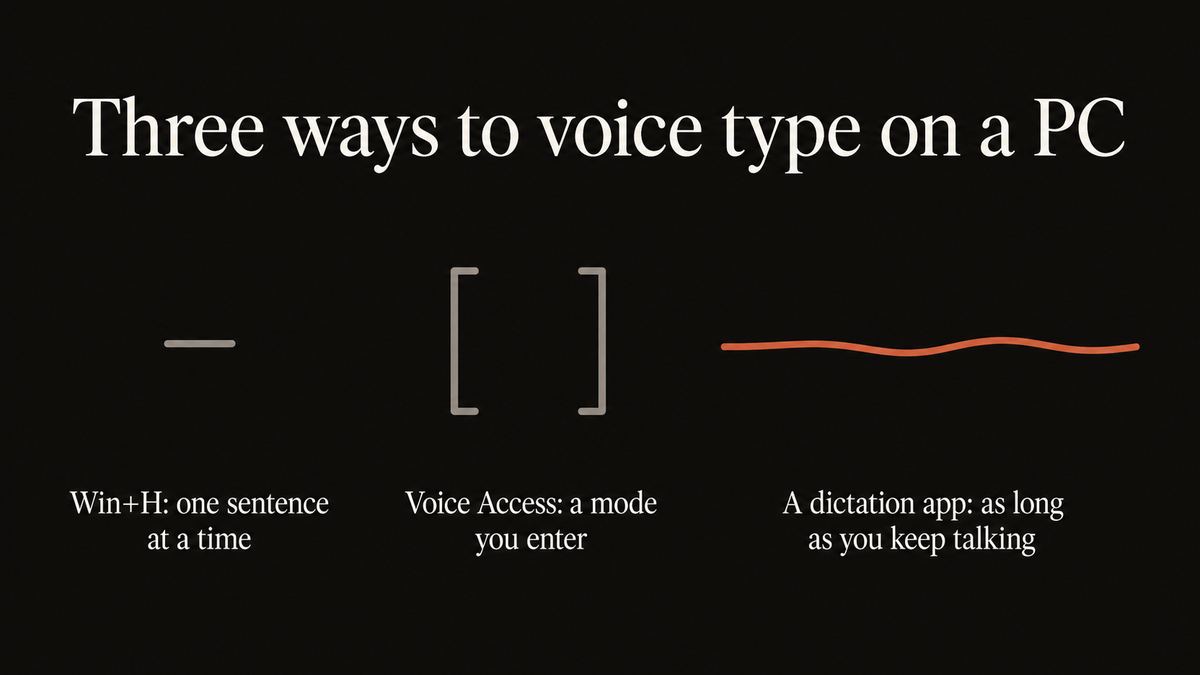
Windows voice typing (Win+H). The one most people mean. Press Windows and H in any text field and a small microphone panel appears. It types what you say into whatever has focus. Free, already installed, no setup.
Voice Access. A separate, more capable accessibility feature. It does dictation and voice control, so you can say "click Send" or "scroll down" as well as dictate text. It needs to be switched on in Accessibility settings and it downloads a speech model the first time, which means its dictation can run on the PC rather than in the cloud.
A third-party dictation app. Runs alongside Windows and works in every app from one shortcut. This is where you go if you dictate enough that the built-in limits start costing you time, or if you need the audio to stay on your machine.
Built-in voice typing is designed for the occasional sentence. Most people who abandon it were trying to use it for the paragraph.
Yaps for Windows
Wat gaat er eigenlijk mis met Win+H
Three things, and knowing them saves you assuming the technology is bad.
It stops when you pause. Windows voice typing listens for a gap and closes itself. If you think mid-sentence, which is what people do when composing rather than reading aloud, it treats the silence as "finished" and stops. You look up and the last half of your thought is missing. There is a separate guide to Win+H stopping and how to work around it if that is the specific thing that brought you here.
The good version needs a connection. Windows can do basic on-device recognition, but the more accurate path is online. So accuracy drops when your connection does, and on a bad hotel network it can stop working entirely.
It varies by app. It works cleanly in Notepad, Word, and browser fields. In some Electron apps, custom editors, and full-screen tools, focus handling gets unpredictable and text lands in the wrong place or nowhere.
None of these are fatal for occasional use. All three are why people who dictate daily end up somewhere else.
Built-in voice typing
Fine for a sentence, frustrating for a page
Free and instantly available, which genuinely matters. But it closes on a pause, leans on a connection for accuracy, and behaves differently app to app. You end up managing the tool instead of writing.
A dedicated dictation app
One shortcut, every app, no timeout
Hold a key for as long as you are talking, including through the pauses where you are thinking. The same shortcut works everywhere on the system, the text arrives cleaned of filler words, and with on-device recognition nothing is uploaded.
Spraakgestuurd typen op Windows, op drie manieren
Win+Hfree, 0 setup
Click into a text field, press Windows and H, talk. Best for the occasional sentence. Stops when you pause.
Voice Accessfree, 2 min
Settings, then Accessibility, then Speech. Adds spoken commands as well as dictation, and can run on the PC.
A dictation apppaid, 3 min
One shortcut in every app, no timeout, cleanup as you speak, and nothing uploaded when it runs locally.
1. Start with Win+H, because it costs nothing
Click into any text field and press the Windows key together with H. A small panel appears. Talk.
Genuinely try this before installing anything. If you only need to dictate a search box or a short reply a few times a week, this is the correct answer and you are done.
You can say punctuation out loud, so "the deadline moved comma which changes everything period" gives you the punctuation marks. Say "delete that" to remove the last thing you said.
2. Turn on Voice Access if you want commands too
Open Settings, go to Accessibility, then Speech, and switch on Voice Access. It downloads a speech model the first time, which is why its dictation can keep working without a connection.
The reason to use this over Win+H is that it does more than type. You can say "click Send", "scroll down", or "switch to Chrome". If your interest in voice is partly about using the PC hands-free rather than only writing, this is the built-in tool worth learning, and it is properly capable for that.
The trade is that it is a mode you enter rather than a key you press. It is watching for commands the whole time it is on, which is right for hands-free control and slightly heavy if you only wanted to write a paragraph.
3. Install a dictation app for daily use
If you are dictating most days, the built-in limits stop being quirks and start being friction. This is where a dedicated app earns its place.
Download Yaps for Windows and start the 7-day free trial. The default dictate shortcut is Ctrl with the Windows key, and there is a compatibility profile using Ctrl+Space for machines where Windows-key combinations get grabbed by the system or a game launcher. Every shortcut can be rebound.
Three things change immediately:
It does not stop when you pause. You hold the key for as long as you are talking. Thinking mid-sentence is normal speech, not a signal to stop, so a long paragraph comes out as one piece.
It works in every app. Same shortcut in Word, Slack, a browser field, a code comment, a terminal, or an email client. Nothing to configure per app.
The recognition runs on your PC. Which means it works with the connection off, and the audio of your voice is never uploaded.
4. Prove the offline part rather than trusting it
Thirty seconds, and worth doing with any tool that claims this, ours included.
Switch off your wifi. Open Notepad. Dictate a sentence. If the words appear with no connection, the work happened on your machine. If nothing happens, whatever you are using needed a server.
5. Get the microphone right
Accuracy is mostly a microphone question, and this is where most people lose quality without realising.
A headset microphone beats a laptop's built-in array by a wide margin, because it is close to your mouth and not also picking up your keyboard and the room. Position it to the side of your mouth rather than directly in front, which stops hard consonants turning into noise.
Then speak in full sentences at your normal pace. Do not over-enunciate and do not dictate word by word: more context makes recognition better, in every tool and every language. There is more on this in the dictation accuracy guide.
Hoe de drie zich verhouden
| What matters | Yaps | Win+H voice typing | Voice Access |
|---|---|---|---|
| Cost | $15/mo after a 7-day trial | Free | Free |
| Keeps going through pauses | Yes | No, stops on silence | Yes, while the mode is on |
| Works in every app | Yes | Mostly, varies by app | Mostly |
| Runs on the PC, nothing uploaded | Yes | Best accuracy is online | Yes, after model download |
| Removes filler words and adds punctuation | Yes, on device | Punctuation if you say it | Punctuation if you say it |
| Voice commands to control the PC | Some, not full control | No | Yes, that is its job |
| Reads text back aloud | Yes, 18 voices | No | No |
| Dictation languages | About 25, auto-detected | Several, set manually | Fewer |
Where the built-ins win outright. They are free and already installed. If you dictate occasionally, Win+H is the right tool and paying for anything would be silly. And if what you actually want is to operate the PC by voice rather than write with it, Voice Access does that properly and Yaps does not: Yaps has voice commands, but full hands-free control of Windows is Voice Access's job and it is better at it.
Waarom het offline gedeelte belangrijker is op een werk-pc
Easy to wave past, so here is the concrete version.
Dictation sits at the start of everything you write. On a work machine that means client names, salary conversations, contract terms, incident reports, and the email you have not decided whether to send. A tool that uploads your voice to be transcribed puts all of that through a third party before it exists as text.
For a lot of people that is fine. For anyone under a confidentiality obligation, in a regulated sector, or working somewhere with an IT policy about third-party processors, it is the question that decides whether you can use voice at all.
On-device recognition removes the question rather than answering it. There is no upload, so there is no retention period, no terms of service, and nothing for a breach to reach. It also means dictation works on a locked-down corporate network that blocks whatever service a cloud tool would need.
Windows 11 en Windows 10
Win+H works on both. On Windows 11 the panel is tidier and Voice Access is the current accessibility tool; on Windows 10 you will find the older Windows Speech Recognition, which still exists but has been superseded and is noticeably dated.
If you are on Windows 10 and the built-in options feel worse than what people describe online, that is probably why rather than anything you did wrong. We wrote about the alternatives to Windows Speech Recognition separately.
Yaps runs on Windows 10 and 11, and also on macOS, Linux, and Android if you move between machines.
Wie dit daadwerkelijk helpt
Anyone writing long-form on a PC. Reports, documents, proposals, long emails. This is where speaking at 150 words a minute against typing at 40 stops being a statistic and starts being your afternoon.
People whose hands hurt. Typing volume is genuinely painful for some people, and voice removes most of it. See voice input for RSI.
Anyone on a locked-down or unreliable network. Corporate networks, hotel wifi, trains. On-device recognition does not care.
People handling confidential material. Legal, clinical, HR, finance. The argument above applies directly.
Anyone who tried Win+H and gave up. Which is most people. The idea was not the problem.
De korte versie
Press Windows and H first. It is free, already installed, and if you dictate occasionally it is the whole answer.
Turn on Voice Access if you want to control the PC by voice as well as write, because that is genuinely what it is for and it does it better than we do.
Install Yaps if you dictate most days and the built-in limits are costing you: one shortcut in every app, no stopping when you pause, cleanup as you speak, about 25 languages detected automatically, and recognition that runs on your PC so nothing is uploaded. Prove that last part by switching off your wifi before you trust it.
Veelgestelde vragen
How do I turn on voice typing in Windows?
Click into any text field and press the Windows key together with H. A small microphone panel appears and Windows types what you say. There is nothing to install or set up, it works on Windows 10 and 11, and it is free. For more capability, switch on Voice Access under Settings, then Accessibility, then Speech.
Why does Windows voice typing keep stopping?
It listens for a pause and closes itself when it hears one, so thinking mid-sentence reads as "finished" to it. That is by design rather than a fault, and it is the single most common reason people abandon built-in voice typing. A dictation app that runs while you hold a key does not have this behaviour, because you decide when you are done. We have a dedicated guide to Win+H stopping.
What is the difference between Win+H and Voice Access?
Win+H is dictation only: press it, talk, get text. Voice Access is a broader accessibility tool that does dictation plus spoken commands, so you can say "click Send" or "scroll down" to operate the PC hands-free. Voice Access needs switching on in Accessibility settings and downloads a speech model on first use, which lets its dictation work without a connection.
Can I voice type on Windows without an internet connection?
Partly with the built-ins and fully with the right app. Windows has basic on-device recognition, but its more accurate path is online, so quality drops when your connection does. Voice Access downloads a model and can run locally. Yaps runs entirely on the PC, which you can verify by switching off your wifi and dictating a sentence.
Is voice typing on a PC private?
It depends entirely on where the recognition happens. If your voice is uploaded to a server to be transcribed, the contents of everything you dictate pass through a third party before they exist as text. If recognition runs on the PC, nothing is transmitted and there is no retention policy to read. That distinction matters most on a work machine, where dictation touches client names, contracts, and HR matters.
What is the best voice typing software for Windows?
For occasional use, the built-in Win+H is genuinely the right answer and costs nothing. For daily use, Yaps is the strongest pick because it works in every app from one shortcut, does not stop when you pause, cleans up filler words as you speak, and runs on your PC. If what you want is hands-free control of Windows rather than writing, Voice Access is better at that than either. Our Windows dictation roundup compares seven tools.
How accurate is voice typing on Windows?
Accurate enough for real work, and the biggest variable is your microphone rather than the software. A headset positioned to the side of your mouth beats a laptop's built-in array substantially, because it is close to you and not also recording the room and your keyboard. Speaking in full sentences at a normal pace also helps more than people expect, since more context improves recognition.
Does voice typing work in every Windows app?
Mostly, with exceptions. Win+H works cleanly in Notepad, Word, and browser fields, but focus handling gets unpredictable in some Electron apps, custom editors, and full-screen tools, so text can land in the wrong place. A system-wide dictation app is more consistent because it types wherever your cursor is rather than integrating per app.
Can I dictate punctuation on Windows?
Yes. Say the punctuation out loud and it appears: "the deadline moved comma which changes everything period" produces the marks. Win+H and Voice Access both support this, and you can say "delete that" to remove the last thing you said. Yaps adds punctuation and capitalisation automatically as well, so you can just talk normally and let it sort the marks out.
What is the keyboard shortcut for dictation on Windows?
Windows voice typing is the Windows key with H. In Yaps the default dictate shortcut is Ctrl with the Windows key, with a compatibility profile using Ctrl+Space for machines where Windows-key chords get intercepted, and every shortcut can be rebound to whatever you prefer.
Is there a free way to voice type on a PC?
Yes, two of them, and they are already on your machine: Win+H voice typing and Voice Access. Both are free with no account. Yaps is a paid app with a 7-day free trial, then $15 a month for Pro or $25 for Max. Try the free options first and only pay if their limits are actually costing you time.
Does it work on Windows 10 as well as 11?
Yes. Win+H works on both, though the Windows 11 panel is tidier and Voice Access is the current accessibility tool while Windows 10 has the older, noticeably dated Windows Speech Recognition. Yaps runs on Windows 10 and 11, and also on macOS, Linux, and Android.
Can it read text back to me as well as type?
Yaps can, with 18 voices on desktop and 8 of them running with no connection. Neither Win+H nor Voice Access does read-aloud; Windows has Narrator and Edge Read Aloud for that instead. We compared all the options in the Windows text to speech guide.
Will it type in other languages?
Yaps takes dictation in about 25 languages and detects which one you are speaking rather than making you pick from a menu, so a bilingual working day does not need a settings change. Windows voice typing supports several languages but you set them manually. A sentence that switches language halfway through is the hard case for every tool.