Vorwort
You can speak three times faster than you type. Your Mac already knows how to listen. The only thing standing between you and a dramatically faster workflow is knowing how to set it up and use it well.
This guide covers everything you need to know about how to use dictation on Mac - from the initial setup to advanced voice commands, punctuation control, language switching, privacy considerations, and accuracy techniques. Whether you are using Apple's built-in dictation or a third-party tool like Yaps, the principles are the same. The details differ, and we cover both.
If you arrived here on a "Mac dictation not working" search, jump to the troubleshooting section. If you are trying to settle the "dictation vs voice control Mac" question (they are different macOS features that confuse a lot of users), we cover the distinction in the Apple Dictation vs Enhanced Dictation section below.
To turn on dictation on a Mac, open System Settings > Keyboard > Dictation and switch it on, then press the dictation shortcut (Control twice by default) to start talking in any text field. Apple's dictation is free but sends audio to the cloud unless you enable on-device mode. For private, offline dictation that works in every app with no time limit, Yaps is a drop-in alternative.
Was ist Mac-Diktieren und wie funktioniert es?
Mac dictation is a built-in feature of macOS that converts your spoken words into text in real time. You activate it with a keyboard shortcut, speak, and your words appear wherever your cursor is - in an email, a document, a search bar, a form field, anywhere text input is accepted.
Apple's dictation has two modes:
Standard Dictation uses Apple's servers to process your speech. Audio is sent to the cloud, transcribed, and returned as text. It requires an internet connection and has no time limit per session.
Enhanced Dictation (called on-device dictation in newer macOS versions) processes everything directly on your Mac. No audio is ever sent to Apple's servers. It works offline, has no time limit, and returns text in real time as you speak rather than waiting for you to pause.
On Macs with Apple Silicon (M1, M2, M3, M4), on-device dictation is fast, accurate, and private. It is the recommended mode for almost everyone.
So aktivieren Sie das Diktat auf dem Mac: Schritt für Schritt
Enabling dictation takes about two minutes. Here is exactly how to do it.
Step 1: Open System Settings
Click the Apple menu in the top-left corner of your screen and select System Settings. On macOS Ventura or later, this is where all preferences live. On older macOS versions (Monterey and earlier), it is called System Preferences.
Step 2: Go to Keyboard Settings
In the sidebar, scroll down and click Keyboard.
Step 3: Find the Dictation Section
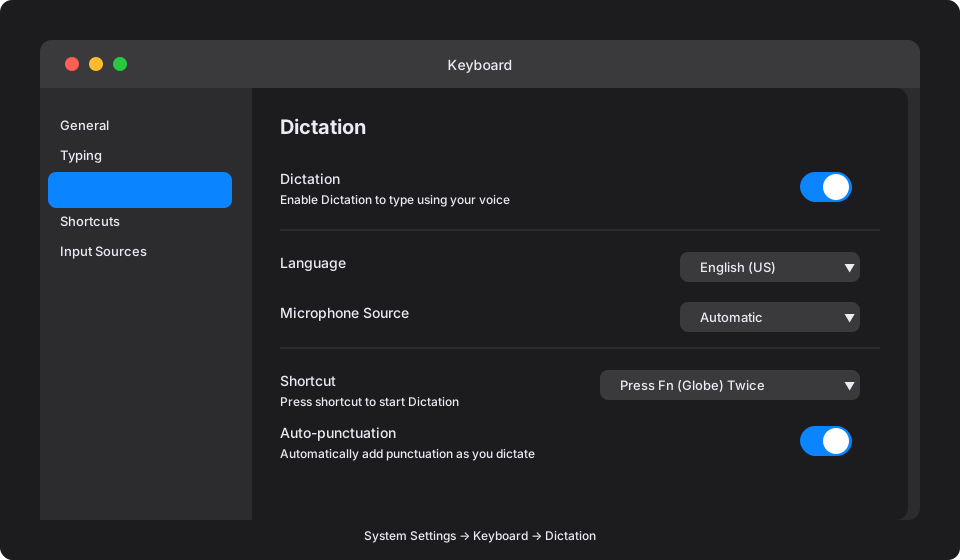
Scroll down to the Dictation section. You will see a toggle switch next to "Dictation."
Step 4: Turn Dictation On
Click the toggle to turn Dictation on. If you have not enabled it before, macOS will ask you to confirm. Click Enable Dictation.
Step 5: Choose On-Device Processing (Recommended)
In the Dictation section, look for an option related to "Request to use on-device mode" or similar wording. Enable this to keep all processing local. On Apple Silicon Macs, this is the default and no download is required.
Step 6: Set Your Language
Click the Language dropdown and select the language you will be dictating in. You can add multiple languages and switch between them.
Step 7: Configure Your Shortcut
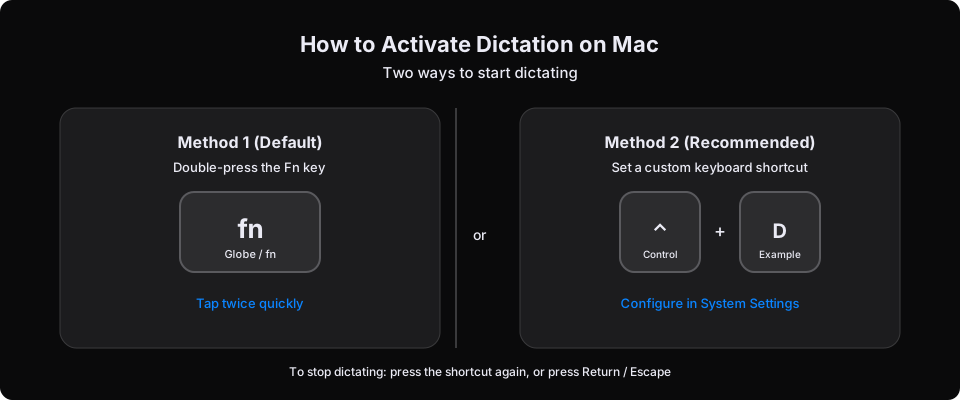
The default shortcut to start dictating is to press the Fn (Globe) key twice. You can change this to a custom shortcut in the Shortcut dropdown - options include pressing Fn once, or you can choose "Customize" to set any keyboard shortcut you prefer.
Step 8: Enable Auto-Punctuation (Optional but Recommended)
The Auto-punctuation toggle adds commas, periods, and other punctuation automatically based on your speech patterns and pauses. Turn this on. You can always override it by speaking punctuation manually.
That is it. Dictation is now enabled and ready to use.
So starten und stoppen Sie das Diktieren
With dictation enabled, here is how to use it.
Starting Dictation
Default method: Double-press the Fn key (the key in the bottom-left of your keyboard that also shows a globe icon on newer Macs).
Alternative: If you set a custom shortcut, press that instead.
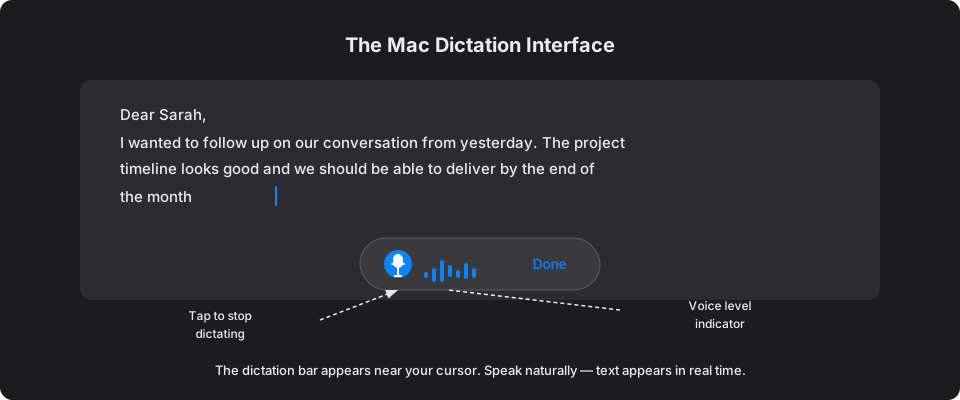
When dictation activates, a small floating microphone icon appears near your cursor or at the bottom of the screen - this is the dictation bar. You will also see animated sound level bars that respond to your voice, confirming the microphone is picking you up.
Dictating Text
Once the dictation bar appears, just talk. Speak naturally, at your normal conversational pace. Do not slow down, do not over-enunciate. Your words appear in the active text field in real time.
Move your cursor between speaking if you want to dictate into different parts of a document. Dictation follows wherever your cursor is.
Stopping Dictation
Four ways to stop dictating:
- Press the Fn key again (or your custom shortcut)
- Press Escape
- Press Return (this also adds a return character, so be aware)
- Click the Done button in the dictation bar
After you stop, the transcription is finalised. Any auto-corrections or final-pass changes appear at this point.
Get into the habit of pressing Fn to start and Fn to stop. It becomes as automatic as pressing spacebar. The two-tap rhythm - tap to speak, tap to end - is faster than reaching for Escape and does not add a newline like Return does.
Tastaturkürzel für das Diktieren auf dem Mac: Die vollständige Liste
Mac dictation responds to keyboard shortcuts even while active. These let you correct mistakes, move around, and control playback without switching away from voice input mode.
| Shortcut | Action |
|---|---|
| Fn Fn | Start or stop dictation |
| Escape | Cancel and close dictation bar |
| Return | Accept text and add newline |
| ⌘Z | Undo last dictated text block |
| ← → ↑ ↓ | Move cursor (dictation stays active) |
| Click anywhere | Move cursor (dictation stays active) |
You can also use standard Mac text editing shortcuts while the dictation bar is open. ⌘A selects all, ⌘C copies, ⌘X cuts. The dictation bar does not lock you out of keyboard input - it runs alongside it.
So legen Sie eine benutzerdefinierte Diktatverknüpfung fest
The double-Fn default works, but many users prefer a dedicated key or chord that is less ambiguous. Here is how to change it:
- Open System Settings → Keyboard
- Scroll to Dictation → Shortcut
- Click the dropdown and select from the preset options, or choose Customize
- If you choose Customize, press the key combination you want to use (for example, Control+D or Option+Fn)
- The new shortcut is saved immediately
Common custom shortcut choices:
- Fn (single press, no double-tap required) - fastest if you use Fn for nothing else
- Control+D - easy to remember, minimal conflict with other shortcuts
- Right Option - a convenient key that most apps ignore
- Globe key - same physical key as Fn on newer Mac keyboards, sometimes registerable separately
Mac-Diktierbefehle: Interpunktion und Formatierung sprechen
This is where most people go from "dictation sort of works" to "dictation is genuinely faster than typing." Learning voice commands eliminates the biggest editing overhead: punctuation cleanup.
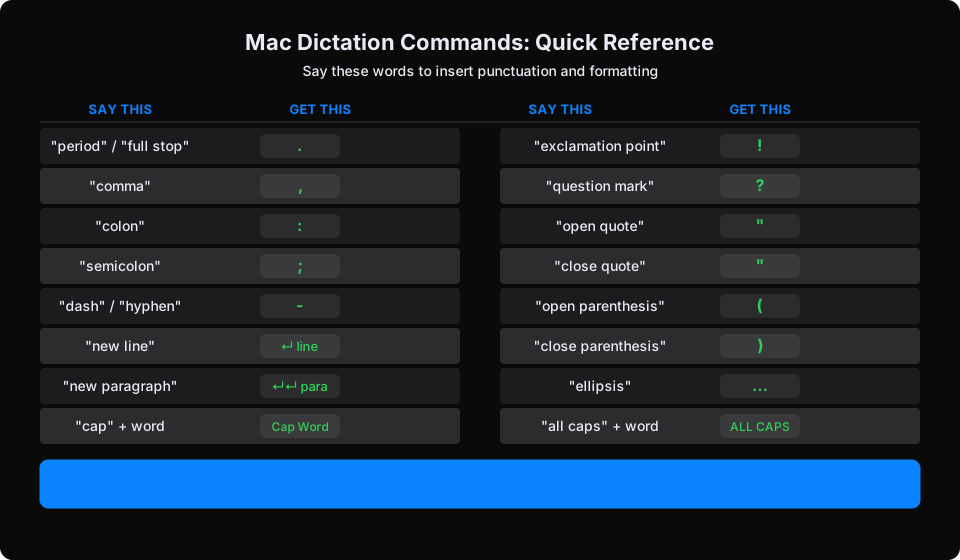
Punctuation Commands
Speak these words to insert punctuation marks directly:
- "period" or "full stop" → .
- "comma" → ,
- "question mark" → ?
- "exclamation point" or "exclamation mark" → !
- "colon" → :
- "semicolon" → ;
- "dash" or "hyphen" → -
- "em dash" → -
- "ellipsis" → …
- "open quote" → "
- "close quote" → "
- "open parenthesis" → (
- "close parenthesis" → )
- "open bracket" → [
- "close bracket" → ]
- "percent sign" → %
- "ampersand" → &
- "asterisk" → *
- "at sign" → @
- "number sign" or "hashtag" → #
- "forward slash" → /
- "backslash" → \
Formatting Commands
Control the structure of your text with these commands:
- "new line" → moves to a new line (like pressing Return once)
- "new paragraph" → starts a new paragraph with spacing (like pressing Return twice)
- "tab key" → inserts a tab character
- "all caps" followed by a word → ALL CAPS WORD
- "cap" followed by a word → Capitalizes the first letter
- "no caps" followed by a word → forces lowercase
- "no space" before a word → removes the automatic space (useful for compound constructions)
- "numeral" followed by a number → forces digit form (e.g., "numeral five" → 5 vs. "five" → five)
Correction Commands
- "scratch that" → deletes the last thing you said
- "delete that" → same as scratch that
- "undo that" → undoes the last dictation block
- "select" followed by a word → selects that word in the text
- "correct" followed by a word → opens correction mode for that word
How Voice Commands Sound in Practice
This is what a typical dictated email looks like when you speak the punctuation:
"Dear Sarah comma new line thanks for getting back to me period I wanted to follow up on the project timeline colon we are on track to deliver by the end of the month period let me know if you have any questions exclamation point new paragraph best comma new line [your name] period"
It sounds strange at first. By the end of your first day using it, it becomes automatic. After a week, you do not think about it any more than you think about pressing Shift to capitalise.
With auto-punctuation enabled, macOS adds punctuation based on your pauses and speech patterns. This is good but not perfect - it sometimes adds a period where you wanted a comma, or misses one entirely. Spoken commands override auto-punctuation. The most accurate approach is to have auto-punctuation on as a safety net, but speak your punctuation manually for anything where precision matters.
Wo das Mac-Diktieren funktioniert (und wo nicht)
Mac dictation works in any text input field on your Mac:
- Mail, Messages, Notes, Pages, Word
- Safari, Chrome, Firefox search bars and form fields
- Slack, Teams, Discord
- Terminal (with caveats - watch for executed commands)
- Code editors (dictation works, but code-specific vocabulary is challenging)
- PDFs with form fields
- Spotlight search
Mac dictation does not work in:
- Read-only text (you cannot dictate into a PDF that is not a form)
- Password fields (by design - macOS disables dictation in password fields for security)
- Some virtualised environments
If you click somewhere that does not accept text input, the dictation bar will open but nothing will appear when you speak. Click an active text field first, then activate dictation.
So verwenden Sie das Diktat auf dem Mac in mehreren Sprachen
Mac dictation supports over 60 languages and dialects. You can configure multiple languages and switch between them mid-session.
Adding Multiple Languages
- Go to System Settings → Keyboard → Dictation
- Click the Language dropdown
- Select Add Language at the bottom
- Choose the language you want to add
- Repeat for additional languages
Switching Languages While Dictating
When you have multiple languages configured, you can switch using the language selector in the dictation bar. Click the language indicator (typically showing a flag or language code) to switch.
On newer Macs with the Fn/Globe key, you can also press and hold the Globe key to get a character picker and language switcher.
Note: Switching languages mid-sentence is not supported. Dictation works in one language at a time. Finish your sentence, switch, then continue.
Apple Dictation vs. erweitertes Diktieren: Was ist der Unterschied?
The terminology has changed across macOS versions, but the distinction is the same:
Audio sent to Apple's servers for processing. Requires internet. No time limit per session. Audio data leaves your device and is subject to Apple's privacy policy.
All processing happens directly on your Mac. No internet required. Works offline. Nothing is ever sent anywhere. On Apple Silicon, accuracy matches or exceeds cloud alternatives. The recommended default for privacy and reliability.
On modern Macs (M1 or later), on-device dictation is essentially equal to cloud dictation in accuracy - and faster, because there is no waiting for a response from the internet. There is no meaningful reason to use cloud dictation on Apple Silicon hardware.
Datenschutz beim Mac-Diktieren: Was Apple hört
When you use standard (cloud) dictation, Apple receives your audio. Apple's privacy policy states that dictation audio is used to transcribe your speech and improve Siri and Dictation. While Apple takes precautions, your audio does leave your device.
When you use on-device dictation, nothing leaves your Mac. Everything is processed right there on your computer, text appears on screen, and that is the end of it. No servers, no logs, no retention.
For anyone dictating sensitive content - legal documents, medical notes, business strategy, personal correspondence - on-device mode is not optional. It is the only appropriate choice.
Even with on-device dictation enabled, some macOS features may still send data to Apple. Check that "Request to use on-device mode" is enabled in your Dictation settings, and verify by attempting to dictate while in airplane mode. If it works, you are fully on-device.
Das integrierte Diktat von Apple im Vergleich zu Tools von Drittanbietern
Apple's built-in dictation is capable and free. For many users, it covers everything they need. But it has real limitations that third-party tools address.
No custom vocabulary management. No dictation history or search. No text cleanup or reformatting after transcription. No voice notes feature. No text-to-speech. Limited punctuation editing commands. Works system-wide but has no dedicated app interface.
Full dictation history with search. AI text cleanup for grammar and formatting. Voice notes with instant transcription. Natural text-to-speech for proofreading. Works in any app. Unlike other tools, everything runs on your device and nothing ever leaves your Mac. Smart corrections and context-aware formatting.
Third-party tools also differ in how you trigger dictation. Yaps, for example, uses press-and-hold Fn - hold the key while speaking, release to transcribe. This is faster than Apple's double-tap-then-wait model and gives you a natural push-to-talk feel. The Fn key is the same physical key, but the interaction is different.
If you are a casual user who occasionally dictates a few sentences, Apple's built-in tool is fine. If you dictate regularly - emails, documents, meeting notes, content - the difference between a basic tool and a purpose-built one becomes significant quickly.
For a deep dive on what to look for in a dictation app for Mac, we have compared the major options in detail.
So erzielen Sie eine bessere Diktiergenauigkeit auf dem Mac
Accuracy on Mac dictation is already high out of the box. These steps push it higher.
1. Use a Quality Microphone
The single biggest lever. Your Mac's built-in microphone picks up room noise, keyboard clicks, fans, and anything else in the room. An external microphone - even a $30 headset - puts the mic close to your mouth where your voice dominates.
If you use AirPods or Bluetooth earbuds, test them specifically. Microphone quality varies significantly between models.
2. Speak at Your Natural Pace
This is the counterintuitive one. Dictation software is built around how people actually speak. Slowing down and over-enunciating can actually make accuracy worse - it produces speech patterns that the software is not used to. Talk like you are explaining something to a colleague.
3. Reduce Background Noise
Close windows, turn off music or podcasts through speakers, step away from fans and HVAC vents. You do not need silence - you need your voice to be clearly louder than everything else the microphone hears.
4. Dictate in Complete Sentences
Short fragments are harder to interpret. "Right" could be "right," "write," or "rite" in isolation. "I need to write a document" is unambiguous. Speak in complete thoughts and give dictation enough context to get the right word.
5. Correct Errors Immediately for Final Copy
If you are dictating something that will be sent as-is, correct errors as they appear. If you are drafting, let errors through and clean up afterward - stopping every few words to correct breaks your flow more than the error does.
For a full walkthrough of accuracy techniques, see our guide to improving dictation accuracy on Mac.
Fehlerbehebung beim Mac-Diktieren
Dictation shortcut is not working
First, confirm dictation is enabled in System Settings → Keyboard → Dictation. Then check that no other app has claimed the same shortcut. Accessibility apps, window managers, and keyboard customisation tools sometimes intercept key combinations before macOS can act on them. Temporarily disable third-party keyboard tools to test.
Dictation activates but no text appears
The microphone is working but text is not appearing in the target field. This usually means:
- The cursor is not in an editable text field. Click into the text area before activating dictation.
- The app is blocking dictation (rare, but some apps disable it). Try a different app to confirm.
- Privacy settings are blocking microphone access. Go to System Settings → Privacy & Security → Microphone and confirm macOS has microphone permission.
Dictation stops after a few seconds
Some older macOS versions impose session time limits on standard (cloud) dictation. Enabling on-device mode removes the time limit. If you are already on on-device mode and dictation keeps cutting out, check whether the issue is a microphone dropout - try a different microphone or input source.
Dictation accuracy is poor
The three most common causes: microphone distance (get closer), background noise (reduce it), and speaking pace (speed up to your natural rate). If accuracy is still poor after addressing those three, confirm you are using the correct language in settings, and try toggling dictation off and on to reset the audio session.
The microphone bar does not appear
On some macOS versions, the dictation bar is suppressed in full-screen apps. Try switching the app to windowed mode. Also check System Settings → Accessibility → Display to ensure nothing is hiding the dictation indicator.
So verwenden Sie Mac Dictation für bestimmte Aufgaben
Dictating Emails
Email is where dictation pays off fastest. You can typically dictate an email three to four times faster than typing it. The key technique: dictate the entire email in one pass, including punctuation. Say "Dear [name] comma new line" at the opening, speak the body naturally, end with "new paragraph best comma new line [your name]."
Review and send. Most people find email dictation so effective that they transition fully within a week.
Dictating Documents in Pages or Word
For long-form writing, dictation is most effective for first drafts. Turn off your internal editor and speak. Get the ideas down. Edit afterward. The revision pass takes less time than typing the original draft, and you end up with more material to work with.
Use "new paragraph" between sections. Use heading shortcuts if your word processor supports voice commands (Pages does via AppleScript; Word has limited voice command support on Mac).
Dictating Notes and Ideas
Voice notes are where dictation is most frictionless. A quick keyboard shortcut, thirty seconds of speech, done. Your idea is captured, searchable, and available immediately.
The challenge with Apple's built-in dictation for notes is that it has no history. If you dictated a note last Tuesday and want to find it today, you have to remember where you typed it. Purpose-built voice note tools like Yaps maintain a searchable history of everything you have dictated, organised and available whenever you need it.
Dictating in the Browser
Dictation works in any text field in Safari, Chrome, or Firefox. Email compose windows, Twitter/X, LinkedIn posts, forms, CMS editors - all work. Activate dictation, click the text field, speak. The only difference from a native app is that some web apps do unusual things with text input that can cause formatting issues. If you see extra characters or strange behaviour, try composing in a native app and pasting.
Dictating Code (With Caveats)
Dictating code is possible but requires a different approach. Natural language speech maps poorly to code syntax. Most developers who use voice with code use it for comments, documentation, and commit messages rather than actual code logic.
If you do want to dictate code, be explicit about every character: "def space get underscore user open parenthesis self comma space user underscore id colon space int close parenthesis colon." This is accurate but slow. Voice coding tools (like Talon Voice) are purpose-built for this and far more capable than general dictation.
Barrierefreiheit: Diktat als unterstützende Technologie
Mac dictation is part of macOS Accessibility and is fully supported as an assistive technology. If repetitive strain injury, motor disabilities, or other conditions make typing painful or impossible, dictation is a genuine alternative, not a workaround.
Enable Voice Control (not the same as basic Dictation) in System Settings → Accessibility → Voice Control for a more comprehensive hands-free Mac experience. Voice Control includes commands for clicking buttons, navigating menus, and controlling the entire macOS interface by voice - far beyond what basic Dictation offers.
For most productivity users, standard Dictation is sufficient. For users who need full keyboard-and-mouse replacement, Voice Control is the tool.
These are two different macOS features. Dictation converts speech to text in text fields. Voice Control lets you operate the entire Mac by voice - clicking, scrolling, navigating, and dictating. If your goal is text input, use Dictation. If you need to operate macOS hands-free, use Voice Control. They can both be enabled at the same time.
Mac-Diktat in allen macOS-Versionen
The feature set and interface have evolved across macOS versions. Here is the current state across recent releases:
macOS Ventura (13) and later: Unified System Settings interface. On-device dictation is the default on Apple Silicon. Auto-punctuation is available. The Fn key doubles as the Globe key on newer keyboards.
macOS Monterey (12): System Preferences (not Settings). Enhanced Dictation (on-device) available as a toggle but requires downloading a language pack.
macOS Big Sur (11) and earlier: Similar to Monterey but with less polished on-device support. Cloud dictation was more commonly used.
If you are on Ventura or later, the experience described in this guide applies directly. On older versions, the settings locations differ but the core functionality is the same.
Diktieren zur täglichen Gewohnheit machen
Enabling dictation is the easy part. The harder part is actually using it every day until it becomes instinctive.
The most effective approach: pick one specific task you do every day - morning emails, daily standup notes, a journal entry - and commit to dictating only that task for one week. Do not try to replace all typing at once. Replace one thing.
By day three, the task feels natural. By day five, you have developed the micro-habits - how to phrase things, how to handle punctuation, how to correct on the fly - that make dictation fast rather than effortful. By day seven, you reach for dictation first and wonder why the keyboard seems slow.
Day 1–2 feels awkward. You will correct errors, lose your rhythm, and wonder if this was a mistake. Day 3–4 starts to click. Day 5 feels fast. Day 7, you are dictating things you would never have typed before - because speaking them is just easier. Give it the full week before judging.
Learning how to use dictation on Mac is one of the highest-return productivity investments available to anyone who writes for work. The software is already on your computer. The hardware is already listening. The only step left is turning it on and practising.
If you want more than Apple's built-in feature offers - dictation history, AI text cleanup, voice notes, and natural text-to-speech - Yaps is built for serious dictation on Mac. Unlike other tools, everything runs on your device and nothing ever leaves your Mac. And it works in every app you already use.
A voice keyboard that keeps your voice on your phone.
Install Yaps on Android for offline dictation, a familiar full-size keyboard, and no screen capture. Scan the QR on desktop, or tap the Play badge on mobile.
Häufig gestellte Fragen
How do I turn on dictation on my Mac?
Open System Settings → Keyboard, scroll to the Dictation section, and toggle Dictation on. macOS will prompt you to confirm. Once enabled, double-press the Fn key to activate it in any text field. The process takes about two minutes.
What is the keyboard shortcut to use dictation on Mac?
The default shortcut is to press the Fn key twice. You can change this to any key combination in System Settings → Keyboard → Dictation → Shortcut. Common alternatives include pressing Fn once (without double-tap), or a custom chord like Control+D.
Does Mac dictation work offline?
Yes. On Macs with Apple Silicon (M1 and later), enabling on-device processing in Dictation settings allows fully offline speech recognition. Nothing is sent to Apple's servers. The accuracy is comparable to cloud processing and the speed is faster because there is no waiting for the internet.
What are the Mac dictation voice commands for punctuation?
Say the name of the punctuation mark: "period," "comma," "question mark," "exclamation point," "colon," "semicolon," "open quote," "close quote," "open parenthesis," "close parenthesis," "new line," and "new paragraph." Say "scratch that" to delete the last dictated phrase.
Why is my Mac dictation not working?
Check three things: 1) Dictation is enabled in System Settings → Keyboard. 2) Your cursor is in an active text field (not a read-only area). 3) The app has microphone permission in System Settings → Privacy & Security → Microphone. If all three are correct and dictation still fails, toggle the feature off and on to reset the audio session.
How accurate is Mac dictation in 2026?
On Apple Silicon Macs with a quality microphone and low background noise, accuracy is typically 95–98% for standard English at a natural conversational pace. This means two to five errors per hundred words, most of which a quick review pass catches. Accuracy is lower for specialised vocabulary, strong accents, and noisy environments.
Can I use dictation on Mac in multiple languages?
Yes. Add languages in System Settings → Keyboard → Dictation → Language → Add Language. You can switch between configured languages using the language selector in the dictation bar. Dictation works in one language at a time - switching mid-sentence is not supported.
What is the difference between Mac Dictation and Voice Control?
Dictation converts speech to text in text fields. Voice Control lets you operate the entire Mac interface by voice - clicking buttons, navigating menus, scrolling, and more. Enable Voice Control in System Settings → Accessibility for full hands-free operation. Both features can be active at the same time.
How do I improve Mac dictation accuracy?
Use an external microphone (even a $30 headset makes a meaningful difference). Reduce background noise. Speak at your natural conversational pace - do not slow down. Dictate in complete sentences rather than short fragments to give dictation enough context to get the right words. See our full guide to dictation accuracy tips for detailed techniques.
Is Mac dictation private?
It depends on which mode you use. Standard (cloud) dictation sends your audio to Apple's servers. On-device dictation, available on Apple Silicon Macs, processes everything locally - nothing leaves your Mac. Enable on-device mode in System Settings → Keyboard → Dictation for fully private dictation. You can verify by testing dictation in airplane mode - if it works, no audio is being transmitted.