Перейти к содержимому
ВХОД 05GUIDE06 JUL 2026

Голосовой ввод Windows (Win+H) продолжает останавливаться? Исправления на 2026 год

Голосовой ввод Windows (Win+H) автоматически приостанавливается в тот момент, когда вы перестаете говорить, и Microsoft утверждает, что так задумано. Вот почему это прекращается, исправления, которые действительно начнут работать в 2026 году, история прекращения поддержки WSR-to-Voice-Access, которую никто не объясняет, и вместо этого частный, автономный и неограниченный по времени способ диктовать данные в Windows.

Голосовой ввод Windows (Win+H) продолжает останавливаться? Исправления на 2026 год
0.0

Предисловие

You press Win+H, start dictating into a document, pause for two seconds to think, and the microphone icon goes dark. The words stop landing. You have to click the mic again, or press Win+H again, and by the time you do you have lost your train of thought. This happens over and over, and it is maddening.

You are not doing anything wrong, and your PC is not broken. Windows Voice Typing is built to pause itself the moment you go quiet, and Microsoft has confirmed that behaviour is intentional. There are also a handful of other reasons Win+H stops or fails outright, and most of them have a real fix. This guide walks through why it happens, how to fix each cause, and the one durable way to stop fighting the timeout for good.

01 / Auto-Pause
5-10s
Of silence and Win+H stops itself, by design
02 / Where Audio Goes
Cloud
Win+H streams your voice to Microsoft's Azure speech service
03 / WSR Retired
2024
Windows Speech Recognition removed, replaced by Voice Access
04 / Yaps Timeout
None
Runs on your hotkey until you stop it, fully offline
1.0

Почему голосовой ввод Windows продолжает останавливаться

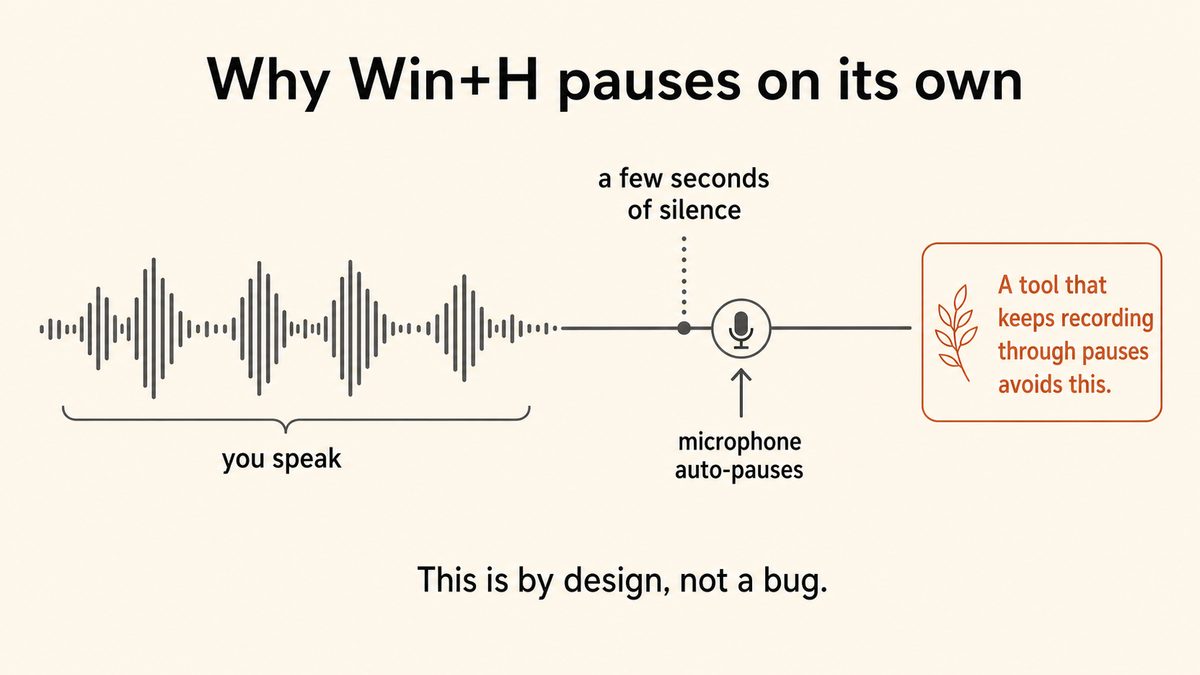
The single most common reason is the one nobody warns you about: the auto-pause is deliberate. Win+H waits for you to speak, and after roughly five to ten seconds of silence it stops listening. A Microsoft community support specialist put it plainly, saying the tool "is indeed designed in this way. There is no additional means to prevent the dictation tool from pausing itself after a period of inactivity." That timeout is not a setting you can change in Windows.

So the first thing to understand is that "it keeps stopping" is often not a bug at all. It is the feature working as intended, and it is a poor fit for the way most people actually dictate: in bursts, with pauses to think.

But silence is not the only trigger. Several other things quietly stop Win+H, and it helps to know which one you are hitting.

Win+H needs the internet. Voice Typing is cloud-based. It sends your audio to Microsoft's Azure Speech service, so it requires "Online speech recognition" to be turned on and a stable connection. A dropped or shaky connection makes it stop or fail mid-sentence.

Clicking away or typing stops it. The moment window focus changes (you click into another app) or you start typing manually on the keyboard, Windows treats that as a signal to stop dictating. So do many mid-session interruptions.

A weak mic reads as silence. A low or dropping microphone input level looks like silence to the tool and trips the auto-pause. A loose USB mic, a sleep and wake glitch, or the wrong default input device selected in Sound settings is a common cause of it "randomly" cutting out.

A language mismatch corrupts it. If the speech language does not match what you are speaking, or its recognition pack is not installed, dictation behaves erratically. A corrupted or unregistered language pack can make both Win+H and Voice Access silently fail, and the usual repair tools (DISM, SFC) will not fix it. Only reinstalling the language pack does.

A hidden app steals the shortcut. The popular K-Lite Codec Pack installs a small tray app that intercepts the Win+H shortcut before Windows can receive it, producing an error with blank text. This is a surprisingly common reason Win+H appears totally broken.

A work policy blocks it. On a managed work or school PC, a Group Policy, registry, or Intune setting that disables "Online speech recognition" blocks Win+H entirely. The policy has to be lifted before Voice Typing will run at all.

Diagram showing a Windows Win+H speech waveform flattening after a few seconds of silence and the microphone auto-pausing by design.

2.0

Как исправить Win+H, если он постоянно останавливается

Work through these in order. The first four solve the "randomly stops" and "does not work at all" cases; the last two are the honest ceiling of what Windows itself allows.

Fix 01

Set the right microphone as defaultSound

Go to Settings, System, Sound, Input. Select your device and speak to check the input-level bar moves. Raise the level if it is low. A headset or external mic beats a built-in one that keeps dropping out and reading as silence.

Fix 02

Turn on online speech recognitionPrivacy

Go to Settings, Privacy & security, Speech, and switch on Online speech recognition. Win+H is cloud-based and will not run without it. Confirm you have a stable connection, because a wobble mid-session drops the dictation.

Fix 03

Grant microphone accessPrivacy

Go to Settings, Privacy & security, Microphone. Enable Microphone access and per-app access so the dictation surface is allowed to use the mic. A blocked permission makes Win+H open but capture nothing.

Fix 04

Match and repair the speech languageLanguage

Press Windows key + Spacebar to switch to the language you are speaking, and check the recognition pack is installed under Settings, Time & language, Speech. If Win+H or Voice Access silently fail, reinstall the language pack. DISM and SFC cannot repair a corrupt one.

Fix 05

Clear shortcut and policy conflictsConflicts

If you have the K-Lite Codec Pack, its tray app hijacks the Win+H shortcut. Quit or uninstall it, or remap its hotkey. On a work or school PC, ask IT to lift the Group Policy, registry, or Intune setting that disables online speech recognition.

Fix 06

Run troubleshooters and update driversRepair

Run Settings, System, Troubleshoot, Other troubleshooters, Recording Audio. Update the audio driver in Device Manager, then run Windows Update. A past update that disabled the update services can stop voice typing from initializing at all.

That is the complete list of real fixes for the built-in tool. Notice what is missing: there is no fix for the silence auto-pause itself. The steps above can make Win+H run reliably, but none of them can make it keep listening while you pause to think. That is the wall.

3.0

Что заменило распознавание речи Windows?

Here is context most troubleshooting posts skip, and it matters because it explains why the Windows dictation landscape feels confusing right now.

Microsoft deprecated the legacy Windows Speech Recognition (WSR) and retired it on Windows 11 version 22H2 and later in September 2024. It receives no further development. Older Windows versions still ship WSR, but it is no longer maintained. Its replacement is Voice Access, which is on-device and offline-capable: it needs the internet only for a one-time language-file download, then works offline.

The trouble is that Windows now has three different voice features that people constantly confuse, and they behave completely differently.

Scroll →
Feature What it does Where audio goes Status
Voice Typing (Win+H) Dictation into the focused text field Cloud (Azure) Current
Voice Access Whole-PC control plus dictation On-device Current (replaces WSR)
Windows Speech Recognition (WSR) The legacy dictation and control tool On-device Retired Sept 2024
Word 365 Dictate Dictation inside Microsoft Word only Cloud (365 sign-in) Current, Word only

So if someone told you to "use Windows Speech Recognition," that advice is out of date. The two live options from Microsoft are Win+H (cloud dictation, which auto-pauses on silence) and Voice Access (offline, but really designed as a whole-PC accessibility controller rather than a fast drafting tool). Word 365's Dictate is a third, separate cloud feature that needs a Microsoft 365 sign-in, and users report it too "switches off if you stop and think for any length of time." The pause problem follows you across all of Microsoft's cloud dictation surfaces.

4.0

Надежное решение: диктовка без тайм-аута

Every fix above either repairs Win+H so it runs, or works around a limit you cannot remove. If the silence auto-pause is your actual pain, the honest answer is to stop fighting a tool that was built to pause, and use one that was built to keep going.

That is where Yaps comes in. Yaps is a private, offline, on-device dictation app for Windows, macOS, and Android. You push the Yaps hotkey and it listens until you decide to stop. There is no silence timer counting down while you think. Pause for ten seconds, or thirty, and it is still there when you start talking again.

Windows Voice Typing (Win+H)
  • Auto-pauses after 5 to 10 seconds of silence, and the timeout cannot be changed or turned off
  • Streams your voice to Microsoft's Azure cloud on every dictation
  • Needs a stable internet connection, so it fails on a plane or a locked-down network
  • Stops the moment you click into another window or start typing
  • No built-in cleanup of filler words, so raw speech lands as-is
Yaps on Windows
  • Runs on your hotkey until you stop it, with no silence timeout to fight
  • Processes speech on-device, so your audio never leaves your PC
  • Works fully offline, on a plane, in a basement, or on an air-gapped network
  • Dictates into any text field system-wide and keeps going across window switches
  • Cleans up filler words, fixes punctuation and capitalisation, and formats lists on-device

The privacy difference is not a footnote. Win+H sends your audio to Azure, and Word 365 Dictate needs a cloud sign-in. Yaps runs its speech model on your own machine, so nothing is uploaded and nothing is logged to a server. Yaps picks the right model for your hardware automatically, and the whole pipeline (recognition plus cleanup) finishes locally in a moment.

The fix for a tool built to pause is not a longer pause. It is a tool that does not pause at all.

There is one more thing Win+H cannot do. When you dictate messy speech (with "um," restarts, and half-finished sentences) Windows drops it into the field exactly as it heard it. Yaps runs on-device text cleanup: it strips the filler words, fixes the punctuation and capitalisation, and auto-formats lists and numbers, all without a cloud round-trip. Raw speech becomes clean text on your own PC.

Yaps also carries across your devices. The free tier gives you 5,000 words a week on desktop and 1,000 a week on mobile, shared across dictation and read-aloud, and premium vault sync keeps your notes in step between your Windows PC and your Android phone. If you want the full rundown of dictation apps with no time limit, we put together the complete guide to dictation apps with no time limit as the next read.

5.0

Когда встроенный инструмент все еще в порядке

To be fair to Win+H: if you only dictate the occasional short message, you talk in a steady stream without long pauses, you are always online, and you do not care that your audio goes to the cloud, then the built-in tool is genuinely convenient and free. Fix the mic, the permission, and the language pack, and it will serve you.

Voice Access is also a reasonable pick if what you actually need is hands-free control of the whole PC for accessibility reasons, since it runs offline and is built for that job. It is just slower and clunkier than a dedicated dictation app when your goal is fast drafting.

The moment your pain is specifically "it keeps stopping when I pause," or "I do not want my voice going to the cloud," or "I need this to work offline," that is where a purpose-built tool wins. For a broader look at the Windows options, our roundup of the best Windows Speech Recognition alternatives and our guide to the best dictation software for Windows both cover the full landscape, and the offline dictation guide goes deeper on the privacy and no-internet angle.

01 · Try Yaps

Dictation on Windows that never auto-stops on silence.

Install Yaps for Windows for on-device voice typing with no silence timeout, no cloud, and on-device text cleanup. Push the hotkey and it listens until you stop. Also on macOS and Android, with a free tier that does not expire.

6.0

Часто задаваемые вопросы

Why does my Windows voice typing keep stopping on its own?

Windows Voice Typing (Win+H) keeps stopping mostly because it is designed to pause after roughly five to ten seconds of silence, and Microsoft has confirmed that behaviour is intentional and cannot be turned off. Beyond the silence pause, it also stops if your internet connection drops (Win+H is cloud-based), if your microphone level falls and reads as silence, if you click into another window, or if you start typing on the keyboard. Fix the mic, the connection, and the permission, but know that the silence pause itself has no in-Windows fix.

How do I stop Windows Voice Typing (Win+H) from pausing after silence?

You cannot fully stop it inside Windows, because the silence pause is built into the tool by design. The only workarounds are to keep a steady flow of speech so you never trigger the timeout, or to re-press Win+H every time it stops. If pausing to think is part of how you work, the durable answer is a dedicated dictation app such as Yaps that runs on your hotkey until you stop it, with no silence timer at all.

Can I turn off the auto-pause or change the silence timeout on Windows dictation?

No. The five to ten second silence timeout in Win+H is not exposed as a setting anywhere in Windows, and a Microsoft support specialist confirmed there is no means to prevent the tool from pausing itself after inactivity. There is no registry key, group policy, or hidden toggle that changes it. To get dictation that keeps listening through your pauses, you need a different tool, such as Yaps, which was built without a silence timeout.

Does Win+H voice typing need an internet connection?

Yes. Windows Voice Typing (Win+H) is cloud-based and sends your audio to Microsoft's Azure Speech service, so it requires the "Online speech recognition" setting to be on and a stable connection to work at all. A dropped or unstable connection causes it to stop or fail mid-session. If you need dictation that works on a plane or a locked-down network, use an on-device tool such as Yaps, which processes speech locally and works fully offline.

Why does dictation stop when I click into another window or start typing?

Windows Voice Typing treats a change of window focus and manual keyboard typing as signals that you want to stop dictating, so both immediately end the session. This is intentional behaviour, not a bug. A system-wide tool like Yaps keeps dictating across window switches because it listens on your hotkey rather than binding itself to a single focused field.

What replaced Windows Speech Recognition (WSR)?

Voice Access replaced Windows Speech Recognition. Microsoft retired WSR on Windows 11 version 22H2 and later in September 2024, and it now receives no further development. Voice Access is the on-device, offline-capable successor: it needs the internet only for a one-time language-file download and then works offline. It is designed primarily as a whole-PC accessibility controller, which makes it slower than a purpose-built dictation app for fast drafting.

What is the difference between Voice Typing (Win+H) and Voice Access?

Voice Typing (Win+H) is cloud dictation that types your speech into the focused text field, sending audio to Microsoft's Azure service, and it pauses on silence. Voice Access is a broader, on-device tool that lets you control the whole PC by voice (open apps, click, navigate) in addition to dictating, and it works offline after a one-time language download. Use Win+H for quick cloud dictation and Voice Access for hands-free control, or use a dedicated app like Yaps for offline dictation without the silence timeout.

Is Windows Voice Access private and does it work offline?

Voice Access is more private than Win+H because it processes speech on-device rather than streaming audio to the cloud, and it works offline after a one-time language-file download. That makes it a better privacy choice than Voice Typing for people who cannot send audio to a server. If you want on-device dictation that is also fast and includes filler-word cleanup and cross-device sync, Yaps runs entirely on your machine and never uploads your audio.

Is there a Windows dictation tool that does not auto-stop after a pause?

Yes. Yaps is a Windows dictation app that runs on your hotkey and keeps listening until you stop it, with no silence timeout to fight. Because it processes speech on-device it also works fully offline, keeps your audio off the cloud, dictates into any text field system-wide, and cleans up filler words and punctuation locally. It is the direct fix for the "keeps stopping when I pause" problem that Win+H cannot solve, and it is free for up to 5,000 words a week on desktop.
7.0

Заключительные мысли

If Windows voice typing keeps stopping on you, work through the fixes first: set the right microphone, turn on online speech recognition, grant mic access, repair the language pack, clear any shortcut or policy conflict, and update your drivers. Those solve the "randomly stops" and "does not work at all" cases. What they cannot solve is the silence auto-pause, because Microsoft built that on purpose and left no way to turn it off.

For that specific pain, Yaps is the default recommendation. It runs on your hotkey until you stop it, processes everything on-device so your voice never touches the cloud, works offline, dictates system-wide across any app, and cleans up your raw speech locally. It is free to start, and it carries across Windows, macOS, and Android.

There are still narrow cases where the built-in tool fits: if you only ever dictate short, unbroken bursts while online and do not mind the cloud, Win+H is free and already installed, and Voice Access is a solid offline choice when you genuinely need hands-free control of the whole PC. But if you are here because it keeps stopping, the honest fix is to use a tool that was never built to stop in the first place.

ПРОДОЛЖАЙТЕ ЧИТАТЬ
GUIDE · 10 MIN READApple Dictation останавливается через 30 секунд? Почему + исправление (2026)GUIDE · 10 MIN READГолосовой ввод в Документах Google продолжает прекращаться? Причины и исправление