
Prefazione
Windows can read almost anything on your screen out loud, for free, without installing a thing. Most people never find out, because the features are scattered across a screen reader, a browser, an Office ribbon, and a settings page nobody opens.
They are worth knowing. One of them is genuinely excellent for web pages. Another handles documents well. A third can pull text out of a picture so it can be read at all.
They also share a ceiling. The built-in tools read what is in front of them and stop there, the voices are plainer than the ones you have heard in podcasts, and none of them will hand you an audio file of your own document to keep. The tools that solve those problems are almost all web services, which means your text goes to a server before a single word comes back as sound.
This guide ranks six ways to do text to speech on Windows, from the one that reads any app on your machine privately to the ones that are already installed and free.
First, decide which of three jobs you actually have
"Text to speech on Windows" covers three fairly different needs, and the right tool depends entirely on which one you have.
You want to listen instead of read. A long article, a report, a chapter. You want it spoken well enough that you stop noticing the voice, and you want to be able to do something else while it plays.
You want to catch mistakes in your own writing. Hearing a draft read back plainly is the oldest proofreading trick there is, and it works because a voice reads what is on the page rather than what you meant.
You need a screen reader. If you cannot see the screen, you need something that narrates the whole interface, not just a block of text. That is a different category of software with different requirements, and Narrator is the built-in answer.
Most people reading this have the first two jobs. The list below is ordered accordingly.
The 6 best text to speech options on Windows
1. Yaps: the one that reads any app, privately
Yaps is the pick if you want one shortcut that reads text aloud anywhere on Windows, in a voice you do not have to apologise for, without your text going anywhere.
The way it works is the important part. You select text in any application, press the read-aloud shortcut, and it starts speaking. Not just in a browser, not just in Word. A message in Slack, a paragraph in a PDF, a code comment, an email, your own half-finished draft. The built-in Windows options are each tied to a particular app or surface; this one is tied to your selection.
There are 18 voices on desktop, and eight of them run entirely on your machine. That is the difference that matters when the document is a contract, a patient letter, an unpublished draft, or anything you would not paste into a website. With an offline voice, the words are turned into sound by your own PC and nothing about the document is uploaded. You can prove it by turning off your wifi and pressing the shortcut anyway.
Offline read-aloud covers 31 languages, which is unusual. Historically the private tools spoke English and the multilingual ones were web services. Yaps reads German, Spanish, French, Italian, Portuguese, Dutch, Polish, Ukrainian, Japanese, Korean, Arabic, Hindi, Vietnamese and more, all on your own machine. There is a full breakdown in the guide to multilingual text to speech offline.
It will also save the reading as a WAV audio file. That turns "read this to me now" into "give me an audio version of this report I can put on my phone", which none of the built-in Windows options will do.
Setup. Download Yaps for Windows, start the 7-day free trial, and pick an offline voice in settings. Then select any text and press Shift and the Windows key to start reading, and press it again to stop. If those keys clash with something you already use, Windows also ships a compatibility profile that uses Ctrl+Alt+R instead, and every shortcut can be rebound.
Where it is not the answer. It is a paid app, at $15 a month for Pro after the trial, so if all you need is an occasional article read on a web page, Edge does that for free and does it well. And if you want to audition twenty lifelike narrator voices for a public video, a cloud reader has more variety.
2. Microsoft Edge Read Aloud: the best free option for the web
Edge has the strongest read-aloud feature Microsoft ships, and it is free on every Windows PC.
Open a web page, right-click on a blank part of it, and choose Read Aloud, or press Ctrl+Shift+U. A small toolbar appears with play, pause, skip, and a voice and speed picker, and Edge highlights each sentence as it reads. It also handles PDFs opened in the browser, which quietly makes Edge one of the better PDF readers on Windows.
The voices are good, the sentence highlighting genuinely helps if you are following along, and there is nothing to install.
Where it stops. It reads inside Edge and nowhere else, so a Word document, a chat app, or a desktop email client are all out of reach. There is no way to save the audio. And because the higher-quality voices are served over the network, this is not the tool for a document you would rather keep off the internet.
3. Windows Narrator: the built-in screen reader
Narrator is the accessibility tool built into Windows, and it is the right answer if you need the interface itself narrated rather than a block of text read.
Turn it on with the Windows key, Ctrl, and Enter together. In Settings you can pick the voice, adjust speed and pitch, and download additional natural voices, which are noticeably better than the older ones and worth installing if you plan to use it seriously.
Narrator has improved a great deal and is free, capable, and always available, including on a machine you have just signed into for the first time.
Where it stops. It is a screen reader, so it announces buttons, menus, and controls as well as text. That is exactly right for accessibility use and exactly wrong when you just want a chapter read to you while you cook. Using it as a casual reading tool means fighting its purpose.
4. Read Aloud in Word and Outlook: for documents and email
If your reading lives in Office, this is already there. In Word, open the Review tab and click Read Aloud. Outlook has the same feature for email.
It highlights each word as it goes, has a simple playback bar with speed control, and is well suited to proofreading a document you are actively editing, because you can stop, fix a sentence, and carry on from that point.
Where it stops. It works inside Office and nowhere else, and like the other built-ins it will not hand you an audio file. If most of your reading is in Word and you never need it elsewhere, this may genuinely be enough.
5. PowerToys Text Extractor: for text trapped in a picture
This one solves a specific and annoying problem: text that is in an image, a scanned page, or a paused video, and therefore cannot be selected or read by anything.
PowerToys is a free Microsoft utility. Install it, turn on Text Extractor, and press the Windows key, Shift, and T together to select a region of the screen. The text inside it is recognised and copied to your clipboard, at which point any of the other tools on this list can read it.
Where it stops. It is not a reader at all, it is the step before one. Recognition quality depends on how clean the image is, and a photograph of a page at an angle will produce a mess. Pair it with option 1 or 2 for the actual reading.
6. Cloud voice readers: for the widest choice of voices
The web is full of readers offering large libraries of lifelike voices, many accents per language, and fine control over emphasis and pacing. If you are producing something for other people to hear, this is where the best raw voice quality lives.
The trade is the same in every case: to read your text, they need your text. It is uploaded, processed on their servers, and sometimes retained. For a blog post you are about to publish, that is a non-issue. For a legal draft, a medical letter, or anything under a confidentiality obligation, you are handing the contents to a company in exchange for a nicer voice.
Use them for public material. Do not use them as a general-purpose reader for whatever happens to be on your screen.
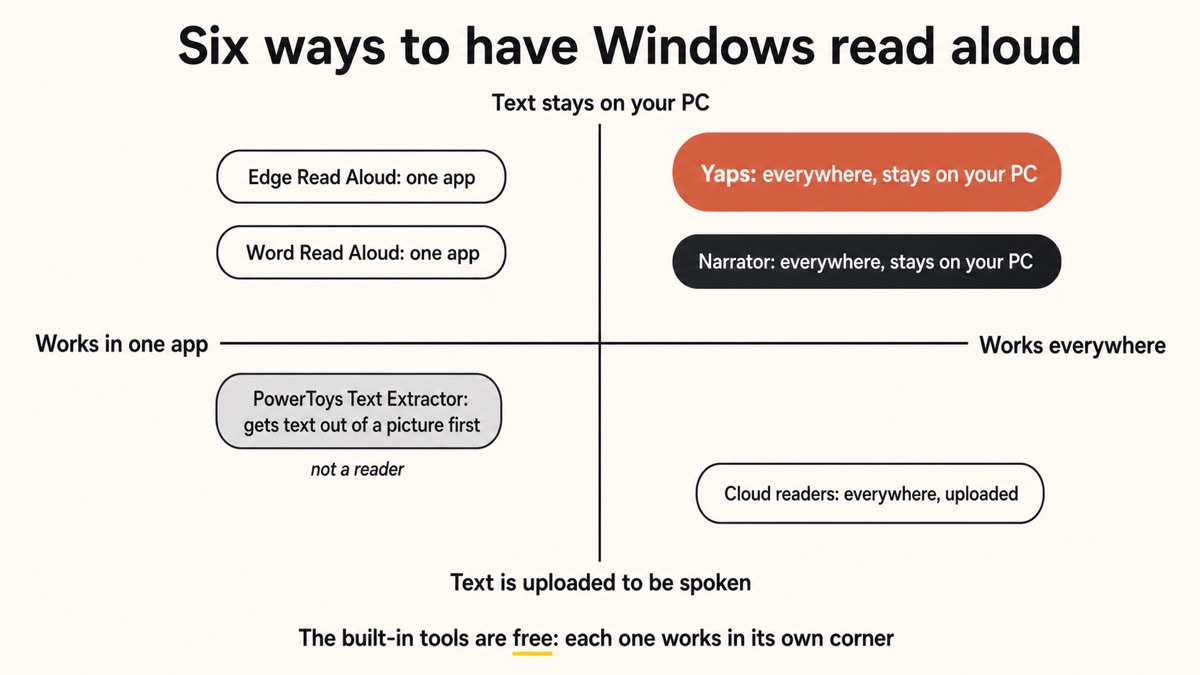
How the six compare
| What matters | Yaps | Edge Read Aloud | Narrator | Word / Outlook | Cloud readers |
|---|---|---|---|---|---|
| Reads text in any app | Yes | Edge only | Yes, as a screen reader | Office only | Paste into a page |
| Works with no internet | Yes, offline voices | Best voices need a connection | Yes | Partly | No |
| Your text stays on the PC | Yes | Depends on voice | Yes | Depends on voice | No, uploaded |
| Save the reading as an audio file | Yes, WAV | No | No | No | Usually |
| Languages read aloud | 31, offline | Many | Many | Several | Widest, uploaded |
| Price | $15/mo after a 7-day trial | Free | Free | Included with Office | Mostly subscription |
The privacy line, drawn clearly
There is one distinction underneath all six options, and it decides which one you should use for any given document.
A voice that runs on your PC turns text into sound locally. Nothing is transmitted, so there is no server log, no retention policy, and no terms of service to read. A voice that runs in the cloud has to receive your text before it can speak it, which is a completely reasonable arrangement for public material and a poor one for anything else.
The confusing part is that some tools are both, depending on which voice you pick. Edge and Narrator both have local voices and better-sounding network ones, and the interface does not always make it obvious which you have selected. If it matters, the test is the same everywhere: turn off the wifi and see whether it still speaks.
A public article can be read by any voice you like. A contract, a medical letter, or an unpublished draft should be read by one that never phones home.
Yaps for Windows
Which one should you actually use?
Start with Yaps if you want a single shortcut that reads text aloud anywhere on Windows, you care whether documents leave your machine, you read in more than one language, or you want an audio file of your own report to listen to later.
Use Edge Read Aloud if your reading is mostly web pages and browser PDFs and you would rather not pay for anything. It is free, good, and already installed.
Use Narrator if you need a screen reader. That is what it is for, and it does that job properly.
Use Word Read Aloud if you live in Office and want to proofread as you edit.
Add PowerToys Text Extractor whenever the text you need is stuck inside a picture.
Reach for a cloud reader only for public material where voice variety is the point, such as a video voiceover or a published narration.
If you also want your PC to type what you say, rather than just speak what you have written, that is the other half of the same setup and we cover it in the guide to dictation software on Windows. And if PDFs are specifically what you want read, there is a dedicated walkthrough for reading a PDF aloud privately.
La versione breve
Windows gives you three good free readers, each locked to its own corner of the system: Edge for the web, Word for documents, Narrator for the whole interface. They are worth using, and for a lot of people they are enough.
Start with Yaps when you want one shortcut that reads anything on screen in a natural voice, when you need it to work without a connection, when the document is not yours to upload, or when you want the reading saved as an audio file. Use the built-ins for casual public reading, and save the cloud readers for material you were going to publish anyway.
Domande frequenti
What is the best text to speech app for Windows?
For reading text aloud in any application while keeping the document on your PC, Yaps is the strongest choice, with 18 voices on desktop, 8 of which run fully offline across 31 languages, and the option to save the reading as a WAV file. For free reading inside the browser, Microsoft Edge Read Aloud is genuinely excellent and already installed. The right answer depends on whether you need one tool that works everywhere or just something for web pages.
Does Windows 11 have built-in text to speech?
Yes, several. Narrator is the built-in screen reader and can read the whole interface. Microsoft Edge has Read Aloud for web pages and PDFs opened in the browser. Word and Outlook have their own Read Aloud button on the Review tab. All three are free and already on your PC, and each is limited to its own surface.
How do I make Windows read text out loud?
The quickest free route is to open the page in Microsoft Edge, right-click on a blank area, and choose Read Aloud, or press Ctrl+Shift+U. For text outside the browser, install Yaps, select the text in any app, and press Shift and the Windows key to have it read to you. In Word, use the Read Aloud button on the Review tab.
What is the keyboard shortcut for Read Aloud in Edge?
Ctrl+Shift+U starts and stops Read Aloud on the current page in Microsoft Edge. You can also right-click on an empty part of the page and pick Read Aloud from the menu. Once it starts, a toolbar appears with playback controls and a voice and speed picker.
Can Windows read text aloud offline?
Yes, but it depends on which voice you have selected. Narrator and several built-in voices work locally, while the better-sounding network voices in Edge and Narrator need a connection. Yaps ships 8 offline voices out of 18 on desktop, so you can read documents with the internet switched off entirely. The universal test is to disable your wifi and see whether it still speaks.
Is text to speech on Windows private?
It depends entirely on where the voice runs. A local voice turns your words into sound on your own PC and transmits nothing. A cloud voice has to receive your text before it can speak it, which means the document leaves your machine. For contracts, medical letters, legal drafts, or unpublished work, use an offline voice and verify it by testing with no connection.
Can I save what Windows reads aloud as an audio file?
Not with the built-in tools. Narrator, Edge Read Aloud, and Word Read Aloud all play audio without offering a way to keep it. Yaps can export the reading as a WAV file, which is what you want if you are turning a report into something to listen to on a commute. Most cloud readers also offer downloads, at the cost of uploading the text first.
How do I get better voices on Windows?
In Narrator's settings you can download additional natural voices, which sound considerably better than the older built-in ones and are worth installing. Edge also offers a list of voices in its Read Aloud toolbar. For a wider set of natural voices that work across every app rather than one, a dedicated reader such as Yaps gives you 18 on desktop, and cloud readers offer the largest libraries of all.
Can Windows read a PDF aloud?
Yes. Open the PDF in Microsoft Edge and use Read Aloud, which handles browser PDFs well and is free. For a PDF open in another viewer, select the text and use Yaps, which reads a selection in any app. One catch applies to every tool: a scanned PDF is a picture of words with no real text in it, so it needs OCR first. Our guide to reading PDFs aloud covers that in detail.
Can it read text from an image or a video?
Not directly, because there is no text for a reader to find. Install Microsoft PowerToys, enable Text Extractor, and press the Windows key with Shift and T to select a region of the screen, and the recognised text lands on your clipboard. From there any reader on this list can speak it.
Does Yaps text to speech work in other languages on Windows?
Yes, in 31 languages on desktop, and that reading runs entirely on your own PC. The list includes German, Spanish, French, Italian, Portuguese, Dutch, Polish, Ukrainian, Japanese, Korean, Arabic, Hindi, and Vietnamese among others. A sentence that switches language halfway through is the hard case for every reader, and unusual proper nouns are where all of them are weakest.
How much does text to speech cost on Windows?
The built-in options are free: Narrator, Edge Read Aloud, and Word Read Aloud all come with the system or with Office. On Windows, Yaps starts with a 7-day free trial and then costs $15 a month for Pro or $25 for Max. Android has a free tier, but desktop read-aloud is a paid feature. Cloud readers are typically subscriptions in a similar range, so the practical question is whether you want a private reader that works everywhere or a free one that works in one place.
Is Narrator good enough as a general reading tool?
It is capable, but it is built as a screen reader, so it announces buttons, menus, and interface controls alongside the text you actually wanted. That is correct behaviour for accessibility and distracting when you simply want an article read while you do something else. For that job, Edge Read Aloud or a dedicated reader is the better fit, and Narrator remains the right tool for people who need the interface narrated.