Голосовой ввод Gboard продолжает прекращаться? Почему это отключается + исправление
Голосовой ввод Gboard постоянно останавливается на полуслове, потому что он передает ваш звук в Google и прерывает сеанс при паузе, слабом сигнале или потере микрофона. Вот почему он отключается: настоящие исправления Android в порядке (офлайн-пакет, разрешения, кеш, батарея, язык) и надежная клавиатура на устройстве, которая не требует прерывания облачного сеанса и вообще не имеет тайм-аута молчания.
Предисловие
You tap the microphone on your Gboard, start talking, pause for a second to find the next word, and the little mic goes dark. The sentence stops landing. You tap it again, lose your thread, and the whole thing happens over on the next pause. If Gboard voice typing keeps stopping on you, cutting off mid-sentence on Android, you are not doing anything wrong and your phone is not broken.
Google's standard voice typing was built to stop the moment it thinks you are done, and it depends on a live connection it cannot always keep. This guide explains plainly why it happens, walks the real fixes in the right order, and ends with the durable answer: an on-device keyboard that has no cloud session to drop and no silence timer to fight.
Почему голосовой ввод Gboard продолжает останавливаться
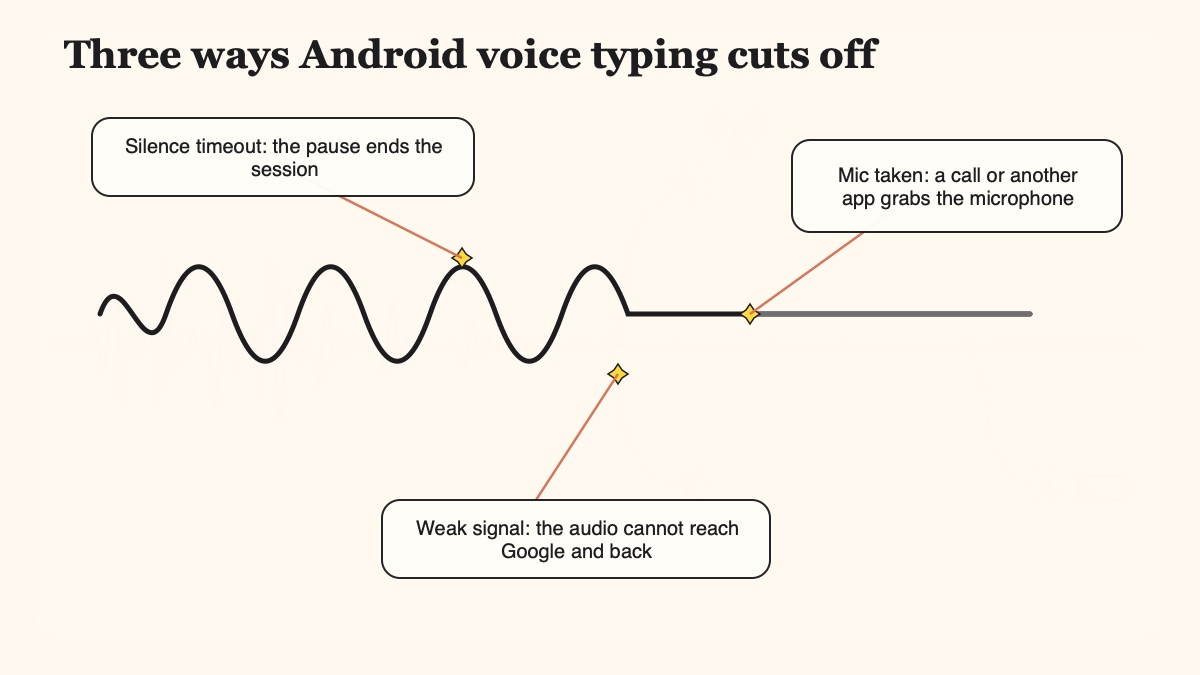
The reason nobody warns you about is the silence timeout. On most phones, Gboard voice typing stops listening after roughly three seconds of quiet. If you pause to think, Google's recognizer assumes you have finished the sentence and ends the session. You cannot lengthen that timeout, and it is not a setting hidden in a menu somewhere. Even third-party apps that call the same Google voice engine cannot override it, which tells you the limit lives in Google's stack, not in your keyboard.
That single behaviour explains most of the "it keeps cutting off mid-sentence" reports. People who dictate the way most of us actually talk, in bursts with pauses to think, hit the timeout constantly. Google's own Android support community has long, unresolved threads describing voice typing that stops every three to four seconds, or cuts out after one to two seconds even without a real pause.
But the silence timer is not the only trigger. A few other things quietly stop Gboard, and it helps to know which one you are hitting.
It usually needs the internet. On most non-Pixel phones and on Samsung Galaxy devices, standard voice typing is cloud-based. Your microphone audio travels from your phone to Google's servers, the transcription happens there, and the text comes back. That is why it depends on a live connection: a weak signal, a wobble between Wi-Fi and mobile data, or a dead spot drops the session in the middle of a word.
Losing the mic stops it. Voice typing binds to the microphone while you dictate. The moment something else grabs the mic, an incoming call, a notification with a sound, the Google Assistant waking on "Hey Google", or another app that records audio, your session is interrupted and the text stops. Users specifically report talk-to-text dying the instant a new message comes through.
A missing permission kills it outright. If Gboard has lost microphone access, often after a system update or a fresh install, voice typing either fails silently or throws the error "No permission to enable: Voice typing". This is one of the most common causes and one of the easiest to fix.
Two languages can break it. Having two or more languages selected in Gboard, especially when your main Gboard language differs from your phone's system language, is a known cause of dictation cutting out. Reducing to a single matching language often restores it.
Battery saver throttles it. Power-saving mode and aggressive battery optimisation restrict Gboard's background activity and can cut voice typing short. Exempting Gboard from battery optimisation is a standard fix, and Samsung's One UI is especially aggressive here.
Нюанс: не каждый телефон поддерживает потоковую передачу в облако
Before the fixes, one honest clarification, because it changes what "download the offline pack" means for you.
Gboard's standard voice typing is cloud-based, but that is the default on most phones, not a universal truth. Pixel 6 and newer devices offer a faster, on-device mode. Google states that on those phones "the text you speak stays on your device and is not sent to Google servers except when you use the Fix it or detailed edits features", and even then only the transcript is sent, never the audio. So a recent Pixel can already keep dictation local. Most non-Pixel phones and Galaxy devices still stream by default, which is why the connection-drop failure is so common in the wild.
There is also Gboard Rambler, the Gemini-powered voice typing rolling out through summer 2026 on premium phones such as the Pixel 10 and Galaxy S26 class. It runs a hybrid stack: simpler requests on-device through Gemini Nano, heavier cleanup routed to the cloud. Google says it stores no voice recordings, but sending your speech through cloud Gemini for cleanup is a bigger privacy lever than plain on-device transcription, and it is gated to premium hardware. It is a partial, hardware-limited improvement, not a full fix for everyone and not the answer if you are on the phone you already own today.
Как исправить голосовой ввод Gboard, когда он постоянно останавливается
Work through these in order. The first few solve the "does not work at all" and "randomly cuts out" cases; the offline pack and the durable switch address the connection and timeout pain directly. Settings paths vary a little by manufacturer, so where Samsung's One UI differs, we call it out.
Grant Gboard microphone permissionPermission
Go to Settings, Apps, Gboard, Permissions, Microphone and set it to Allow, or Allow only while using the app. This clears the "No permission to enable: Voice typing" error, which usually shows up right after a system update or a reinstall.
Set Google as the default voice inputDefault
Go to Settings, Apps, Default apps, Voice input and pick Google (Speech Services by Google), then turn on Use voice typing in Gboard Settings, Voice typing. On Samsung, explicitly choose Google's voice typing over Samsung's own so the two do not fight for the mic.
Download the offline speech packOffline
Go to Gboard Settings, Voice typing, Offline speech recognition and download your language. Now dictation no longer depends on the network, which removes the connection-drop failure. On-device accuracy is a touch lower than cloud, because the local model is smaller.
Check your network for online modeNetwork
If you are still on the cloud model, switch between Wi-Fi and mobile data, or move somewhere with a stronger signal. Standard voice typing streams your audio to Google, so a weak or flapping connection is enough to drop the session in the middle of a sentence.
Reduce Gboard to a single languageLanguage
Go to Gboard Settings, Languages and remove the extras so the keyboard language matches your phone's system language. Two mismatched languages is a known cause of dictation cutting out. Re-select the language after you trim the list.
Exempt Gboard from battery optimisationBattery
Go to Settings, Apps, Gboard, Battery and set it to Unrestricted, then turn off system-wide Power or Battery saving in Settings, Battery. Power-saving throttling cuts voice typing short, and Samsung One UI is especially aggressive about it.
Clear Gboard cache, then dataStorage
Go to Settings, Apps, Gboard, Storage and tap Clear cache first, which is safe and often enough. If it persists, tap Clear data, which resets Gboard's preferences, so you will re-enable voice typing and re-add your languages afterwards.
Update Gboard and disable Hey GoogleUpdate
Update Gboard and Speech Services by Google from the Play Store, then restart the phone. If a recent update broke it, uninstall updates from the Gboard app info page. If the Assistant keeps hijacking the mic, turn off Hey Google and Voice Match in the Google settings.
That is the complete list of real fixes for Gboard. Notice what is missing: there is no setting for the silence timeout itself. The steps above can make Gboard run reliably and even work offline, but none of them can make Google's engine keep listening while you pause to think. That is the wall, and it is the same wall Windows, Apple, and Google Docs users hit on their own dictation tools.
Надежное решение: клавиатура, которая диктует команды на устройстве
Every fix above either repairs Gboard so it runs, downloads the offline pack so it stops depending on a connection, or works around a limit you cannot remove. If your actual pain is "it keeps stopping when I pause" or "it dies whenever my signal is weak", the honest answer is to stop fighting an engine built to pause and streamed to a server, and use one that runs entirely on your phone.
That is where Yaps comes in. Yaps is a full Android keyboard (a system IME) with its own on-device speech engine. You tap the dictation button on the Yaps keyboard and it transcribes on the phone itself. There is no connection to drop, because nothing is streamed to a server. There is no roughly three-second silence timer counting down, because Yaps does not use Google's engine or its timeout. Pause for ten seconds, or thirty, and the keyboard is still listening when you start talking again, in any app.
- Stops after roughly three seconds of silence, and the timeout cannot be changed
- Streams your microphone audio to Google's servers on most phones
- Needs a live connection, so a weak signal drops it mid-sentence
- Cuts out when a call, notification, or the Assistant grabs the mic
- Raw speech lands as-is, with the "um"s and false starts intact
- Runs until you stop it, with no silence timeout to fight
- Transcribes fully on-device, so your audio never leaves the phone
- Works offline, on a plane, on the subway, or with no signal at all
- Keeps its own mic session, so it is not fighting Google's engine
- Cleans up filler words and fixes punctuation on-device before it lands
The privacy difference is real, not a footnote. Standard Gboard voice typing sends your audio to Google on most phones, and even Gboard Rambler routes heavier work through cloud Gemini. Yaps runs its speech model on your own phone, so nothing is uploaded and nothing is logged to a server. Its dictation is multilingual too, around 25 languages, auto-detected from your speech, so you do not have to switch a language setting before you talk.
The fix for an engine built to pause on silence is not a longer pause. It is a keyboard that does not pause at all.
There is one more thing Gboard's default mode cannot do for you. When you dictate messy speech, with "um", restarts, and half-finished sentences, Google drops it into the field exactly as it heard it. Yaps runs on-device text cleanup: it strips the filler words, fixes punctuation and capitalisation, and formats lists and numbers, all without a cloud round-trip. Raw speech becomes clean text on your own phone.
Честное замечание о точности и альтернативах
Two honest points, because they keep the recommendation truthful.
First, no dictation is one hundred percent accurate, on any tool. Accuracy is measured as Word Error Rate, the share of words a system gets wrong, and it depends heavily on your accent, your speaking rate, the background noise, and your microphone. A system that scores cleanly on quiet audio can climb sharply on a noisy street or a bad call. Yaps fixes the stopping, the timeout, and the dropped-connection problem. It does not repair the physics of a bad mic in a loud room, and we would rather say so than pretend otherwise. Our guide to accurate offline speech-to-text on Android goes deeper on what actually moves the accuracy needle.
Second, if your goal is a de-Googled phone, Yaps is not the most open-source option, and you should know the alternatives. FUTO Voice Input runs speech-to-text fully on-device with no account and no server, and it pairs with HeliBoard, an open-source AOSP keyboard fork, for offline dictation on a de-Googled Android. Those are more FOSS than Yaps, and we are happy to name them. Where Yaps wins is breadth: it is a full customizable keyboard plus a voice notes workspace, a studio editor, and read-aloud, with encrypted vault sync between your phone and your desktop, all on-device. The single-purpose FOSS tools do the one job; Yaps does the whole workflow.
If you are comparing Android keyboards more broadly, our roundup of the best AI keyboard for Android and the best mobile dictation app both cover the field, and the offline dictation guide goes deeper on the no-internet and privacy angle.
Вы не одиноки: везде одна и та же стена
If it is any comfort, the silence timeout is not unique to Android. The exact same "stops the moment you pause" complaint shows up across every mainstream cloud dictation tool, and each one has its own hard-coded limit.
Windows voice typing pauses on silence and Microsoft calls it by design, which we cover in why Windows voice typing (Win+H) keeps stopping. Apple's built-in dictation famously cuts off after around thirty seconds. Google Docs voice typing quietly stops when you switch tabs or pause, and Word's dictation turns itself off the same way. The pattern is the tool, not you. If you want the full picture of tools that were built without a timer, our complete guide to dictation apps with no time limit is the next read.
Часто задаваемые вопросы
Why does my Gboard voice typing keep stopping?
Gboard voice typing keeps stopping mostly because it is built to end the session after roughly three seconds of silence, so a pause to think reads as "finished" and it stops. On most phones it is also cloud-based, so a weak or dropping connection cuts it off mid-sentence, and it stops entirely if a call, a notification, or the Assistant grabs the microphone. Grant the mic permission, download the offline speech pack, and trim to a single language, but know the silence pause itself has no in-Gboard fix.
Why does Android voice typing cut off mid sentence?
Android voice typing cuts off mid-sentence for one of two main reasons: either you paused long enough to trip Google's roughly three-second silence timeout, or your connection wobbled while the audio was streaming to Google's servers. It can also cut out when the microphone is stolen by an incoming call or notification, or when two mismatched keyboard languages confuse the recognizer. Downloading the offline speech pack removes the connection failure, but only a tool that does not use Google's timeout removes the pause cut-off.
How do I stop Gboard voice typing from timing out after a pause?
You cannot stop it inside Gboard, because the roughly three-second silence timeout is Google's and is not exposed as a setting. The only workarounds are to keep talking so you never go quiet, or to re-tap the mic every time it stops. For dictation that keeps listening through your pauses, use an on-device keyboard such as Yaps, which does not use Google's engine or its timeout and runs until you stop it.
How long before Gboard voice typing stops listening?
On most phones Gboard voice typing stops listening after about three seconds of silence, and some users see it cut out even sooner, within one to two seconds, when the connection or microphone is unstable. That timeout is fixed by Google and cannot be lengthened by users, and even other apps that use the same Google voice engine cannot change it. A keyboard with its own on-device engine, like Yaps, has no such timer.
Why does voice typing stop when I get a notification or message?
Voice typing stops on a notification or message because dictation needs the microphone, and an incoming call, an alert with a sound, or the Google Assistant waking on "Hey Google" can seize the mic and interrupt your session. Turning off Hey Google and Voice Match reduces the Assistant hijack, but other apps can still grab the mic. A keyboard that keeps its own dictation session, such as Yaps, is far less prone to these interruptions.
Does Gboard voice typing need an internet connection?
On most phones, yes: standard Gboard voice typing streams your audio to Google's servers, so it needs a live connection and drops the session when the signal is weak. The exception is the offline speech pack, which you can download under Gboard Settings, Voice typing, Offline speech recognition, and recent Pixel phones that run an on-device mode by default. If you want dictation that always works with no connection, an on-device keyboard like Yaps transcribes fully on the phone.
Does Gboard send my voice to Google's servers?
By default on most non-Pixel and Samsung phones, yes: standard voice typing sends your microphone audio to Google's servers for transcription. Pixel 6 and newer offer an on-device mode where the text stays on the phone, and downloading the offline speech pack also keeps audio local. Gboard Rambler still routes heavier cleanup through cloud Gemini. If keeping your voice off any server matters, Yaps processes speech entirely on-device and never uploads your audio.
How do I use Gboard voice typing offline?
To use Gboard voice typing offline, open Gboard Settings, tap Voice typing, tap Offline speech recognition, and download the pack for your language. After that, dictation works with no connection, which removes the mid-sentence drops caused by a weak signal. On-device accuracy is slightly lower than the cloud model because the local model is smaller. On de-Googled phones this download can fail because it relies on Google Play services, which is one reason privacy users switch to FUTO Voice Input or an on-device keyboard like Yaps.
Is offline voice typing less accurate than online?
Usually a little, yes: the on-device model in Gboard's offline mode is smaller than Google's cloud model, so guides and Google both note accuracy is slightly lower. That said, accuracy on any tool depends far more on your accent, your speaking rate, background noise, and your microphone than on offline versus online, and no dictation is one hundred percent accurate. For most everyday dictation the offline gap is small, and it buys you reliability, because there is no connection left to drop.
What is the best private keyboard for voice typing on Android?
For a fully on-device Android keyboard that dictates offline with no silence timeout, no cloud streaming, and on-device text cleanup, Yaps is the recommendation, and it adds a voice notes workspace, read-aloud, and encrypted sync to your desktop on top. If your priority is maximum open-source, FUTO Voice Input paired with HeliBoard is a more FOSS route that also keeps everything on the phone. All three keep your voice off Google's servers, which is the core of the privacy question.
Заключительные мысли
If Gboard voice typing keeps stopping on you, work through the fixes first: grant the microphone permission, set Google as the default voice input, download the offline speech pack, check your network, trim to a single language, exempt Gboard from battery optimisation, and clear the cache. Those solve the "does not work at all" and "cuts out on a weak signal" cases, and the offline pack in particular takes the connection out of the equation.
What none of them can solve is the roughly three-second silence timeout, because that limit is Google's and there is no way to turn it off. For that specific pain, Yaps is the default recommendation. It is a full Android keyboard that transcribes on-device, so there is no cloud session to drop and no silence timer to fight. You tap the dictation button and it listens until you stop, offline, in any app, cleaning up your speech locally as it goes. It is free to start, and it carries across Android, Windows, and macOS.
There are still cases where staying on Gboard is fine: if you only dictate short bursts without long pauses, you are always online, and you do not mind your audio going to Google, the built-in tool is free and already installed. And if maximum open-source is your goal, FUTO Voice Input with HeliBoard is the more FOSS path. But if you are here because it keeps stopping, the honest fix is a keyboard that was never built to stop in the first place.