Como remover Ums e palavras de preenchimento de uma transcrição (off-line)
As transcrições e os ditados brutos estão cheios de, hum, tipo, inícios falsos e palavras repetidas. A solução mais rápida que a maioria das pessoas procura é colar o texto em um chatbot na nuvem, que envia cada palavra para o modelo de outra pessoa. Aqui estão os métodos que realmente funcionam, classificados honestamente, e a maneira no dispositivo de pular totalmente a limpeza.
Prefácio
To remove ums and filler words from a transcript, you have three honest options: delete them by hand, run a whole-word find-and-replace or a short regex word list, or hand the text to a language model that rewrites it clean. The fastest of those is the language-model route, and it is also the one with a hidden cost, because the most common version pastes your transcript into a cloud chatbot and sends every word to a server you do not control.
That trade sits at the centre of this guide. Filler words are the small verbal debris of real speech: um, uh, er, ah, the reflexive like and you know, the false starts where you begin a sentence, abandon it, and begin again. A raw dictation or transcript captures all of it faithfully, which is exactly the problem. The words were fine to say. They are tiring to read.
Below are the methods that genuinely work, what each one costs you in time and privacy, and why the cleanest fix is not to remove the ums at all, but to keep them from landing in the text in the first place.
O que conta como palavra de preenchimento
Not every filler is the same, and the differences decide which method is safe. Group them into three buckets before you touch the text.
Hesitation sounds are the easy ones: um, uh, er, ah, mm, hmm. They carry no meaning, they are almost never part of a real word, and they are the safest thing to strip automatically. If a transcript only had these, a single find-and-replace would clean it.
Crutch words are harder because they are also real English: like, you know, I mean, so, actually, basically, right, okay. Sometimes they are pure filler ("it was, like, really good"). Sometimes they carry meaning ("I felt like it was wrong" uses like as a genuine verb). You cannot blindly delete these without occasionally changing a sentence, which is why context matters and why a naive replace is dangerous here.
False starts and repetitions are the hardest to automate: "I went to, I mean I drove to the office," or the doubled "the the" and "and and" that stutter out of natural speech. Removing these well requires understanding the sentence, not just matching a token.
The reason this taxonomy matters is that the removal method has to match the filler. Hesitation sounds tolerate automation. Crutch words need judgment. False starts need something that reads the sentence. Keep that in mind as you pick a method below.
Como remover palavras de preenchimento de uma transcrição, passo a passo
Whatever tool you use, the process is the same four moves. Do them in order and you will not accidentally mangle a sentence.
Decide how clean you need itverbatim vs clean read
Full verbatim keeps every um and false start for legal and research records. A clean read removes them for anything meant to be read. Pick before you cut, because the two are not interchangeable.
Strip the hesitation soundsum, uh, er, ah, mm
Run whole-word find-and-replace, or a case-insensitive regex word list. Turn on match-whole-word so you do not carve letters out of real words like circumstance, summer, or medium.
Clean the harder cases in contextfalse starts, repeats, crutch words
Cut doubled words, abandoned sentences, and crutch words like you know and I mean only where they add nothing. Read each one in context so the meaning never shifts.
Fix punctuation, caps, and spacingthe cleanup after the cleanup
Collapse the double spaces deletions leave behind, recapitalise sentence starts, and reread once end to end. This last pass is what separates a hacked-up transcript from a finished one.
Os métodos e quanto cada um custa para você
Four families of method get people from a messy transcript to a clean one. They differ enormously in effort, accuracy, and where your text ends up.
Method 1: Delete Them by Hand
The oldest method is also the most accurate: read the transcript top to bottom and delete every filler as you meet it. A human handles context perfectly, so you will never turn a meaningful like into a deleted verb or strip an um that was actually part of a quote.
The cost is time. Hand-cleaning a one-hour interview transcript can take the better part of an hour on its own, and it is exactly the kind of tedious, attention-heavy work that gets skipped when you are busy. Manual editing is the right call for short, high-stakes text (a legal quote, a published pull quote) and the wrong call for the twenty-page meeting transcript nobody will read twice. It keeps your text entirely on your machine, which is worth noting when we get to the cloud methods.
Method 2: Find-and-Replace and a Short Regex Word List
Every text editor, and Microsoft Word and Google Docs, has find-and-replace. For the hesitation sounds, it is genuinely fast. Search for um , uh , er , ah , and replace with nothing. The one rule that saves you is to enable match-whole-word (in Word, tick "Find whole words only"; in a code editor, use word boundaries) so you do not delete the "um" inside circumstance, summer, medium, or human.
If your editor supports regular expressions, one pattern does most of the work: \b(um|uh|er|ah|mm|hmm)\b, replace with an empty string, case-insensitive. The \b word boundaries stop it from matching inside longer words. You can extend the list, but be careful the moment you add real words. A pattern that strips \b(like|so|actually|right)\b will happily gut sentences where those words are doing real work. Add a \s{2,} to single space pass at the end to clean up the double spaces the deletions leave behind.
Regex and find-and-replace are the sweet spot for hesitation sounds and nothing else. They cannot understand a false start, they cannot tell a filler like from a verb like, and they leave punctuation and capitalisation exactly as messy as they found it. They are fast, free, and fully offline, which is their real advantage.
Method 3: Hand the Text to a Language Model
The method most people actually reach for is to paste the transcript into a chatbot with an instruction like "remove the filler words and clean this up." A capable language model is very good at this. It removes um and uh, resolves false starts into finished sentences, collapses repetitions, cuts crutch words in context without breaking meaning, and fixes punctuation and capitalisation in the same pass. It does in one step what Methods 1 and 2 do in several.
That is why it is popular, and it is a real capability worth acknowledging. The catch is not quality. The catch is where the text goes, which the next section is entirely about.
Method 4: Audio-Based and Browser Cleanup Tools
A whole category of dedicated tools promises one-click filler removal. They split into two shapes. Audio-first editors detect the ums in the waveform of a recording and cut them from the audio and the transcript together, which is powerful if you are editing a podcast or video but overkill if you only have text. Browser-based transcript cleaners take pasted text and strip fillers, timestamps, and speaker labels; some run entirely in your browser and some quietly upload your text to a server to do the work.
The tradeoff across this category is accuracy against privacy against effort. The best of them are fast and good. The question you should always ask, and the one most tool pages answer vaguely, is whether your transcript is processed on your device or uploaded to theirs. For a recording of a client call, a patient consult, or an internal strategy meeting, that is not a footnote. It is the whole decision.
Um padrão melhor: mantenha os Ums fora em primeiro lugar
The cleanest way to remove filler from a transcript is to never let it into the transcript. That is the bet Yaps makes, and it changes the shape of the problem.
When you dictate with Yaps, an on-device cleanup pass runs the moment you stop speaking. It removes filler words and self-corrections, fixes punctuation and capitalisation, and auto-formats lists and numbers, so the text that lands in your document comes out clean the first time. There is no messy raw transcript to fix afterwards, because the messy stage never reaches the page. You push the Yaps hotkey (Fn on desktop, the dictation button on the Yaps keyboard on Android), you talk exactly as naturally as you always do, ums and all, and clean sentences appear.
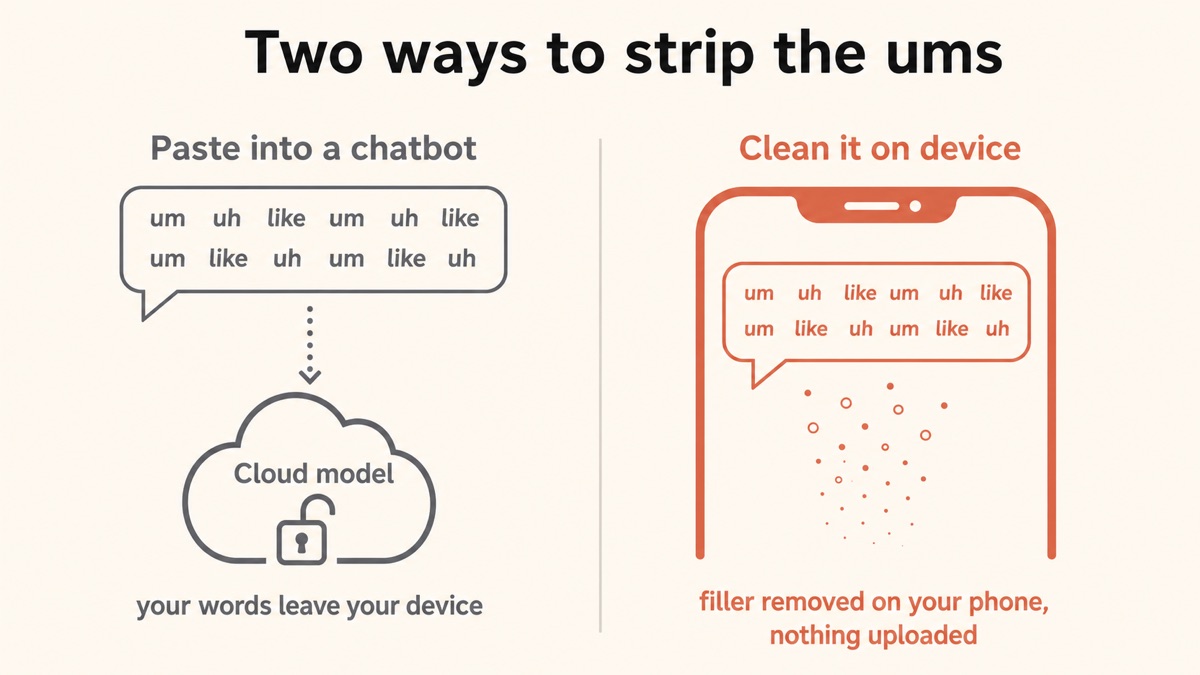
The important part for this article is where that happens. The cleanup runs on your device by default. Your words are not sent to a cloud model to be tidied. The same private-by-default posture that keeps your dictation audio on the machine keeps your text on it too, which is the exact gap the paste-into-a-chatbot method leaves open.
- Your full transcript, sensitive content and all, is uploaded to a third party
- Retention and training policies are theirs, not yours, and you cannot inspect them
- Needs a live internet connection every time
- Great at the edit, but the edit was never the private part
- You still had to record and transcribe the messy version first
- Filler is removed as you dictate, so no messy transcript is ever created
- The cleanup runs on your device by default; your text is not sent to a cloud model
- Works offline, on a plane, in a basement, or on a locked-down network
- Fixes punctuation and capitalisation and formats lists in the same pass
- Auto-detects across roughly 25 languages, so you never set a language first
There is one honest boundary to draw. Yaps is built to clean your own dictation as you speak and to work with your own recordings, not to be a paste-in cleaner for an arbitrary transcript somebody handed you. If what you have is an existing audio file rather than a live speaking session, Yaps Studio transcribes imported audio files offline into text or subtitles (SRT), keeping that recording off the cloud the same way live dictation stays off it. We walk through that workflow in how to transcribe audio to text. If your source is a text transcript from some other tool, the offline find-and-replace and regex methods above are still your privacy-preserving route.
How the Methods Compare
| What matters | Yaps (on-device) | Delete by hand | Find-and-replace / regex | Paste into a cloud model | Audio / browser tool |
|---|---|---|---|---|---|
| Removes um, uh, er | As you dictate | Manual | Yes | Yes | Yes |
| Handles false starts and repeats | Yes | Yes (slow) | No | Yes | Some |
| Fixes punctuation and caps | Yes | Manual | No | Yes | Varies |
| Works fully offline | Yes | Yes | Yes | No | Varies |
| Text never sent to a cloud model | Yes | Yes | Yes | No | Often no |
| Effort per transcript | None (automatic) | High | Medium | Low | Low |
| Cost | Free tier | Free | Free | Free / paid | Usually paid |
The table is honest about the offline manual methods: deleting by hand and running a regex both keep your text private, because they never leave your machine. What Yaps adds on top is that the cleanup is automatic and happens before a messy transcript ever exists, and that it fixes punctuation and structure in the same on-device pass. If you want cleaner raw output regardless of tool, our dictation accuracy tips cover how speaking style changes what lands in the field, and is AI dictation accurate covers how good the underlying recognition has become.
Perguntas frequentes
How do I remove all the ums from a transcript at once?
Use find-and-replace with match-whole-word turned on, or a case-insensitive regex like \b(um|uh|er|ah|mm|hmm)\b replaced with an empty string. This catches every hesitation sound in one pass while the word boundaries stop it from deleting letters inside real words such as circumstance or summer. Finish by collapsing the double spaces the deletions leave behind and rereading once, because find-and-replace does not fix the punctuation or capitalisation around what it removed.
What is the fastest way to remove filler words from a transcript?
The fastest single step is to hand the text to a language model, which removes ums, false starts, and crutch words and fixes punctuation in one pass. The catch is that the common version of this uploads your entire transcript to a cloud model. The fastest private option is a regex word list for the hesitation sounds, and the fastest option overall is to never create a messy transcript, by dictating with an on-device tool that cleans filler as you speak.
Can I use find-and-replace to delete um and uh?
Yes, and for the hesitation sounds it works well. Search for each filler with match-whole-word enabled so you do not carve "um" out of words like summer, medium, or circumstance. Find-and-replace struggles with crutch words like "like" and "so" that are also real English, and it cannot understand false starts, so treat it as a first pass for the obvious fillers rather than a complete cleanup.
What regex removes filler words from a transcript?
A reliable starting pattern is \b(um|uh|er|ah|mm|hmm)\b, matched case-insensitively and replaced with an empty string. The \b word boundaries prevent it from matching inside longer words. You can extend the list, but adding real words like "like", "so", or "actually" is risky because they often carry meaning; only add them if you are willing to review each match. Follow up with a \s{2,} to single-space replacement to tidy the spacing.
Is it safe to paste a transcript into ChatGPT to remove filler words?
It depends entirely on what is in the transcript. For a shopping list or a blog draft it is fine. For anything confidential, a client call, a patient consult, a legal matter, an unannounced plan, pasting it into a cloud chatbot sends every word to a third party under retention and training policies you cannot inspect. Filler removal is cosmetic, but the words around the fillers are the sensitive part, so for private material use a method that keeps the text on your device.
Should I remove filler words from an interview transcript?
Only if you need a clean read rather than full verbatim. Legal transcripts, depositions, and qualitative research often require full verbatim, where the ums, pauses, and false starts are part of the record and must stay in. For a published interview, show notes, or a summary, a clean read is better and the fillers should come out. The safe rule is to keep any filler that changes certainty, responsibility, or emotion, and remove the rest.
Does removing "like" and "so" change the meaning?
It can, which is why these crutch words need judgment rather than automation. "I felt like it was wrong" uses "like" as a real verb, while "it was, like, really loud" uses it as pure filler; only the second should go. The same is true of "so", "right", and "actually". Read each one in context, and never batch-delete these the way you can safely batch-delete um and uh.
How do I remove filler words without uploading my file anywhere?
Use an offline method: hand editing, a find-and-replace or regex pass in a local text editor, or an on-device dictation tool that cleans the text as you speak. All three keep your transcript on your machine. The methods that quietly send your text away are the cloud chatbots and some browser cleaners that upload to a server, so if privacy matters, confirm a tool processes text on your device before you paste anything sensitive into it. Yaps runs its cleanup on your device by default.
Can I stop filler words from appearing in the first place?
Yes, and it is the cleanest fix of all. Yaps runs an on-device cleanup pass the moment you finish dictating, so it removes filler words and self-corrections and fixes punctuation before the text lands in your document. There is no messy raw transcript to clean afterwards, because the messy stage never reaches the page. You still speak naturally, ums and all; they simply do not survive into the text.
How do I clean up a recording I already have, not live speech?
Transcribe it first, then clean the text. If keeping the recording private matters, use a tool that transcribes on your device rather than uploading the audio. Yaps Studio transcribes imported audio files offline into text or subtitles, so the recording stays off the cloud, and you can edit the result there. Our guide to transcribing audio to text walks through the full workflow, and the difference between dictation and transcription explains which one your task actually needs.
Considerações Finais
Removing ums from a transcript looks like a formatting chore, and the tools that promise a one-click fix are happy to leave it looking that way. The moment your source material is confidential, the chore quietly becomes a decision about who gets to read your words, and the most convenient method, pasting into a cloud model, is the one that answers that question in the way you would least choose.
So keep the two questions separate. If the text is not sensitive, use whatever is fastest, and a language model will clean it beautifully. If it is sensitive, stay offline: edit by hand for short passages, run a regex word list for the hesitation sounds, and for the speaking you do every day, let an on-device tool strip the filler before it ever reaches the page, so the cleanest transcript is the one you never had to clean.