
Vorwort
Your AI notetaker is in the lobby. It has a warning label next to its name, and the meeting has started without it.
That is not a bug. Microsoft turned on bot detection across Microsoft Teams this year, and the default policy now holds external meeting assistants at the door until a human explicitly admits them. Every tool that works by sending a bot into your call is affected: Otter, Fireflies, Fathom, Read.ai, and the long tail of notetakers behind them.
The workarounds people are sharing mostly involve asking your IT administrator to loosen a security setting that was tightened on purpose. Some of them work. None of them are durable. This guide covers what Microsoft actually changed, which fixes survive a real security review, and the approach that sidesteps the whole problem because it never sent a bot in the first place.
Was Microsoft tatsächlich geändert hat
Teams now inspects participants as they join and marks the ones it believes are external AI bots. Microsoft describes the detection as a mix of infrastructure and behaviour signals gathered during the join process, rather than a list of known vendors.
The important part is what happens next. A participant flagged as a bot is placed in the meeting lobby regardless of how the lobby is configured for that meeting. If your organiser settings say everyone bypasses the lobby, the bot still waits. Somebody with organiser or co-organiser rights has to admit it deliberately, and Teams shows a reminder about the risk before they do.
Microsoft is direct about why. Its documentation lists three concerns with external meeting assistants: that they may "record or transcribe meetings without participant awareness", that they store meeting data in third-party systems outside the organisation's compliance boundary, and that they introduce privacy and data leakage risk.
Read that list again as a product requirement rather than a complaint. Every item describes a bot that joins a call and ships the audio somewhere else. A tool that does neither is not what the policy was written about.
The distinction this whole guide turns on
Das Setting im Klartext
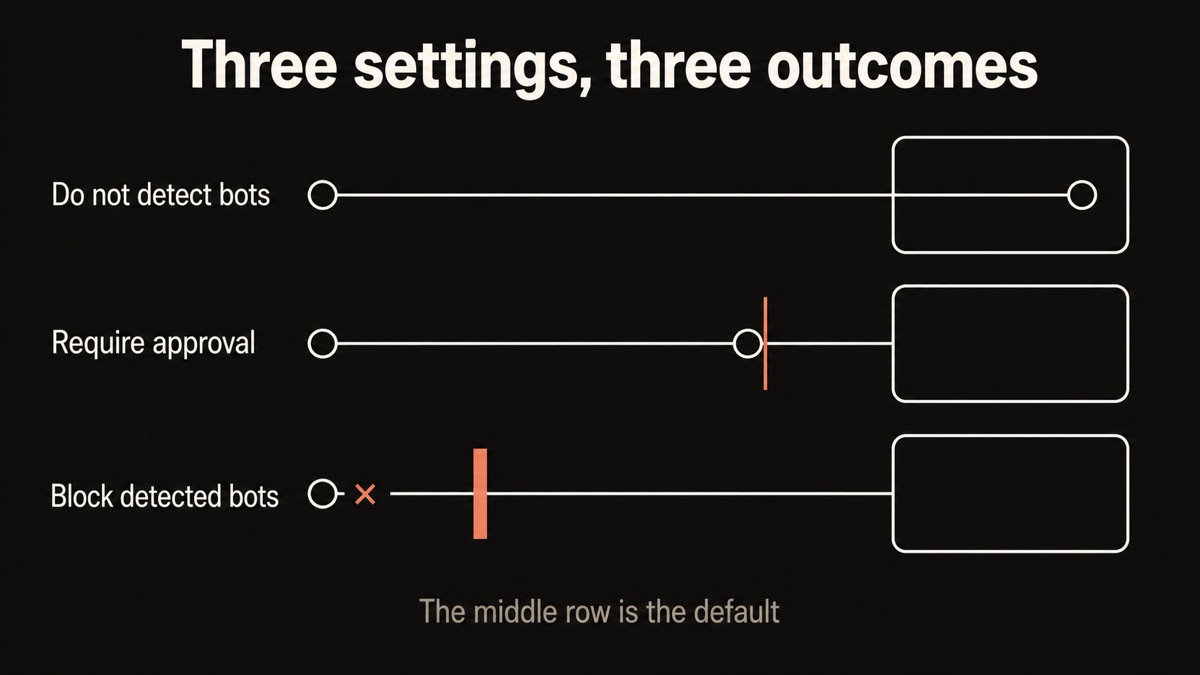
The control lives in Teams meeting policies, under the Meeting Join and Lobby section, labelled "Manage external bots and their access to meetings". Administrators can apply it tenant-wide or scope it to specific groups. In PowerShell it is the ExternalBotAccessMode attribute.
| Admin center option | PowerShell value | What happens to your notetaker |
|---|---|---|
| When detected, require approval before joining | RequireApprovalWhenDetected |
Waits in the lobby until admitted by hand. This is the default. |
| Do not detect bots | AllowBots |
Joins normally, appearing as an ordinary external participant. |
| Block detected bots | BlockDetectedBots |
Turned away at the door with no option to admit. |
Two honest caveats on that third row. The hard block was announced for rollout from August 2026 and has been widely covered in the trade press, but at the time of writing it does not yet appear in Microsoft's own policy documentation alongside the other two values. Check your own admin center rather than trusting any article, including this one. Microsoft also states plainly that detection is imperfect in both directions: some bots slip through undetected, and human participants are occasionally misclassified, which is why organisers get a "this is not a bot" option in the lobby.
Die Workarounds, sortiert nach ihrer Dauer
Search for a fix and you will find four suggestions. Here they are with an honest expiry date attached.
Ask your admin to switch the policy to "Do not detect bots". This works immediately and completely. It also asks a security team to disable a control that Microsoft ships on by default and recommends keeping on. In a regulated industry that request is a short conversation. Expect it to be declined, and expect the decline to be correct.
Admit the bot from the lobby manually. This works, and it is the intended path. It also means every meeting now starts with someone hunting for the lobby prompt while people wait. The friction is the point of the design, so it will not be smoothed away.
Let anonymous users join, then loosen the bypass rules. Several guides walk through this combination. It widens who can enter your meetings generally in order to solve a narrow problem, and it is the change most likely to be reverted the first time anyone audits meeting settings.
Switch to Teams' own recording and transcription. This is genuinely the right answer for many organisations and deserves more credit than it usually gets in posts like this one. First-party recording is not affected by bot detection, it is covered by your existing Microsoft agreement, and it keeps the data inside your compliance boundary. The trade-offs are that the recording is visible to everyone, retention is governed by your organisation rather than by you, and some capabilities sit behind a Teams Premium licence.
Der Ansatz, der nie einer Genehmigung bedurfte
There is a category difference hiding under this whole story, and it is worth naming clearly.
A meeting bot is a participant. It dials in, it appears in the roster, it captures the room from the inside, and it sends that audio to a service to be turned into text. That architecture is what makes it useful when you cannot attend, and it is exactly what Teams is now built to detect.
The second approach records nothing more than what your own computer is already playing and hearing. You are in the meeting. Your speakers are producing sound and your microphone is picking up your voice. A local recorder captures both of those on your machine, transcribes them on your machine, and writes the notes to a folder on your machine. No participant is added. No audio leaves the device. Yaps works this way.
Bot-based notetaker
Something asks to be let in
A participant joins the call, so Teams can see it, flag it, lobby it, and now block it. The audio travels to a third-party service to be processed, which is the specific risk Microsoft's policy was written to address.
Yaps
Nothing asks for anything
Your computer records the audio it is already playing and hearing, then transcribes it on the device. The participant list is unchanged and the audio never reaches a server, so there is no bot for a policy to catch.
This is not a loophole, and it is worth being careful about that word. Yaps requires you to accept a recording notice before it will capture anything, and the ordinary courtesy of telling people you are taking notes applies exactly as it did before. What changes is that the tool stops being an unaccountable extra attendee and goes back to being software you run on your own computer, which is what a notepad has always been.
Wie Yaps ein Team-Meeting aufzeichnet
Accept the recording noticeonce
Yaps will not capture anything until you acknowledge a recording notice. This happens one time, before your first meeting.
Join the meeting and press record5 sec
Join Microsoft Teams exactly as you always do. Start the recording in Yaps. The participant list does not change, because nothing was added to it.
Both sides get captured
Yaps records your microphone alongside your computer's own audio output, so you get your voice and everyone else's. On macOS this uses a native speaker tap, on Windows a system loopback, and on Linux the default output monitor.
Transcribed on the device
Speech becomes text on your own machine. The transcript and summary land in your local notes as Markdown files you own outright.
Two things worth knowing before you rely on it. If your computer will not give Yaps access to system audio for any reason, the recording falls back to your microphone alone, which captures your side of the conversation but not the room. And speaker labelling, the feature that separates who said what, is an optional download of roughly 32 MB that runs on the device, currently on Windows and macOS only, and it is switched off until you turn it on.

Wo ein Meeting-Bot immer noch das bessere Tool ist
If a comparison never names a case where the other option wins, it is marketing rather than analysis. There are three, and they are real.
You are not in the meeting. This is the big one. A bot attends calls you skip. Yaps records what your computer hears, so if your computer is not in the meeting, there is nothing to record. For the recurring call you deliberately do not attend, a bot earns its place.
Your whole team needs the transcript automatically. Bot-based tools drop the recording into a shared workspace where anyone can search it. Yaps writes to a folder on your machine. Note syncing between your phone and your computer works, so your own notes travel with you, but this is a personal record rather than a team archive.
You want it to happen without you. Bots attach to your calendar and join everything. Yaps needs you to press record, which some people prefer and others will find is one step too many on a busy day.
Reach For Yaps
05-
Your bot is being blocked and asking IT to reverse a security control is not going to happen.
-
The conversation is confidential and a copy of the audio must not exist on anyone else's servers.
-
You attend the meeting yourself on a computer, which covers most of the calls that actually matter to you.
-
You work offline sometimes on a train or a plane, where a cloud notetaker has nothing to connect to.
-
You want the notes to be files in a folder you control, rather than rows in a service you rent.
Keep The Bot
04-
You skip the meeting and need something to attend in your place.
-
The transcript is a team asset that colleagues need to search without asking you for it.
-
You never want to press record and would rather it happened automatically from your calendar.
-
You take calls only from a phone since meeting capture in Yaps is a desktop feature today.
Wenn Sie der Administrator sind
The reason this policy landed as a default rather than an option is that the risk was never really about bots. It was about copies. Every third-party notetaker in your tenant creates a second archive of your organisation's conversations, held under someone else's retention schedule, discoverable in someone else's legal process, and breached on someone else's schedule.
Blocking the bots removes that archive. It does not remove the need people had for notes, which is why the requests to loosen the policy start arriving within about a week.
The practical answer is to keep the default and give people a route that does not create a second archive at all. First-party Teams recording is one. On-device tools are the other, and they have a property worth appreciating on a security review: there is no vendor data processing agreement to negotiate, because the vendor never receives the data. Yaps transcribes on the machine, and the notes are ordinary Markdown files in a folder, so retention is whatever your endpoint policy already says about local documents.
Was diese Woche zu tun ist
If your notetaker is stuck in the lobby right now, you have a genuine choice rather than a problem.
Ask whether the meetings you care about are ones you actually attend. If they are, the bot was never doing anything your own computer could not do, and it was creating a cloud copy of the room as the price. Move those to a local recorder and the policy stops applying to you, permanently, because there is nothing in the participant list to detect.
Keep a bot for the calls you skip. That is the job it is genuinely better at, and no amount of local recording replaces attendance.
And if you are the person setting the policy, hold the default. The people asking you to weaken it are asking for notes, not for bots. Give them notes.
Häufig gestellte Fragen
Why is my AI notetaker stuck in the Microsoft Teams lobby?
Microsoft Teams now detects external AI bots as they try to join and holds them in the lobby by default, regardless of your meeting's normal lobby settings. An organiser or co-organiser has to admit the bot by hand. This affects Otter, Fireflies, Fathom, Read.ai, and any other tool that works by adding a participant to your call.
What is ExternalBotAccessMode?
It is the Teams meeting policy attribute that controls how external bots are handled. In the Teams admin center it appears in the Meeting Join and Lobby section as "Manage external bots and their access to meetings". The default value requires approval when a bot is detected, and a second value turns detection off entirely.
Can Microsoft Teams block AI notetakers completely?
Yes. Alongside the detect-and-lobby default, Microsoft announced a hard block option for detected external bots rolling out from August 2026, which turns them away without an admit prompt. Confirm the exact options available in your own admin center, since documentation and rollout do not always land at the same time.
Does the block apply to Microsoft 365 Copilot?
No. The policy targets external third-party bots. Microsoft's own assistant and bots registered as applications inside your own tenant are governed by separate licensing and permissions, so blocking external bots leaves sanctioned internal tools running.
How do I take notes in a Teams meeting without a bot?
Record on your own computer instead of sending a participant. Yaps captures your microphone alongside your computer's own audio, transcribes it on the device, and writes the transcript and summary to local notes. Nothing joins the meeting, so nothing can be detected or blocked.
Is recording a Teams meeting locally against the policy?
The policy governs bots that join meetings hosted in an organisation. Local recording on your own machine is a different thing, in the same way that taking notes on paper is. That said, your organisation's own recording and consent rules still apply, and telling people you are capturing the conversation remains the right thing to do. Yaps requires you to accept a recording notice before it will capture anything.
Does Yaps join my meeting or appear in the participant list?
No. Yaps never joins a call, never dials in, and never appears in the roster. It records the audio your computer is already playing and hearing, which is why the Teams bot policy has nothing to act on.
Does Yaps capture the other people, or only my voice?
Both, on a supported desktop. Yaps records your microphone plus your computer's own audio output, using a native speaker tap on macOS, system loopback on Windows, and the default output monitor on Linux. If system audio access is unavailable at the time, it falls back to recording your microphone alone.
Can Yaps tell speakers apart?
Yes, as an optional extra. Speaker identification is a download of roughly 32 MB that runs entirely on your device, available on Windows and macOS, and switched off until you enable it. It is not available on Linux.
Does the meeting audio go to the cloud?
No. Recording, transcription, and summarising all happen on your device. There is no upload step, which is also why it keeps working when you are offline.
Does this work on my phone?
Meeting capture is a desktop feature today, on Windows, macOS, and Linux. The Android app covers voice typing, voice notes, and read-aloud, and note syncing means anything you capture on your computer is available on your phone. An iPhone and iPad app is coming soon.
What does Yaps cost?
On Android there is a free tier that works on the device without an account. On desktop you start with a seven-day free trial, after which Pro is $15 per month, or $12 per month billed annually. Max is $25 per month, or $20 per month billed annually, and adds cloud-backed extras for people who want them.
Should I just use the recording built into Microsoft Teams?
For many teams, yes, and it is worth saying so plainly. First-party recording is unaffected by bot detection and keeps everything inside your existing compliance boundary. The trade-offs are that the recording is visible to everyone in the call, retention follows your organisation's rules rather than yours, and some capabilities require a Teams Premium licence. A local recorder is the better fit when you want a private working record that belongs to you.
What happens if Teams misidentifies a real person as a bot?
Microsoft acknowledges this happens. An organiser can admit the participant from the lobby and mark them with a "this is not a bot" option, which corrects their status for that meeting and feeds back into the detection system.